

- No labels
Cloud text translation plugin for memoQ
This plugin provides a way for globalese by memoQ Cloud users to look up individual sentences or pre-translate entire files from memoQ version 8 or later.
This functionality is only available to globalese by memoQ Cloud users. If you have an on-premise installation of globalese by memoQ, you can use the legacy Document translation plugin for memoQ
Version information
The Cloud text translation plugin is available for following memoQ versions:
memoQ 9.12 and above: available as public plugin (part of the memoQ installation)
memoQ 9.10.x: available as private plugin.
memoQ 9.9.x: available as private plugin. Below 9.9.10, configuration file maintenance is required in case of server installations. Please refer to the memoQ documentation (section Testing a new plugin in memoQ server) for more details.
memoQ 9.8.x: available as private plugin. Configuration file maintenance is required in case of server installations. Please refer to the memoQ documentation (section Testing a new plugin in memoQ server) for more details.
memoQ 9.7.x: available as private plugin. Below 9.9.20, configuration file maintenance is required in case of server installations. Please refer to the memoQ documentation (section Testing a new plugin in memoQ server) for more details.
.NET 4.8 is required for all versions if installed on memoQ server
Prerequisites and pricing
With this plugin, users can consume globalese by memoQ Text translation services from memoQ. For more details about how to enable an engine for text translation, see Text translation using deployed engines.
Pricing is based on the number of translated source text characters. The actual price is listed on the Pricing page under “Text translation”.
Downloads
Installing the plugin
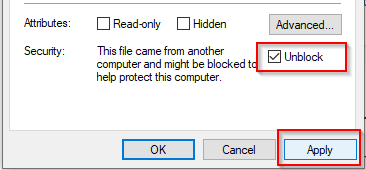
Download the latest version of the plugin installer file. After downloading, unblock it by right-clicking on the file and choosing Properties. Activate the Unblock checkbox, and click on Apply.
No changes are necessary in the MemoQ.exe.config configuration file (cf. Document translation plugin for memoQ).
Choose the target version. In case you have several versions of memoQ installed on your computer, the installer will show the different versions and the path.
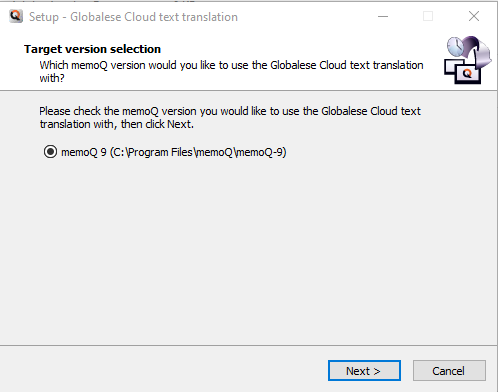
Click on Next and on Finish to finalize the installation.
Configuring a globalese by memoQ engine
Open the Resource console.
Choose Create new.
Enter a meaningful name for the engine. We suggest you include the language pair in the name (you’ll thank yourself later).
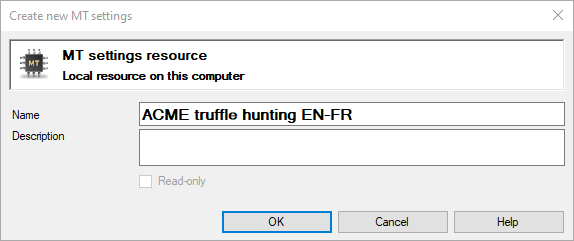
Click OK.
Select globalese by memoQ Cloud text translation plugin.
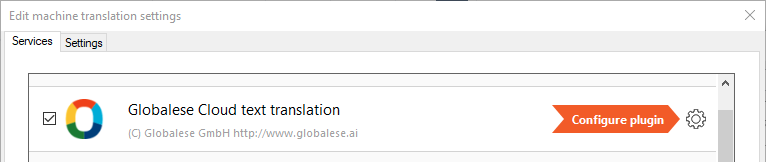
Enter the base URL of your globalese by memoQ system (i.e. the URL you use to log in to globalese by memoQ in your browser, similar to
https://mycompany.globalese.ai) and your API key. The globalese by memoQ base URL can be retrieved by clicking on the About section on the bottom right corner of any globalese by memoQ page.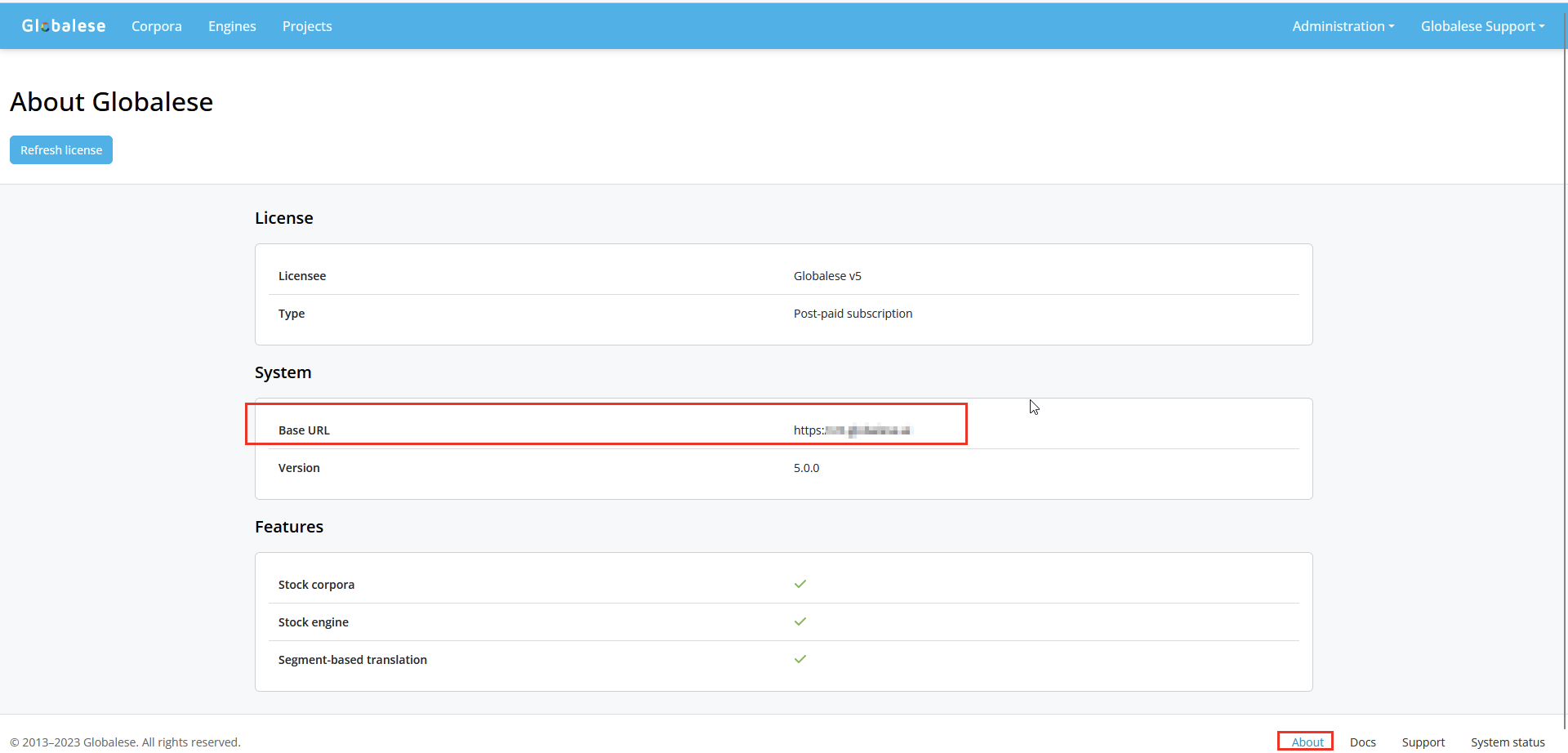
The API key of your user can be retrieved in your globalese by memoQ system from your user profile (<your user name> → Profile). You can copy the API key to the clipboard by clicking on the clipboard icon.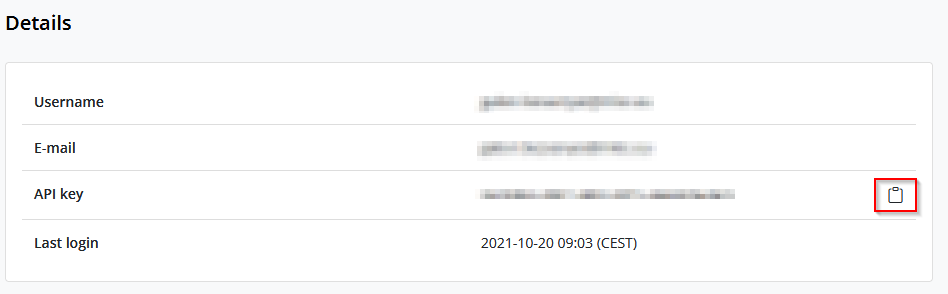
For more details, see also Text translation using deployed engines.
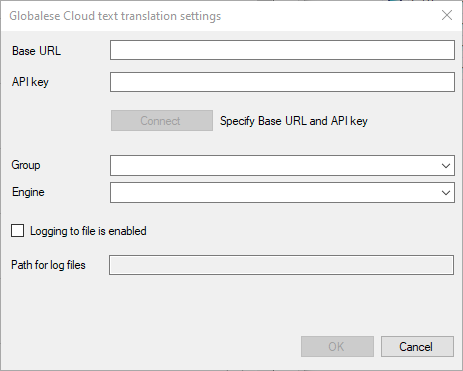
Click Connect.
Select an engine. Note that you can only select engines that have active (i.e. deployed) instances.
Click OK.
Your engine is now set up in memoQ. You can use it for segment-based lookup or for pre-translation.
It is typical to have to wait for the first translations coming back from a globalese by memoQ engine. This is due to what is called “cold start”, and is related to scaling the deployed engine.
Wait times should come down to normal as soon as you start continuously sending sentences to globalese by memoQ (either by working on a file or pre-translating files).
When using the public on a memoQ server, please note that the plugin creates the log file automatically in the server folder specified when creating an MT plugin resource in memoQ (field Path to log file). This path should not contain any spaces, otherwise the plugin will not work properly.
Changelog
v1.0.0
The new globalese by memoQ text translation funcionality is available in memoQ.
v1.0.4
Languages and ID are visible next to each engine in the dropdown.
v1.0.5
Bug fix
v1.0.6
Fix for log archiving