

Automated analysis report settings
When there's a change in a project, memoQ can automatically calculate a new analysis report. This works in projects that you create from project templates.
For example, you can set up a project template to run the analysis automatically after a new document is imported into the project. Then memoQ will do this in all projects that you create from that project template.
How to get here
- Open the Resource Console
 .
.To set up a template for online projects or resources: Choose your memoQ TMS at the top of Resource console, then click Select
 .
. - On the left, click Project templates
 .
. - Select the template you want to edit.
- Under the list, click Edit.
-
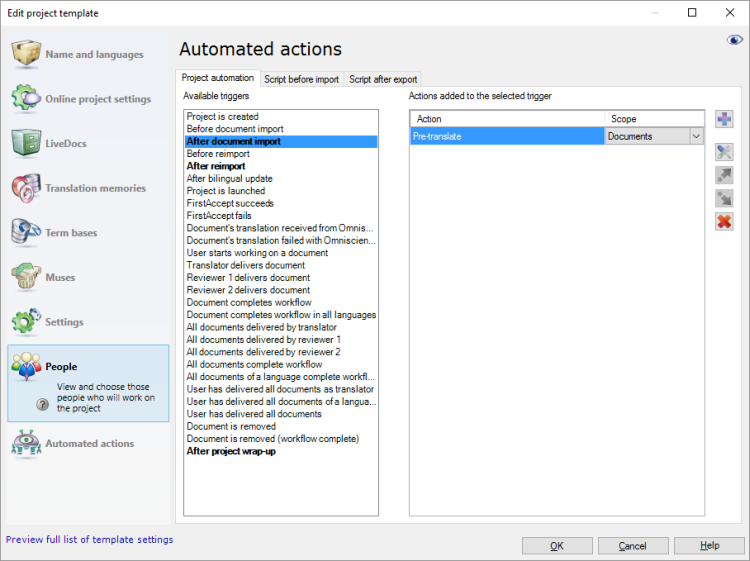
Click the Project automation tab if you don't see it at first.
-
Choose one of the Available triggers and click the Add new action
 icon next to the Actions added to the selected trigger column.
 -
From the list in the Select actions you want to add to the trigger dialog, select Create analysis report or Create analysis report including MT counts.
-
Under the list, click Add.
The Automated analysis report settings window appears.
If you can't add this action because it's already there: Under Actions added to the selected trigger, click Create analysis report. Next to the list, click the Settings  button. The Automated analysis report settings window appears.
-
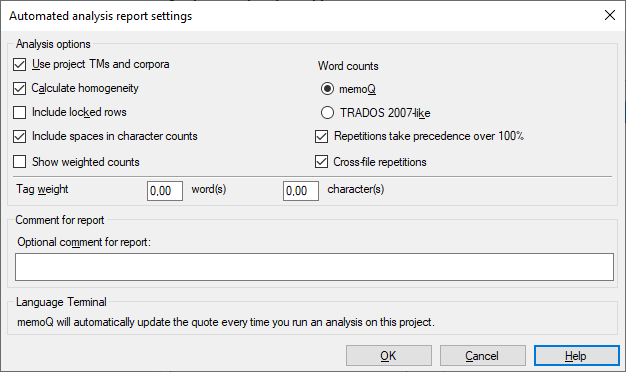
These are the options available when you set up a template for local projects and the eye in the Edit project template window is closed:
-
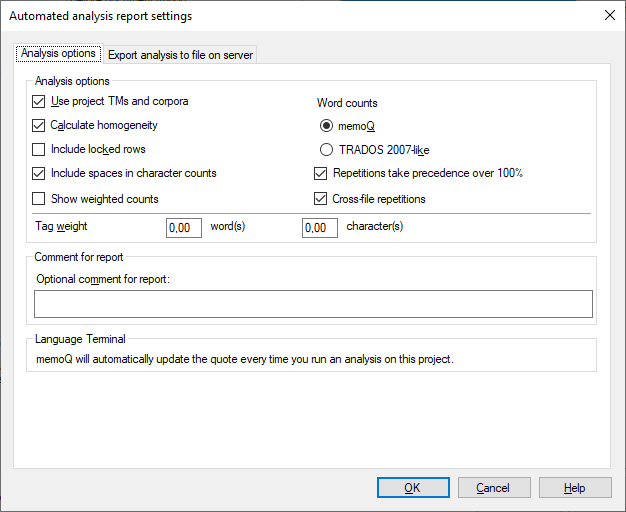
These are the options available when you set up a template for online projects - or for local projects when the eye in the Edit project template window is open:
-
These are the options available when you set up a template for creating an Analysis including MT counts report:

What can you do?
 Choose the match rate, TMs, and LiveDocs corpora - Analysis including MT counts report only
Count how much a single translator needs to work on the project
Use these options to update the word counts in the project after new or changed documents are imported.
These settings are for local projects.
To learn why you need to calculate this, see the topic about creating an analysis report manually.
- Select the Use project TMs and corpora checkbox. This makes sure that memoQ checks the segments in every translation memory and LiveDocs corpus in your project.
- Select the Calculate homogeneity checkbox. memoQ counts internal fuzzy similarities, too. That is, memoQ predicts what matches you will get during translation while your translation memory is filled up.
Use this only if you really work on this job alone: Don't select the Calculate homogeneity checkbox if others will also work on this translation.
- Clear the Include locked rows checkbox: If you received documents that contain locked rows, most of the time your client means that you mustn't touch those.
- Make sure that the Repetitions take precedence over 100% checkbox is selected: Use this option if a consistent translation is more important than using all possible matches from the translation memory.
- Make sure that the Cross-file repetitions checkbox is selected: Since you will work on this translation on your own, you can use a segment that is repeated from another document in the project. Clear this checkbox only if others will work on this job, too.
Count how much a team of translators need to work on the project
Use these options to update the word counts in the project after new or changed documents are imported.
These settings are recommended for online projects.
If several translators work on a set of documents you can't predict when a translator will translate a segment or a document. You can't know who will be able to use translations from others. As a result, you can't predict what internal repetitions will be used.
Bottom line: If the translation is done by a team rather than one single translator, you can't have a precise estimate of the work in advance. To find out how much the work actually is, use Post-translation analysis after the translation is finished.
To set this up for your team in the Create analysis report window, use these options:
These settings are for an online project. Use them in a local project, too, if you are a project manager, and you plan to publish the project on a server, or to distribute the project using packages.
- Select the Use project TMs and corpora checkbox. This makes sure that memoQ checks the segments in every translation memory and LiveDocs corpus in your project.
- Clear the Calculate homogeneity checkbox. memoQ shouldn't count internal fuzzy similarities because we don't know the order in which segments are translated.
- Clear the Include locked rows checkbox: If you received documents that contain locked rows, most of the time your client means that you mustn't touch those.
- Make sure that the Repetitions take precedence over 100% checkbox is selected: Use this option if a consistent translation is more important than using all possible matches from the translation memory.
- Make sure that the Cross-file repetitions checkbox is cleared: We don't know who will be able to use repetitions.
Count how much an editor will work on the entire project
Use these options to update the word counts after translators deliver their work.
These settings are for online projects.
An editor - or proofreader - needs to work on the translation that is already there. Their work doesn't depend on translation memory matches. They will work on the entire text, so it makes no sense to analyze the work through translation memories.
- Clear the Use project TMs and corpora checkbox.
- Clear the Calculate homogeneity checkbox.
- If the editor needs to review all the translation, not just the newly translated segments: Select the Include locked rows checkbox.
- Select the Repetitions take precedence over 100% checkbox.
- Clear the Cross-file repetitions checkbox.
Work with a character count rather than a word count
In most cases, especially when you translate from English, the work is measured by the word count of the source text. But in some markets or subject fields, translation is measured by the number of characters.
In the resulting table, memoQ always gives you the character count as well as the word count. In most cases, you need to count the spaces, too.
Make sure that the Include spaces in character counts checkbox is selected. memoQ counts every space separately. Two spaces right after each other count as two, not one.
Fine-tune the count if the documents contain a lot of tags: Use tag weights
Some document formats bring along a lot of inline tags in the text. Such formats are XML, HTML, PDF, InDesign, sometimes Microsoft Word - and potentially many others.
Inserting these tags in the right places can be a lot of work. The analysis report must reflect that.
By default, memoQ counts tags, but in a separate column. The number of tags is not easy to include in the final word count.
To set this up, you can count tags as words or characters.
You can also count this with the characters. Type a number in the character(s)characters box. For example, if you type 2, memoQ counts two characters after every tag.
Write a description for each analysis report
Normally, memoQ creates several analysis reports in a project - for different purposes and different reasons. Some of the reports are created automatically. For example, when a new document is added to the project, the work needs to be recalculated, because the total word counts and potentially the repetitions change.
When there are multiple reports, you need to know when and why each of them was created. When you create a report, make sure you always type a description in the Optional comment for report box.
Don't use Trados 2007-like word counts: By default, memoQ counts words like Microsoft Word does. Use the Trados 2007-like word counts only if your client still works with an early Trados version.
Save the report automatically on a server
You can save the report automatically on a server in online projects. While the project is running, you can download the reports from the server, from the project file store.
Use an online template, because this action only makes sense in an online project. If you still use a local template, you need to open the eye in the Edit project template window. (Click it if it's not open.) After that, you can add the Create analysis report action to the project template.
- Click the Export analysis to file on server tab.
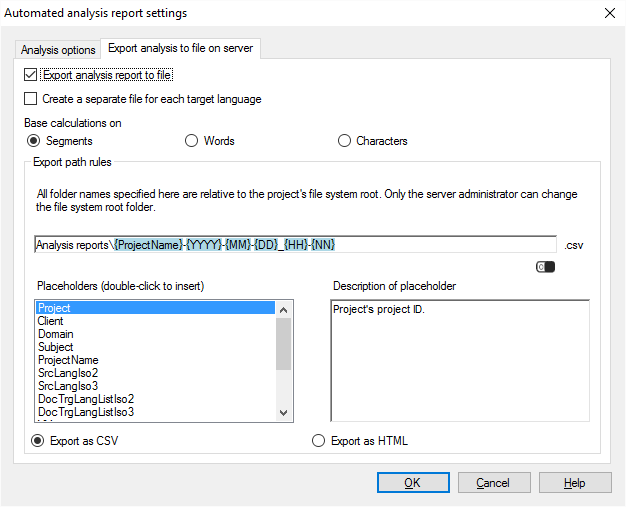
- Select the Export analysis report to file checkbox.
- If the project has several target languages, and you need separate billing data for each target language: Select the Create a separate file for each target language checkbox. memoQ TMS creates as many report files as the number of target languages in the project.
- In most cases, you use word counts: Click the Words radio button. Unless you are using character counts: Then click the Characters radio button.
- Under Export path rules, set up the folder and name of the report files. You can use placeholders, so that memoQ TMS takes the name from the name of the project, the date or time when the report was created, the project languages, and so on. memoQ fills in the placeholders with actual details in ongoing projects that are created from this project template.
There is a fixed main folder: memoQ TMS saves the report to the project's file store. This is a folder on the server. Only a system administrator can change the location of that folder.
Normally, memoQ TMS saves the reports in a folder called Analysis reports, and the name is put together from the name of the project, and the date and time when the report is created.
You can change this: You can add folders to the path, or you can use different placeholders in the name. You can also use these placeholders in the names of the folders. Don't change Analysis reports, though.
Click to expand the list of placeholders you can use
- Project: Contents of the Project field of the project. This is not the project name.
- Client: Contents of the Client field of the project. Normally, the name of the end-user of the translation.
- Domain: Contents of the Domain field of the project. Normally, the narrower subject or the genre of the source documents.
- Subject: Contents of the Subject field of the project. Normally, the subject field of the source documents.
- ProjectName: The full name of the project. memoQ and memoQ TMS use this name to identify the project.
- SrcLangIso2: Two-letter code of the source language of the project.
- SrcLangIso3: Three-letter code of the source language of the project.
- TrgLangListIso2: List of two-letter codes of the target languages of the project.
- TrgLangListIso3: List of three-letter codes of the target languages of the project.
- YY: The year when the report is created, in two digits.
- YYYY: The year when the report is created, in four digits.
- MM: The month when the report is created, in two digits.
- DD: The day when the report is created, in two digits.
- HH: The hour when the report is created, in two digits.
- NN: The minutes when the report is created, in two digits.
- Finally, choose the format of the report:
When you finish
To add the action to the project template: Click OK.
The report won't run when you click OK: To get the analysis report automatically in an ongoing project: Create a project from this project template, and start working on it. Check the Reports or the Overview / Reports section for the new reports.
To return to the Edit project template window, and not add an action to the project template: Click Cancel.