

Configure crash dump
This tool helps system administrators create memory dumps when memoQ TMS encounters a critical error and crashes.
How to get here
When you do this, memoQ TMS will already be installed on the server computer.
- Log in to the memoQ TMS server computer through Remote Desktop.
-
Windows may ask you to confirm to run the program. Click Yes or Run.
-
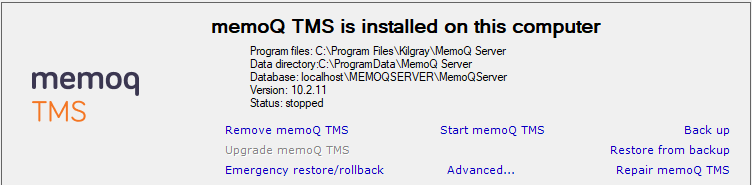
The memoQ TMS deployment tool window opens.
-
Click Stop memoQ TMS. Wait until memoQ TMS stops.
-
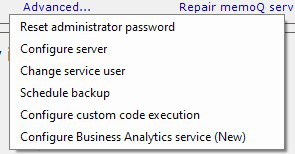
Click Advanced:
-
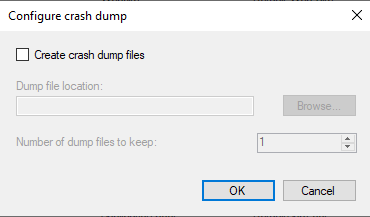
From the menu, choose Configure crash dump. This window opens:
What can you do?
-
To allow memoQ TMS to create a memory dump when it crashes, select the Create crash dump files checkbox.
-
To choose a folder for the dumps, click the Browse button, and navigate to the folder.
-
To keep more than one dump, set a higher number in the Number of dump files to keep box.
Note that dump files can take up a lot of disk space.
When you finish
Click OK.