

Replace metadata
Metadata is the additional information stored with terms in a term base, such as status, domain, client, or other custom fields. You can replace metadata for selected entries or update all entries in the term base at once.
How to get here
- Open memoQweb in a web browser and log in.
- Click the Qterm sidebar. The Qterm - Home page appears.
-
Open the term base you want to work with.
The first time you open a term base, memoQ asks you to choose languages - choose them from theLanguage and the Second languagedropdowns.
-
If you want to open this term base always with the same filter, choose it from the Filter dropdown.
-
Click Browse term base. The Browse terms page opens.
-
Select the entries you want to update using the checkboxes next to them.
If you don’t select any entries, the metadata update applies to all entries in the term base.
 at the top of the page,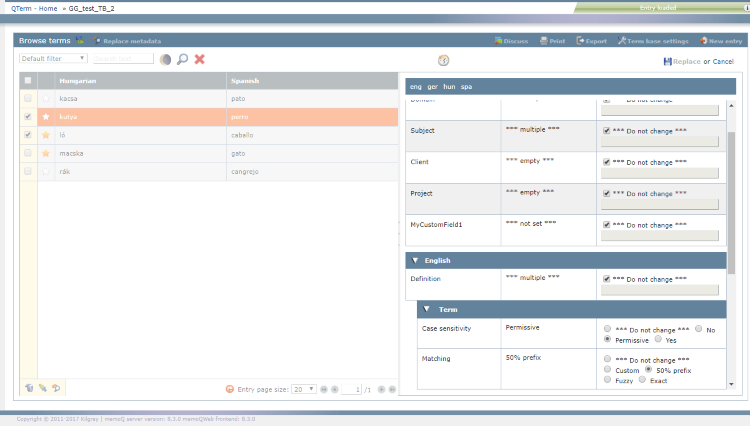
What can you do?
 View metadata:
Metadata fields are grouped by level: Entry, Language, and Term.
Each field consists of a table that contains the following columns:
-
Field name - shows the available metadata fields. You can manage these fields on the term base’s Definition page.
-
Current value - shows the current value for the selected entries.
Possible values are:
-
empty or not set - the field is empty for all selected entries.
-
multiple - the selected entries contain different values for this field.
-
the actual value - all selected entries contain the same value.
-
new value - this is where you choose the new value for the field.
By default, all fields are set to Do not change, except when all selected entries already share the same value.
-
Change metadata
How you update a field depends on its type:
- For the Text, Number or Date fields: Clear the Do not change checkbox, then enter the new value.
- For the True/False or Pick list fields: Choose the new value from the available options.
Change how metadata is displayed
When you open an entry in the Browse terms page, its metadata appears in the entry details panel.
By default, memoQ shows entry metadata in a compact layout where all entry-level and term-level information appears in a single continuous block.
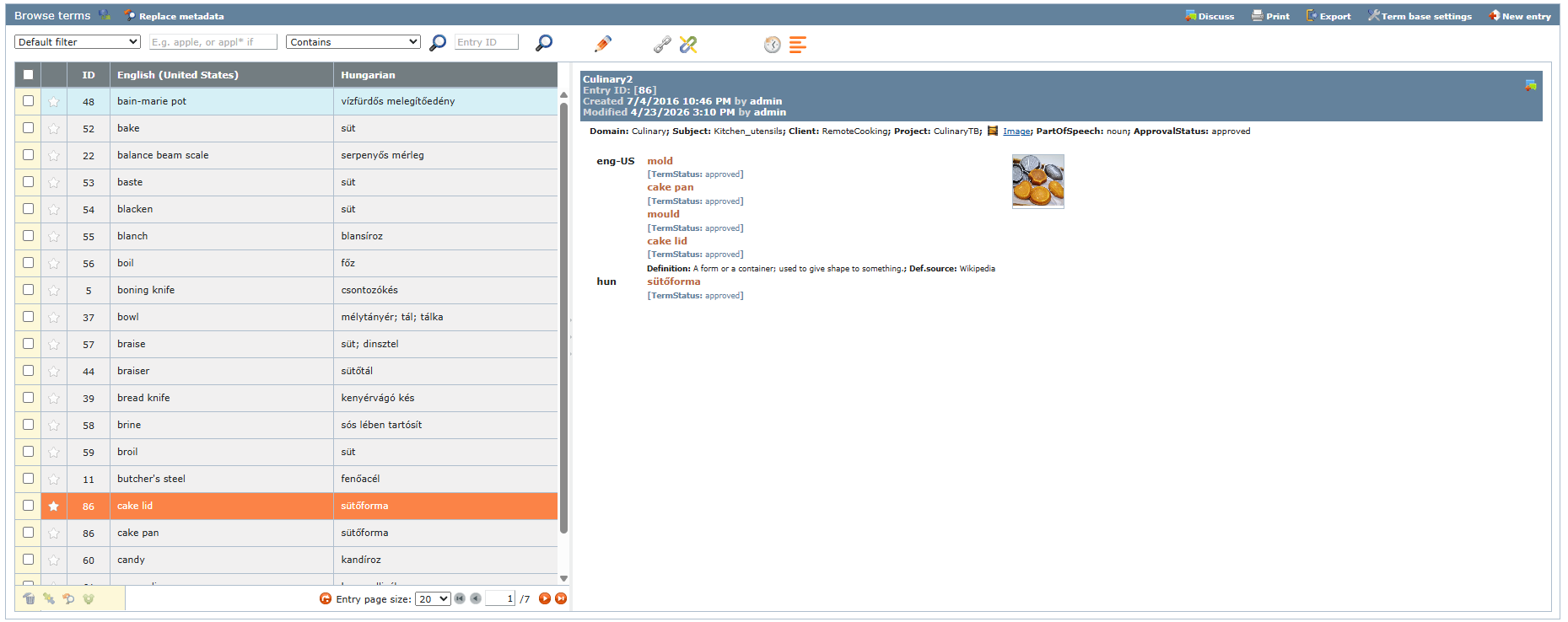
To change how metadata is displayed, click the Structure content  icon.
icon.
The entry details panel reloads and shows each metadata field on a separate line. The icon also changes to indicate the new structure.
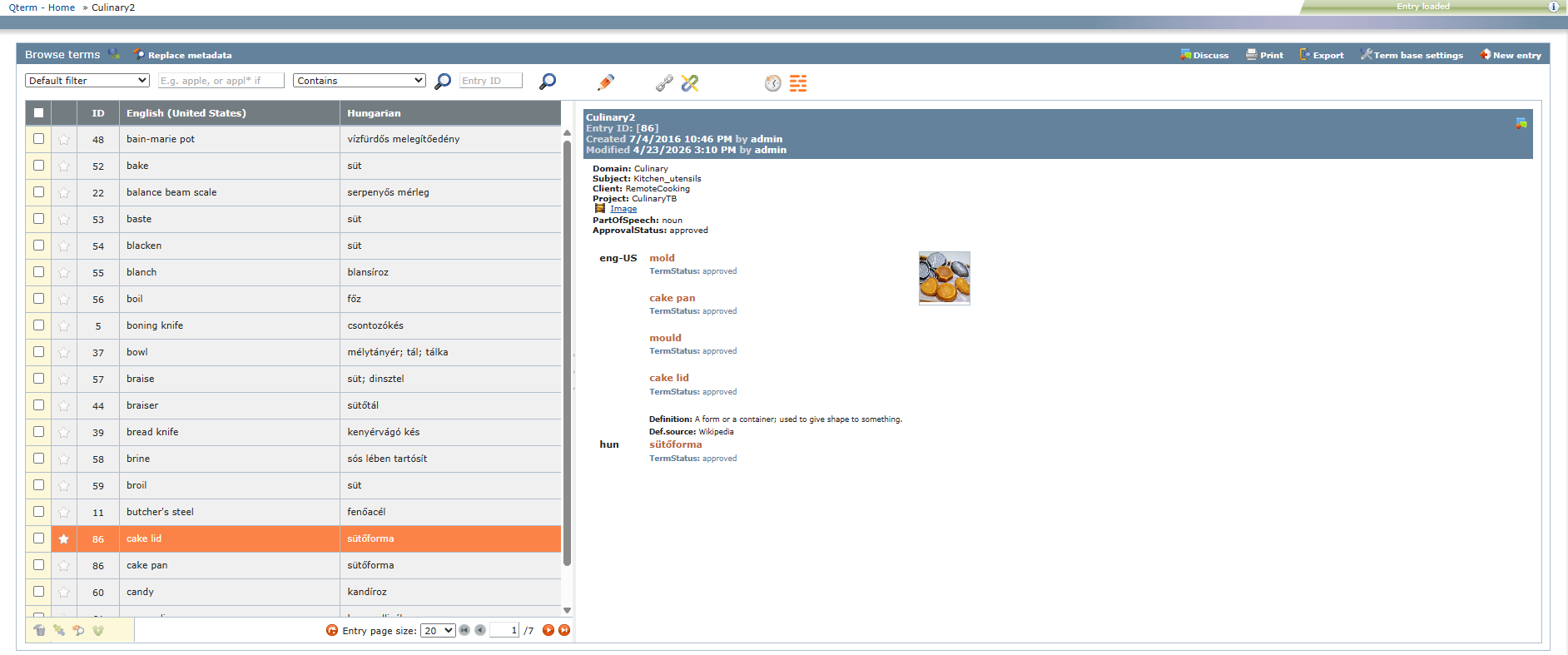
This makes it easier to scan individual attributes such as status, definitions, and term-level information without reading through long text blocks.
The selected layout is saved separately for each user, so the same layout appears the next time you log in. At the same time, the compact layout remains available for users who prefer a denser view where all information is grouped together.
When you finish
To save the changes and return to the Browse terms page: In the top right corner, click Replace. Review your changes in the Confirmation window, and click the Replace button.
To not save the changes and return to the Browse terms page: In the top right corner, click Cancel.
To return to the Qterm - Home screen: At the top left, click Qterm - Home.
To sign out of Qterm: In the top row, click Sign out.