

Export unfinished documents in memoQ editor
This window appears when you try to export a document that isn't fully ready yet.
How to get here
-
Under the Document tab, choose Export translated document.
-
If your document is not fully done yet, memoQ displays the Export unfinished document? window.
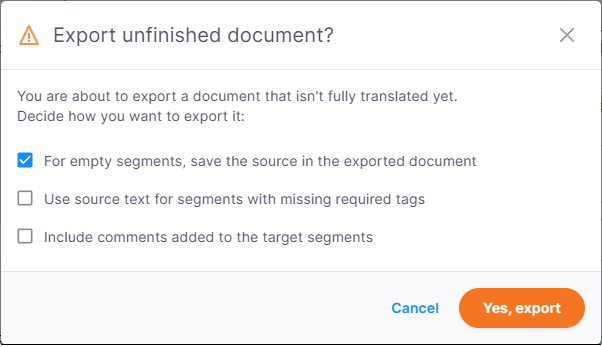
Before exporting, memoQ checks the document. It may be considered unfinished if it contains:
A segment is considered confirmed when its status is TR confirmed, R1 confirmed, or R2 confirmed.
What can you do?
-
Fix the issues before exporting
If you want to review the document first, click Cancel.
When you return to the document, look for empty segments, segments that weren't confirmed, or any tag errors.
-
Export the document anyway
Need the document right away? You can still export it, but you need to tell memoQ how would you like to do that. Depending on the issue memoQ discovers, you can:
-
For empty segments, save the source in the exported document
If there are untranslated segments, memoQ editor can copy the source text into the exported document so they aren't left empty.
-
Use source text for segments with missing required tags
If your translation is missing some required tags, you can choose to use the source text in those segments instead.
-
Include comments added to the target segments
This option appears only if you work with .docx documents.
You can include comments added to target segments. This is useful if you want to share your work with someone else or ask for feedback.
If you choose this option, you can select which types of comments to include: Information, Warning, Error, or Other.
-
When you finish
To export the document with the selected options: Click Yes, export.
To go back to the document, and not export it: Click Cancel.