

Branding
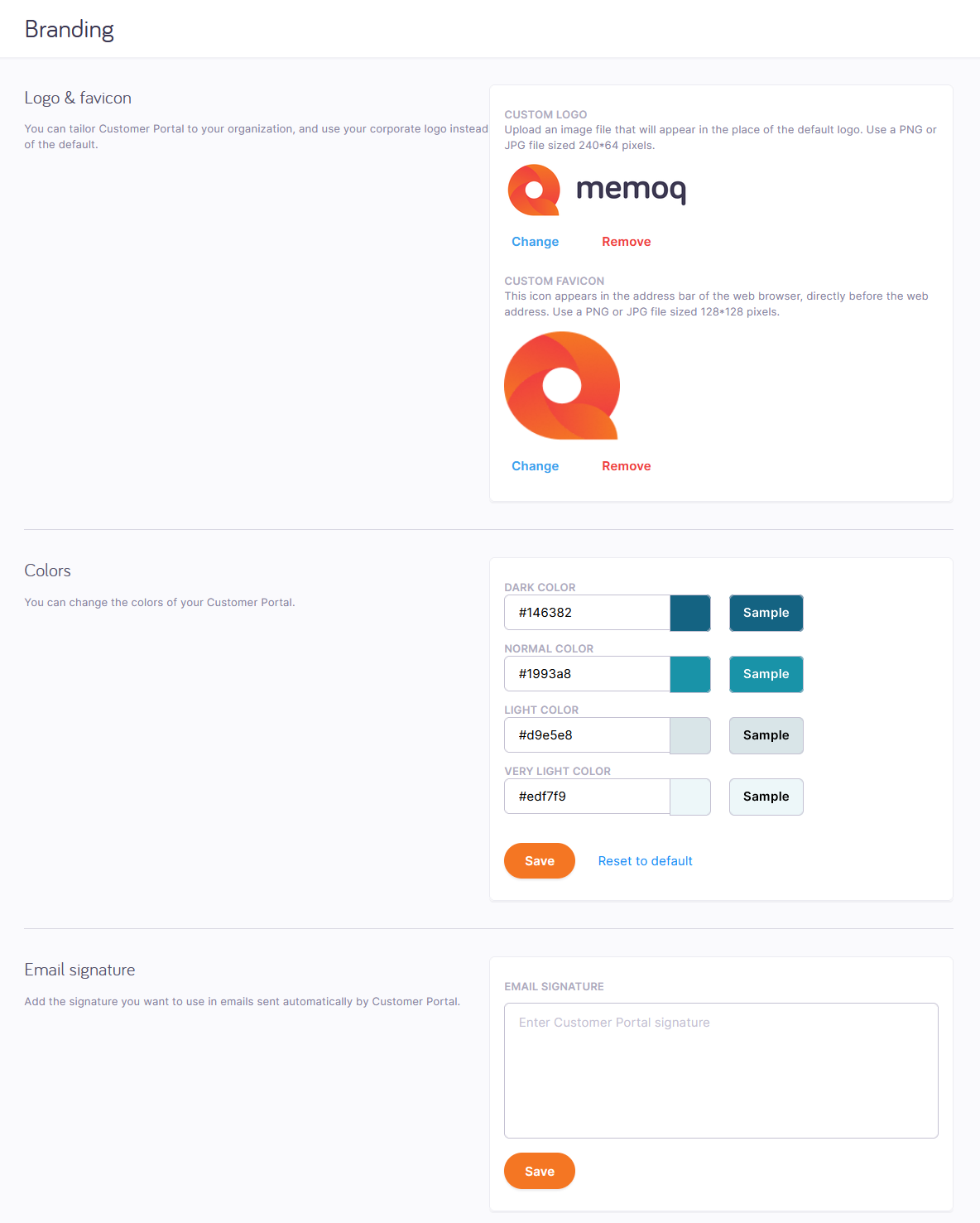
On the Branding page, you can set the colors and logos displayed on customer portal.
How to get here
- Log in to memoQweb as an administrator.
- On the left sidebar, click Admin.
- Under Admin, click Customer portal.
- Under Customer portal, click Branding. The Branding page opens.
-
What can you do?
Change customer portal's logo or favicon
Do this in the Logo & favicon section. Click the Change link under an image. Drag the new image file to the area marked with the  icon. Or, browse to the image file, select it, and click the Open button. To close the upload area without changing the image, click the Cancel link.
To remove the logo or the favicon, click the Remove link under the image.
Change customer portal's colors
Do this in the Colors section. You can set the colors using hexadecimal RGB color codes. To choose a color or find out its code, visit this page.
To save your changes to this section, click the Save button at the bottom of the section.To switch back to the original colors, click Reset to default.
Set up the email signature for emails that customer portal sends to customers
Do this in the Email signature section. Write the signature into the text box. Use Unicode characters only. The signature must be shorter that 1024 characters.
To save your changes to this section, click the Save button at the bottom of the section.When you finish
If you finished setting up customer portal, close the browser window.