

Create or edit a Markdown filter in memoQweb
The CommonMark syntax has very complicated rules about how to write some elements - so that conversion to HTML works as clearly as possible. This topic doesn't go into all the details. To learn more, read the latest version of the CommonMark specification.
How to get here
- Log in to memoQweb as an administrator or a project manager.
- On the left sidebar, click Resources.
Under Resources, click Filters.
- Click the Create button in the top right corner of the page.
- In the dropdown, click Create new filter.
In the Create filter window, fill in the Name and Description fields.
In the Filter type dropdown, select Markdown filter.
Click Continue at the bottom of the page.
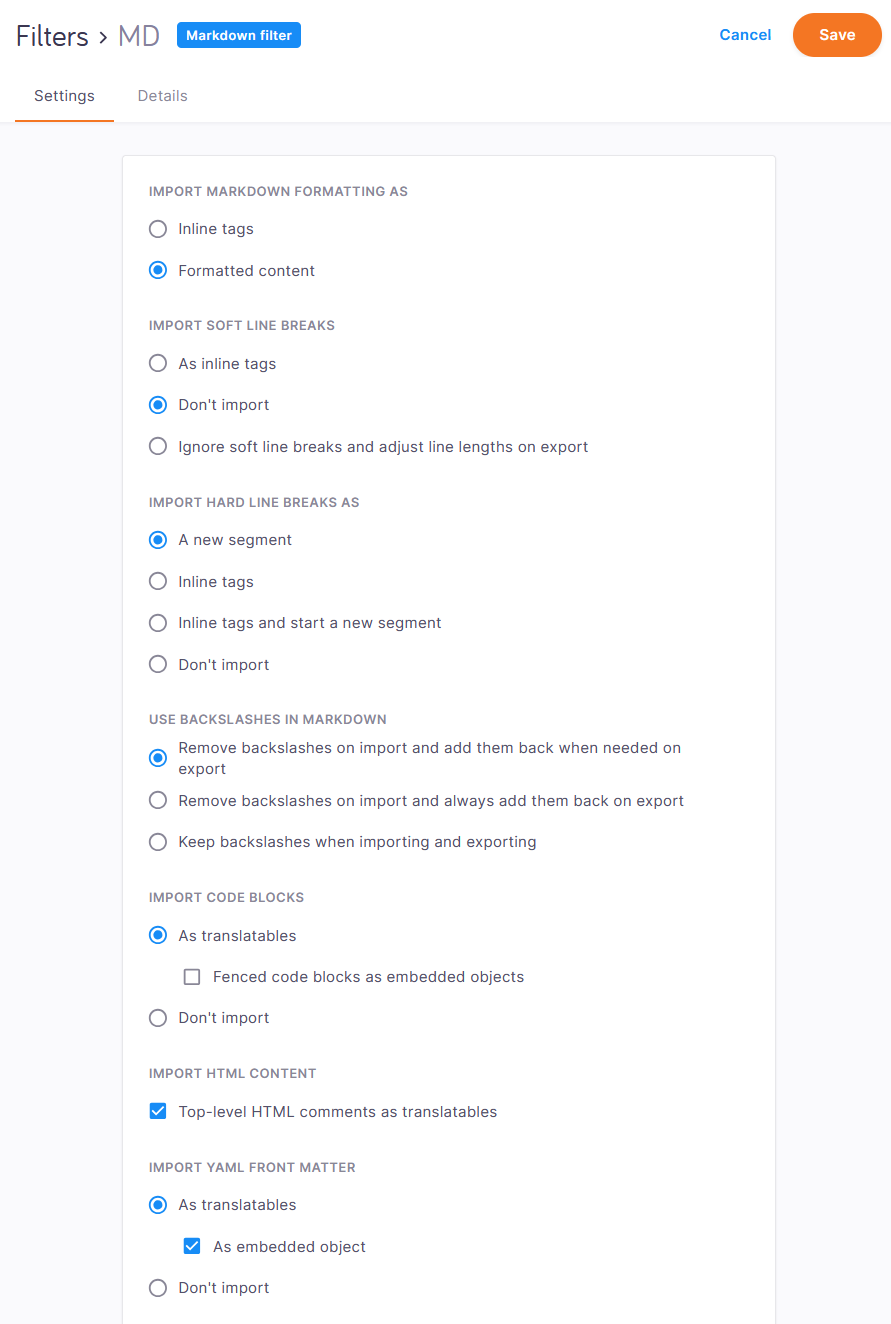
The filter's page opens.
What can you do?
Change the filter's name and description
At the top of the page, click the Details tab.
Change the contents of the Name and Description fields as needed.
Choose how to handle formatting
Markdown uses special characters like asterisks * and underscores _ for formatting text. The basic rule is: a pair of single asterisks or underscores means italic (same as the <em> HTML tag), and a pair of double asterisks or underscores means bold (same as the <strong> HTML tag).
To see such formatting as inline tags (
 ): Choose the Inline tags radio button.
To see such formatting in the translation grid (
 ): Choose the Formatted content radio button.
memoQ shows the most common types of text formatting in the translation grid. Markdown has more. memoQ shows those as gray inline tags.
Choose how to handle line breaks
Soft line breaks (when the line ends with a newline character):
To see a
<br>inline tag where soft line breaks are: Choose the As inline tags radio button.To ignore soft line breaks: Choose the Don't import radio button.
To ignore soft line breaks but produce more even-looking text in the translated file: Choose the Ignore soft line breaks and adjust line lengths on export radio button.
Hard line breaks (when the line ends with two spaces or a <br> HTML tag):
To start a new segment on every hard line break: Choose the A new segment radio button.
To see a
<br>inline tag where hard line breaks are: Choose the Inline tags radio button.To have both: Choose the Inline tags and start a new segment radio button.
To ignore hard line breaks: Choose the Don't import radio button.
Choose how to handle escape characters
Markdown uses special characters like asterisks (*) and underscores (_) for formatting text. When you need to have such characters in the translation but you don't want them to format anything, you can put a backslash character before them to escape them: \* becomes *, or \_ becomes _ when you view the formatted Markdown file.
In the Use backslashes in Markdown section, choose a radio button:
Remove backslashes on import and add them back when needed on export
Remove backslashes on import and always add them back on export
Keep backslashes when importing and exporting
With this setting, memoQ imports the backslash characters from the source. To keep the same formatting, make sure to keep them in the translation.
Choose how to handle code blocks
There are two kinds of code blocks in Markdown:
an indented code block contains one or more neighboring lines that begin with four or more spaces.
a fenced code block is a section of code enclosed between an opening and a closing fence. Each fence starts with at least three backticks (`) or tildes (~). Use the same character for both fences, and make sure the closing fence is at least as long as the opening one.
memoQ always imports indented code blocks. Settings under the Import code blocks section define what happens to fenced code blocks.
To import fenced code blocks into the main translation document: Choose the As translatables radio button and leave the Fenced code blocks as embedded objects checkbox cleared.
To import fenced code blocks into separate documents under the main translation document: Choose the As translatables radio button and select the Fenced code blocks as embedded objects checkbox.
To ignore fenced code blocks: Choose the Don't import radio button.
Even if you don't import fenced code blocks for translation, they will be visible in the preview.
Choose how to handle HTML content
Markdown files can have HTML content inside. When the HTML content is in blocks of neighboring lines, you can import them as separate embedded files under the Markdown file.
memoQ imports these embedded files using its HTML filter, which, at the time of writing (Q4 2026) doesn't import HTML comments.
 HTML comments in Markdown look like this
first line begins with the characters
<!--last line contains the characters
-->.
Examples:
<!-- This
is a
comment -->
<!-- This is another comment -->
You can import a comment directly into the Markdown file if it appears between lines of regular text, rather than inside an HTML block. To do this, in the Import code blocks section, select the Top-level HTML comments as translatables checkbox.
In the current version, memoQ can't import HTML comments inside HTML blocks.
When you finish
In the upper right corner, click Save.
If there is an invalid setting in the filter, a red dot appears on its tab (Settings or Details):
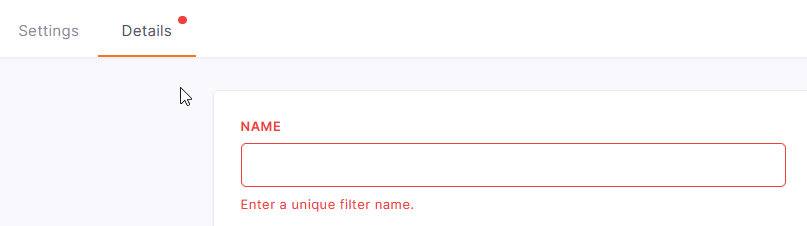
Correct the mistake and click Save again.