

Create or edit a PowerPoint filter in memoQweb
On this page, you can tell memoQweb how to import Microsoft Office PowerPoint 2007 and newer (*.pptx) documents.
How to get here
- Log in to memoQweb as an administrator or a project manager.
- On the left sidebar, click Resources.
Under Resources, click Filters.
- Click the Create button in the top right corner of the page.
- In the dropdown, click Create new filter.
In the Create filter window, fill in the Name and Description fields.
In the Filter type dropdown, choose Microsoft PowerPoint filter.
In the Filter type dropdown, choose Microsoft PowerPoint filter.
Click Continue at the bottom of the page.
The filter's page opens.
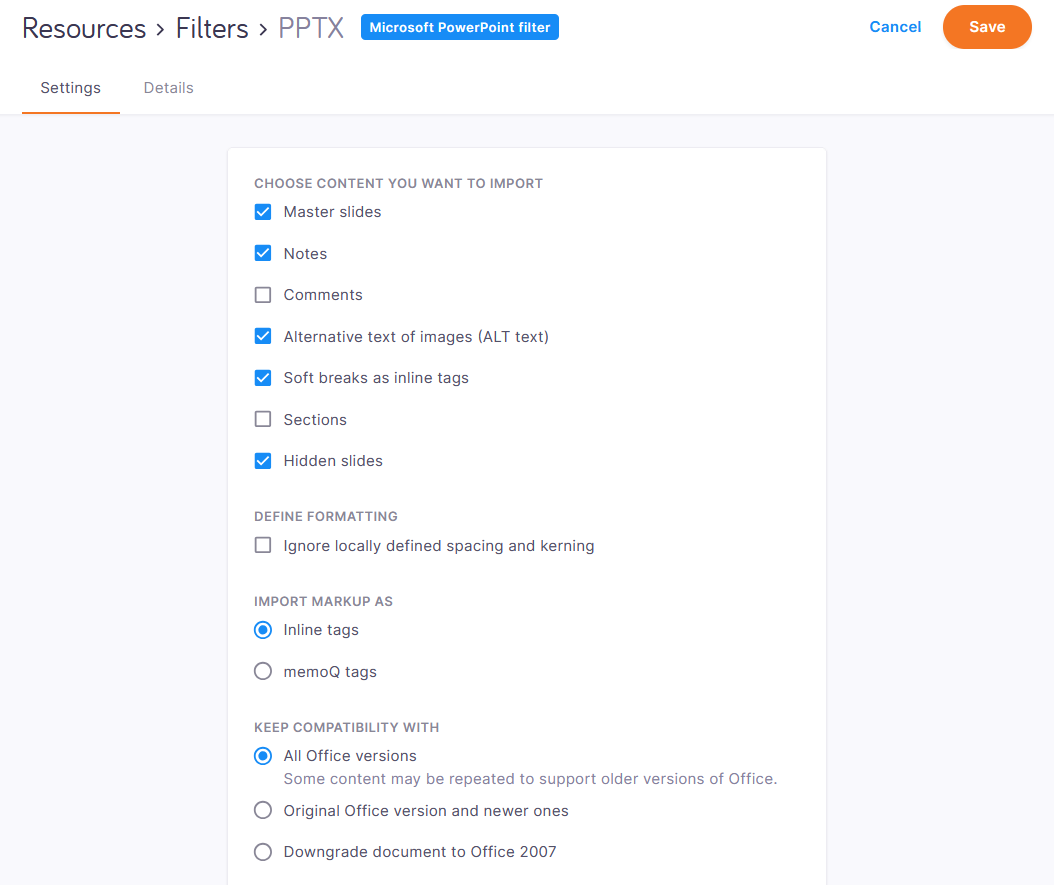
What can you do?
 Change the filter's name and description
At the top of the page, click the Details tab.
Change the contents of the Name and Description fields as needed.
Choose what to importMaster slides: Allows you to import master slides. Use this setting when they contain text to translate.
Notes: Allows you to import the notes for the slides. If your slides have no notes or you don’t need them, simply uncheck this box.
Comments: Allows you to import comments. Use this setting if your comments contain important information that you want to translate.
- Alternative text of images (ALT text): Allows you to import ALT text. This feature is important for screen reader users as they use ALT texts in their everyday work.
Soft breaks as inline tags: Allows you to import soft breaks as inline tags. Clear this checkbox if you don't want to import them.
Sections: Allows you to import section titles, which are usually not visible in PowerPoint presentations. If you still need to translate them, select this checkbox.
Hidden slides: Allows you to import slides that don't appear in the presentation otherwise. Clear this checkbox if you don't want to import them.
Ignore formatting created with DTPUsually, memoQ uses its own definitions for whitespaces between characters.
However, when you import files created with DTP, they may contain custom whitespaces or spaces between characters (kerning). Such formatting can show as inline tags in your documents.
To import the files without these inline tags,
Choose how to import formatting markupIn the Import markup as section, choose Inline tags. The other option imports all formatting markup as legacy memoQ tags, which is not recommended.
Deal with content that only work in Word 2010 and newerChoose how memoQ should import content from documents that were saved in Microsoft Office 2010 or newer.
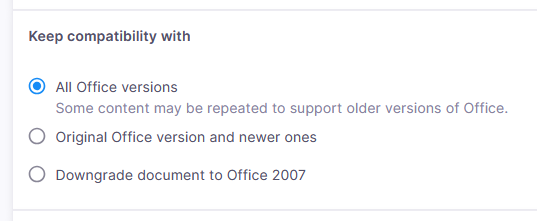
Some parts of a document, like text boxes, are called extensions. In newer versions of Office, each extension is saved twice: one copy for the latest Office, and another copy that older versions (Office 2007 or earlier) can read. This way, your content works no matter which version you open it in.
You have three choices:
| Setting | Imported extensions | Exported file in new Office | Exported file in old Office |
|---|---|---|---|
| All Office versions | Both, some parts appear in memoQ more than once | Looks new, text is translated | Looks old, text is translated |
| Original Office version and newer ones | New | Looks new, text is translated | Looks old, text is not translated |
| Downgrade document to Office 2007 | Old | Looks old, text is translated | Looks old, text is translated |
When you finish
In the upper right corner, click Save.
If there is an invalid setting in the filter, a red dot appears on its tab (Settings or Details):
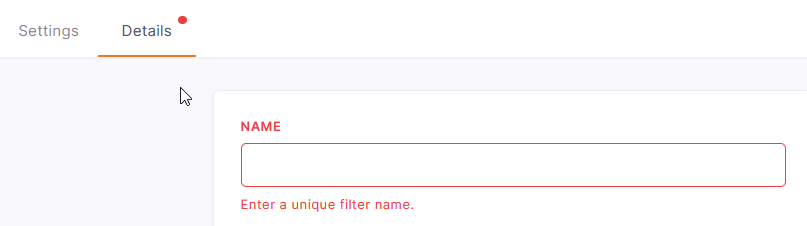
Correct the mistake and click Save again.