Move projects to a new location
memoQ stores your local projects, translation memories, term bases, and other resources in specific folders on your computer. You can check or change the location of these folders at any time in the Locations pane.
What to keep in mind about file sync and backup tools
If you run file sharing or backup programs (for example: Dropbox, OneDrive, Google Drive) at the same time as memoQ is saving your projects:
-
Both memoQ and the backup or sync program may try to access the same file at the same time.
-
This can cause access errors, slow performance, or even data corruption or its loss.
-
Remember that memoQ folders shouldn’t be placed inside synchronized cloud storage if they’re actively used by the program.
Changing the folder doesn't move existing projects. When you change the default project location in memoQ you must move old projects manually.
How to avoid conflicts?
-
Stop the sync or backup program while memoQ is running and especially while saving a project.
-
Only let the backup or sync program run after you close memoQ completely.
-
Alternatively, use memoQ’s built in backup tool and sync only those backup files (not the actual project folder).
What can you do?
-
 Change project’s folder
You may want to change where memoQ places your local projects or archived projects (deleted projects).
For example, if your main drive is running out of space, you can point memoQ to a different folder.
How to get there:
-
Open memoQ.
-
At the very top of the memoQ window, click the Options
 icon.
icon. -
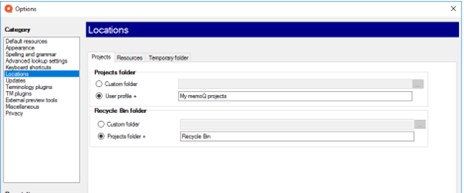
Under Category, click Locations. The Locations pane appears.
-
Under the Projects tab, you can see the current folder path for your projects.
-
Here you can choose:
-
Custom folder – a folder anywhere you pick (this is recommended only if you’re the only user of the computer).
-
User profile + – a folder under the user Documents directory.
-
-
Pick the new path and click OK, and then Apply to confirm it.
memoQ is going to use it for new projects.
-
-
Move existing projects to a new folder
If you’ve already created projects and want memoQ to use them from the new location:
-
Close memoQ.
-
Copy your existing project folders from the old location to the new one you set in the Locations pane.
-
Open memoQ.
-
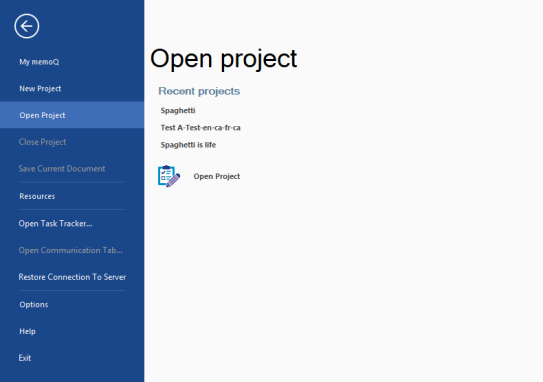
Click the memoQ tab (top left) and then choose Open Project.
-
Open each project you want to use and navigate to the new folder.
This tells memoQ where the projects now live and restores them in your dashboard.
-
Best practices for backups
Instead of placing active project folders inside a sync service:
Option A: Use memoQ’s backup feature
-
In memoQ’s project list, choose Backup selected to create a backup file.
-
Sync only the backup file with your cloud or backup tool.
This prevents direct access conflicts with memoQ’s working files.
Option B: Sync after memoQ is closed
-
First, close memoQ.
-
Then let your sync or backup application run and upload the files.
Both approaches help prevent the mixups that happen when sync tools and memoQ access the same file at once.