

Antidote's corrector
Antidote’s corrector helps you improve the quality of your English and French translations directly in memoQ.
You can send your target text to Antidote to check grammar, spelling, style, and phrasing, and then automatically apply the corrections in memoQ.
Antidote isn't included with memoQ. You need to buy and install it separately.
What's good to know?
 Supported browsers
Windows:
-
Chrome
-
Firefox
-
Edge
macOS:
-
Chrome
-
Firefox
-
Safari
Formatting and tags
The most important rules when using Antidote are:
-
Antidote displays plain text only, so formatting (such as bold or italics) isn't visible.
-
memoQ doesn't send non-editable, empty, or locked rows to Antidote.
-
Tags aren't sent or displayed in Antidote.
Antidote doesn't visually distinguish between editable and non-editable segments.
When changes are returned to memoQ:
-
If you correct text that has formatting, memoQ keeps the original formatting.
-
If corrected text replaces content with mixed formatting, the new text follows the formatting rules previously applied in memoQ.
This means that mixed formatting may be simplified after correction.
-
If you correct text near a tag, the tag is placed after the modified text.
Antidote's corrector in memoQ
Antidote in memoQ editor
To start using Antidote with memoQ, first you need to download, install, and activate it. memoQ supports Antidote 's corrector 11 or newer.
How to get here
-
Download and install Connectix (it allows Antidote to connect with other applications).
After installation, connect Antidote to memoQ editor.
It's possible that Antidote won't appear immediately in the system tray. If you can't see it, right-click the taskbar and check the Taskbar settings.
-
Open memoQ editor.
-
Open a document for translation.
Make sure your document's target language is English or French, otherwise Antidote won't work.
-
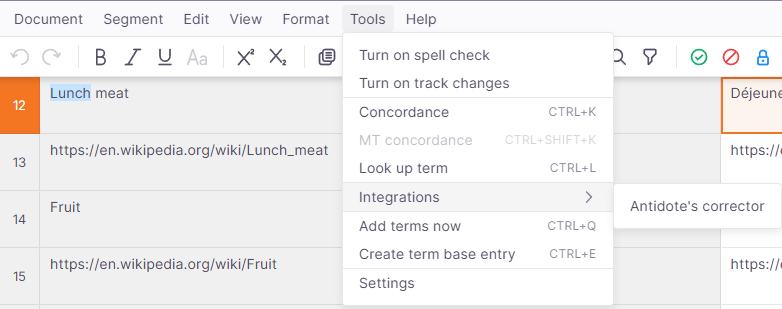
On the top menu, click Tools and choose Integrations from the dropdown. Then select Antidote's corrector.
-
memoQ displays a pop-up window window where you can choose what to send to Antidote’s corrector.
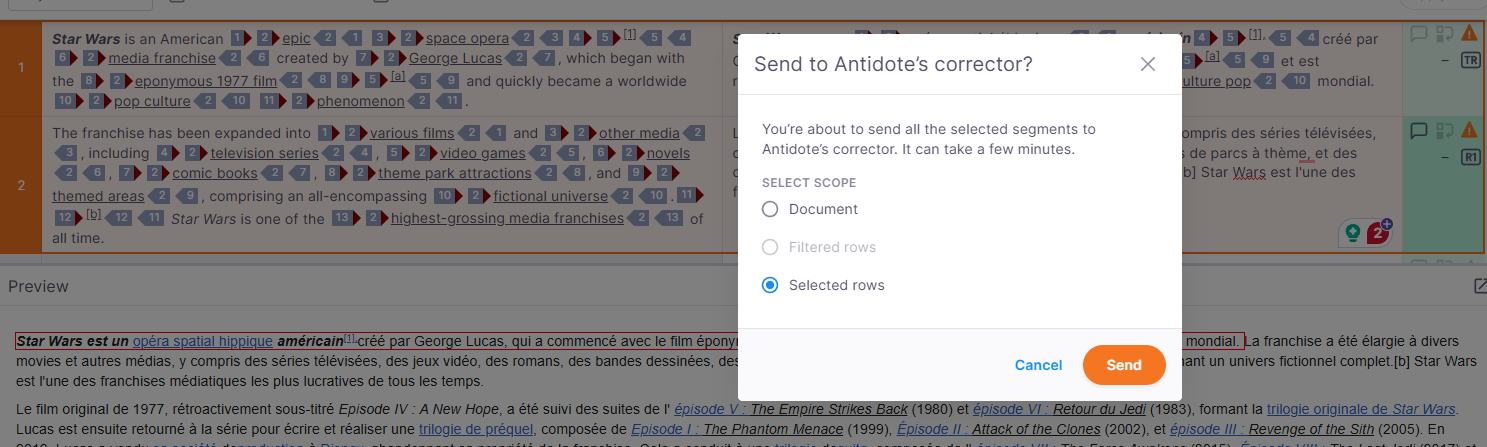
You can send the entire document, filtered rows, or selected rows.
-
Antidote's web app opens showing you all the possible corrections. To apply one of them, right-click the correction and choose Replace.
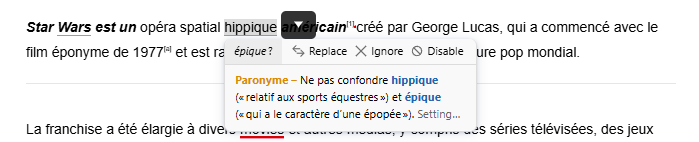
After you choose a correction and replace the text, memoQ editor updates the translation grid accordingly.

Any changes you make either in memoQ editor or Antidote instantly happen in the other window.
What can you do?
-
Working with multiple documents
If your project contains multiple documents, you can open a separate Antidote window for each one.
When you switch to a different Antidote window, memoQ automatically switches to that window's document or browser tab.
You can also work with documents from different online projects at the same time and switch between them by selecting another Antidote window.
-
Track changes
Antidote's corrector doesn't display tracked changes. If Track Changes is activated in memoQ and you edit text in Antidote, your edits appear as track changes in memoQ.
When you finish
To close the current Antidote window: Click the X button in the window's upper corner.
In Antidote Web, close the browser tab displaying the Corrector.
To close all Antidote windows, open the File menu in Antidote and click Quit.
If you're using a Mac, close the app by opening the Antidote 12 menu (or Antidote 11, depending on your version) and selecting Quit., you can close the app opening the Antidote 12 menu (or Antidote 11 depends on the version you're using) and click Quit.
Antidote in webtrans
How to get here
- To integrate Antidote with memoQ, you need a Druide account. Antidote products and services use the Druide account system to manage access and licenses.
- Download and install the Connectix that will allow Antidote to integrate with different solutions, like webtrans.
-
On the system tray, right-click the Antidote Agent flask icon
 , and select either the desktop or the web version of Antidote. You may have different options - it depends on which Antidote products you have.
 - Install the Antidote extension for your browser. If you need help, check the Antidote documentation. Once the extension is installed, the Antidote icon appears where your browser shows other extensions.
- Sign in to memoQweb.
- Open or create a project where English or French is a target language (sublanguages, for example English (UK) or French (Algeria), are good, too).
-
Open a document for translation. The Antidote icon is now visible on the translation editor's toolbar:

-
On the translation editor's toolbar, click the Antidote icon and choose which Antidote's version (desktop or web) you want to open in Connectix.
Antidote Desktop:
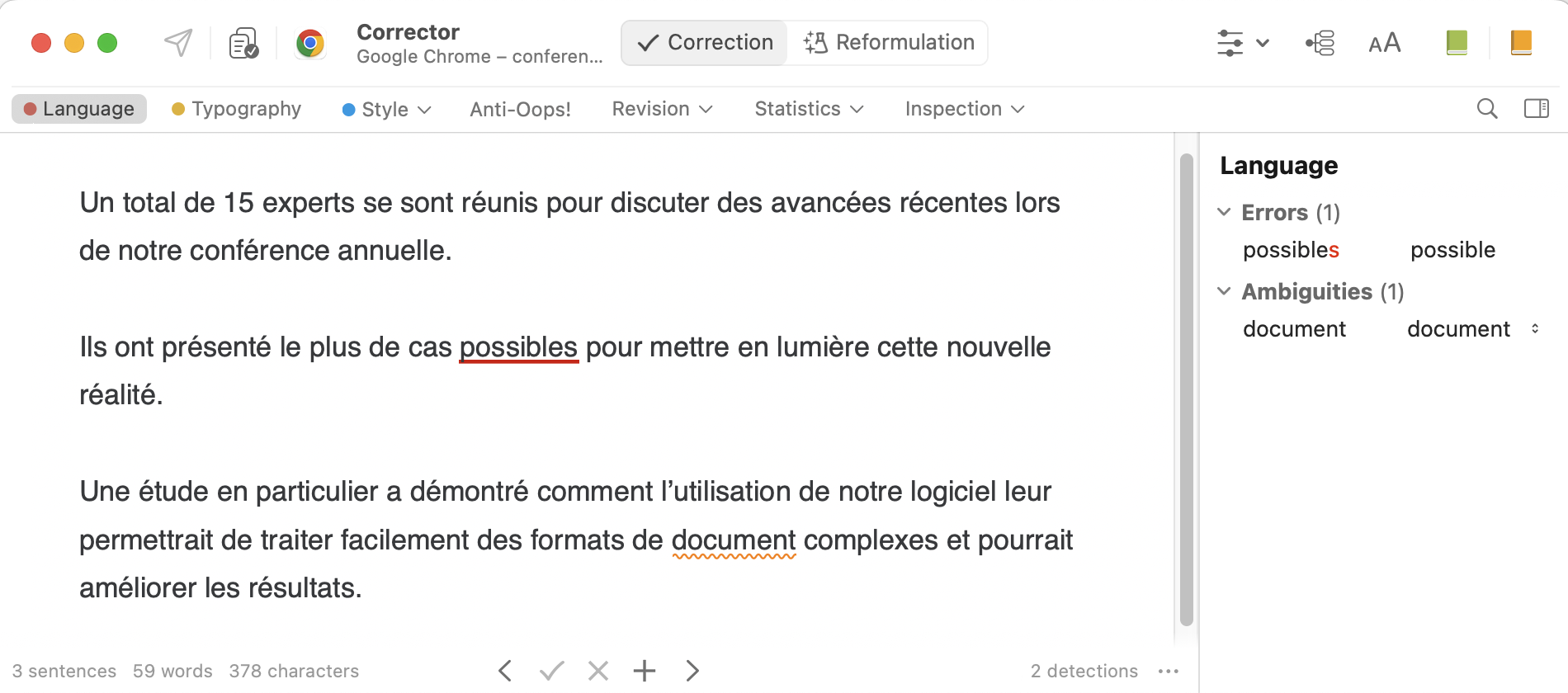
Antidote Web:
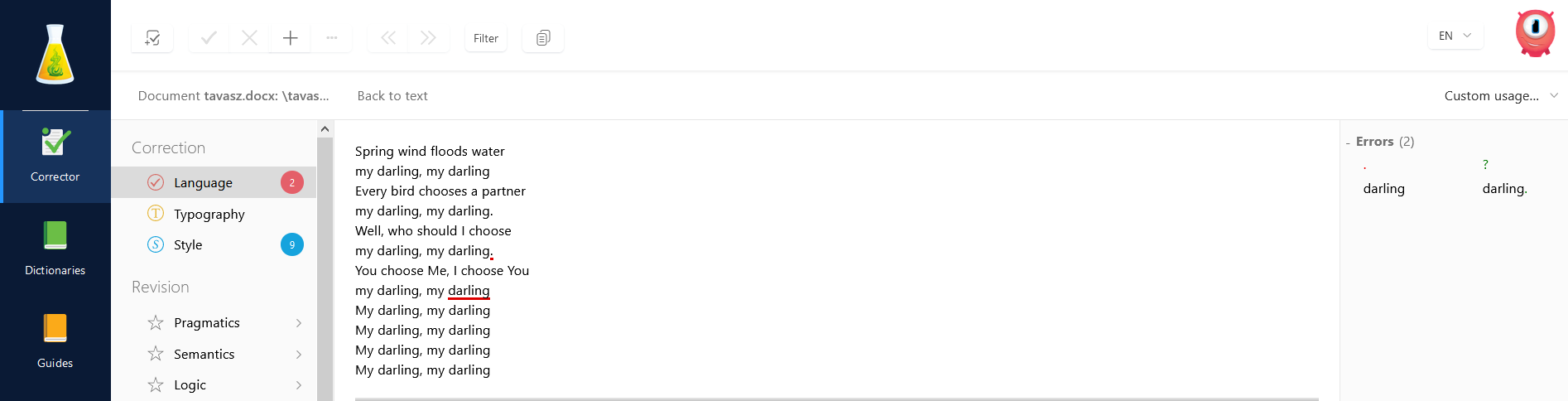
What can you do?
To learn how to use Antidote's corrector, read the software's documentation.
When you open Antidote's corrector from memoQweb, it shows all the visible target segments from the document you're currently working on. If a filter is active, segments outside the filter won't appear in Antidote. Changes you make in either memoQweb or Antidote are automatically reflected in the other window.
If your project contains multiple documents,you can open each document in a separate Antidote window. When you switch to another Antidote window, memoQweb automatically switches to the corresponding
Tags and formatting
Antidote's corrector doesn't show tags or formatting. However, your formatting is preserved when you edit the text:
-
If you edit formatted text in Antidote, the changes keep the formatting in memoQweb.
-
If only part of the text is formatted, memoQweb tries to find out if the changes should be formatted.
-
If you edit text which has a tag in memoQweb, the tag appears after the text you edited when you return to memoQweb.
-
Starting from August 2021, Antidote's corrector doesn't display tracked changes from webtrans. If Track Changes is turned on for a document in webtrans, and you change something in Antidote's corrector, webtrans shows it as a tracked change.
When you finish
To close the current Antidote window: Click the X button in the window's upper corner.
In Antidote Web, close the browser tab displaying the Corrector.
To close all Antidote windows, open the File menu in Antidote and click Quit.
If you're using a Mac, close the app by opening the Antidote 12 menu (or Antidote 11, depending on your version) and selecting Quit., you can close the app opening the Antidote 12 menu (or Antidote 11 depends on the version you're using) and click Quit.
Antidote in the desktop app
How to get here
- Buy, download, install, and activate the latest version of Antidote. You can use Antidote Corrector 11 or newer with the Antidote API version 2.0.
- Start memoQ.
-
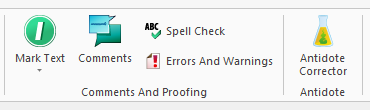
Open a document for translation. The Antidote Corrector icon is now visible on the Translation ribbon:
-
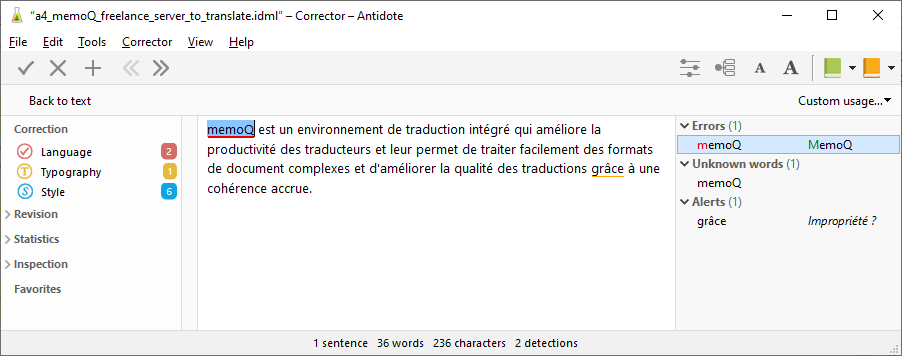
Click the button. Antidote's main window opens:
What can you do?
When you open Antidote's corrector from memoQ, it shows all the visible target segments from the document
If your project contains multiple documents,you can open each document in a separate Antidote window. When you switch to another Antidote window, memoQ automatically switches to the corresponding
Tags and formatting
Antidote's corrector doesn't show tags or formatting. However, your formatting is preserved when you edit the text:
-
If you edit formatted text in Antidote, the changes keep the formatting in memoQ.
-
If only part of the text is formatted, memoQ tries to find out if the changes should be formatted.
-
If you edit text which has a tag in memoQ, the tag appears after the text you edited when you return to memoQ.
-
It doesn't show track changes. If you (or your PM) turned on Track Changes in memoQ, and you edit text in Antidote, the changes appear as tracked changes in memoQ.
To learn how to use Antidote's corrector, read the software's documentation.
When you finish
To close the current Antidote window: Click the X button in the window's upper corner.
In Antidote Web, close the browser tab displaying the Corrector.
To close all Antidote windows, open the File menu in Antidote and click Quit.
If you're using a Mac, close the app by opening the Antidote 12 menu (or Antidote 11, depending on your version) and selecting Quit., you can close the app opening the Antidote 12 menu (or Antidote 11 depends on the version you're using) and click Quit.