

History and reports
memoQ keeps track of changes to each document by using two types of versions: major and minor.
A major version represents the source text. When you reimport a source document into a project, memoQ starts a new one.
A minor version represents the translation. memoQ starts a new one when you:
-
Pre-translate a document, or run a command that changes many segments (you need to set this up).
-
Tell memoQ to take a snapshot of the document.
In the History and reports window, you can compare two source or target versions of the same document. In addition, you can see reports about the document.
Normally, memoQ keeps track of the versions of documents. You can turn this off when creating a new project (local or online), but you should not. When something goes wrong, you can use version history to go back to a previous version of a document.
How to get here
-
Open a project. In Project home, choose Translations.
-
Right-click a document. From the menu, choose History/reports.
Or:
Select a document. On the Documents ribbon, click History/Reports.
The History and reports window opens.
What can you do?
 Look at the list of versions
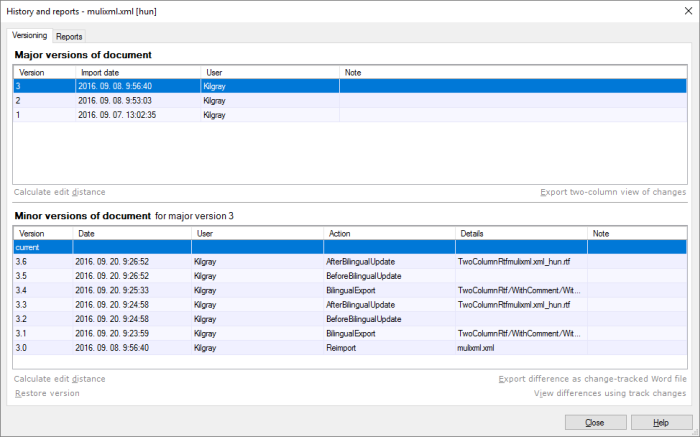
memoQ lists the versions of the document in two sections: Major versions of document and Minor versions of document. The minor versions you see belong to the selected major version only. You need to click a major version to see the minor versions for it.
The columns of the Major versions of document list are as follows:
-
Version: The major version number of the document. It increases by one every time you reimport the document.
-
Import date: The date and time the document was imported or reimported.
-
User: The user who imported or reimported the document.
The columns of the Minor versions of document list are as follows:
-
Version: The major and minor version numbers of the document. The minor version number increases every time you update the document. Some actions also automatically create a new minor version.
-
Date: The date and time when memoQ created the minor version.
-
User: The user who created the minor version.
-
Action: The action that created a minor version. It can be, among other things, a delivery, a bilingual export, or a bilingual import.
-
Details: Additional details about the action, if available.
-
Note: Comment from the user if they added one.
Compare two versions of the source document (major versions)
Under Major versions of document, select two major versions: Click the first, then press and hold on Ctrl, and click the second. Below the list, click Export two-column view of changes. This creates an HTML table that lists the differences between the two selected versions. The table shows the differences between the versions of the source text. The result is an HTML file that you can open in a web browser. The HTML file consists of two parts: the change summary and the table view.
The change summary contains the number of segments that remained unchanged; the number of nearly identical segments; the number of segments that disappeared; and the number of newly added segments. Nearly identical segments have the same text but different inline tags or attributes. memoQ can automatically adjust this from the translation memory. A modified segment counts as one deleted and one newly added segment. Word and character counts indicate the number of words and characters in the same category.
The table shows the entire document in a grid. Segments with a transparent background mean segments that were not changed. A beige background indicates nearly identical segments. They are always next to each other. New segments appear in blue on the right. Deleted segments appear in pink on the left.
Compare two versions of the translations (minor versions)
Under Minor versions of document, select two minor versions: Click the first, then press and hold on Ctrl, and click the second.
-
To compare the two versions in the translation editor: Below the list, click View differences using track changes. The translation editor opens. It shows the differences between the two versions in the track changes style. Normally, can't edit the document in this view. But if one of the versions is the current one, you can edit it.
-
To compare the two versions in Word: Click Export difference as change-tracked Word file. Choose a folder and the name for the Word file.
-
To see the differences in an edit distance report: Click Calculate edit distance. The calculation is based on the target segments of the two selected versions.
To restore an earlier version as the current one: Click the minor version you want to restore. Click Restore version. This actually adds a new minor version that is identical to the selected minor version. This way, you can undo the restore.
View various reports about the document
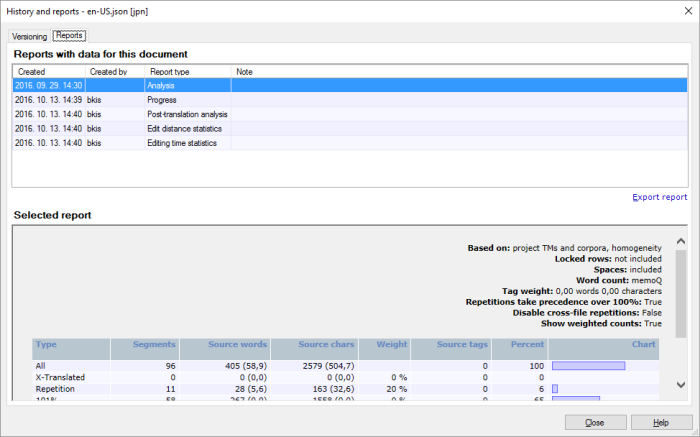
memoQ can show you all the reports that were made automatically for each version of the document. These reports may contain data about more documents or about the entire project. The list contains all the reports where this document was among the ones that were reported on.
You can see these reports on the Reports tab. They are progress reports, analysis reports, or post-translation analysis reports. They show the document-specific part of the general reports that you create on the Reports tab of the Overview pane.
When you finish
To return to the Translations pane of Project home: Click Close.
To open the translation editor with the differences between two versions: On the Versioning tab, select two minor versions. Under the Minor versions of document list, click View differences using track changes.