

My tasks page in the ICR tool
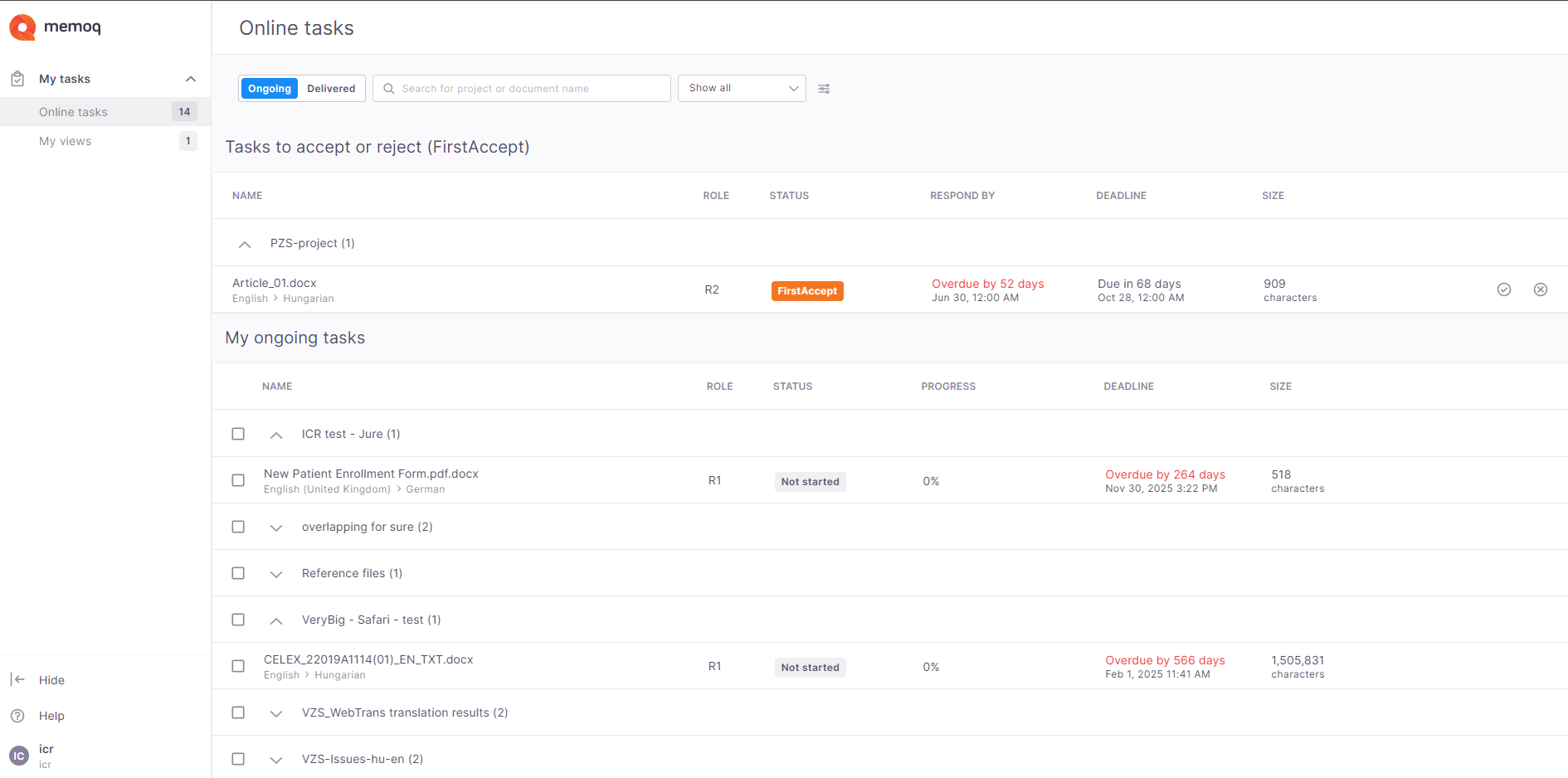
The My tasks page is where you can find all your assigned review tasks. Your documents are grouped by project, so it’s easy to check which documents belong to the same project. For each task, you can see details such as your role, status, progress, deadline, and document size.
How to get here
You can open the My tasks page in one of these ways:
-
In the ICR editor, click the document name at the top of the page.
-
Click the icon with your initials next to the Deliver button, then select My tasks from the dropdown list.
-
Open the memoQweb login page if you got the URL from your project manager.
The My tasks page opens on the Online tasks subpage.
What can you do?
-
Online tasks
Here you can find all the online review tasks assigned to you. The tasks are grouped by project, so you can easily check which documents belong to the same project.
 Tasks to accept or reject
This section shows the tasks that are waiting for your response. For each task, you can:
-
Accept or reject a task by clicking the correct icon at the end of the task row.
-
View details such as your role, task status, progress, deadline, and document size.
My ongoing tasks
This section shows the tasks you’ve already accepted and are currently working on.
At the top of the page, you can:

-
Use the dropdown to choose which tasks you want to see: - Show all, Missed deadline, In progress, Not started, or Not yet available.
You can also customize how your task list looks and how much information it shows. To do that, click the Customize appearance
 icon next to the filter dropdown. ICR displays a side panel.
 Here you can:
-
Show Document paths: Turn on Show document paths to check the full path for each document. If you prefer a simpler view, leave this option not selected.
-
Group documents - Turn on Group by projects to organize documents according to the project they belong to. This option is turned on by default, but you can turn it off to check all documents in a single list.
-
Change the Unit - Under Unit, choose whether you want document size and progress to be measured in segments, words, or characters. The selected unit appears in the Size column, so choose the one that best fits your work.
-
Change the Density - This setting controls how much space each item takes up in the list. You can choose from:
-
Compact - shows more items on the screen at once.
-
Standard - provides a balanced amount of spacing.
-
Comfortable - adds more space between items, making the list easier to read.
-
-
-
Check all the necessary information about your ongoing review tasks: document name, language pair, project name, role, status, progress, deadline, and file size. Review tasks are sorted by deadline, with the most urgent tasks at the top. To sort them differently, click the arrow in the column header you want to sort by.
-
If you were assigned to a task as a reviewer 1 and 2, you can open the document using either role, depending on where you want to start.
You can also select multiple documents from the same project and create a view. You can create a view only from documents that belong to the same project and have the same target language.
-
When you're review is ready, you can select all the necessary documents and click Deliver documents on the top of the tasks list.

You can deliver multiple documents together only if they all belong to the same project. ICR then displays a confirmation window with the necessary details and asks you for confirmation.
-
-
My views
At the top of the screen, under My tasks, click My views. The page displays the views you can work on in online projects.
Don't know what a view is?
-
What’s a view?
It’s a collection of rows taken from one or more documents. The rows in a view keep all their original content and stay linked to their original documents, so when you edit a target segment, the change is also made in the original document.
ICR displays the view name in the header, while the active document name is shown in the status bar. If the active row belongs to a slice, its row range is included in the document name.
For example: Document name (start row number – end row number)
If the document name is too long to fit, hover over it to see the full name.
-
What's a slice?
It's a part of a document that you work on separately from the rest of the document. For example, if a document is too large for one person to handle, it can be divided into smaller parts, called slices, and each part can be assigned to a different person.
In this subpage you can:
Create a view from selected documents
You can create a view from the Online tasks tab.
To do that:
-
On the Online tasks tab, select the documents you want to include in your view.
You can use the checkbox in the project header to select all documents in the project. To create a view, you need to select more than one document.
When you select documents, a toolbar appears at the top of the page showing:
-
The number of selected documents.
-
The Create view button.
-
The Deliver documents button.
-
-
Click Create view. memoQ checks the selected documents first.
You can create a view only when all selected documents belong to the same project and use the same target language.
-
Type a name for the view in the Create view window.
Make sure to use a unique name for each view in the same project.
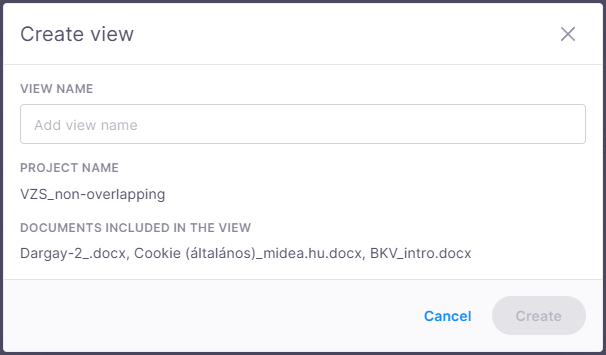
The dialog also shows the project name and all the documents included in the view.
-
To confirm and create the view, click Create.
Manage views
To see your saved views, open the My views tab. You can search for views by project or view name.
Here you can:
-
Rename selected view - click the Rename
 icon at the end of view's row. The Rename view window opens. You can only modify the name, it's not possible to add documents or change the project.
 -
Delete selected view - click the Delete
 icon at the end of view's row. You can delete one or several views. To delete several views at once, select them using the checkboxes and click Delete above the view list.
Some options that are available when working on a single document aren't available in a view. For example, you can't access My task details, deliver, banners, role information, or the onboarding tutorial from a view. You can still use formatting options that are supported by the document type of the active row.
-
When you finish
To start your review, click the project or document you want to work on. The ICR editor opens automatically.