

Work with tags in memoQ editor
Tags preserve formatting and other information from the source document. In memoQ editor, you can insert missing tags, add new inline tags, edit existing tags, and remove tags from your translation.
How to get here
-
In the translation grid, place the cursor in the target segment or select an inline tag.
-
On the Edit menu, select Tags to see the tag-related commands.
You can also find these commands in Quick actions on the Help menu.
What can you do?
-
 Insert all tags
 adds all source tags that aren't already present in the target segment.
To insert all tags:
-
Place the cursor in an editable target segment.
-
On the Edit menu, select Tags, and then select Insert all tags.
You can also press Alt+F8.
The command is available only when the target segment is editable.
Use this command when the position of the tags in the target segment doesn't matter. If you want to insert tags one by one or control where they are inserted, use Copy next tag sequence instead.
memoQ editor inserts all missing tags together at the current position. Check the result after using this command.
-
-
Remove all target tags
Remove all target tags removes all tags from an editable target segment.
To remove all target tags:
-
Place the cursor in an editable target segment.
-
On the Edit menu, select Tags, and then select Remove all target tags.
You can also press Ctrl+F8.
You can use this command with one target segment or with multiple selected rows. When multiple rows are selected, memoQ editor removes tags only from target segments that you can edit.
Before removing tags from multiple selected rows, memoQ editor asks you to confirm the operation.
You can’t restore removed tags, but you can insert tags from the source segment again whenever you need them.
-
-
Insert new inline tag
Use Insert new inline tag when you need to add a tag to the target segment that isn't present in the source segment. You can also use it while editing a source segment with Edit source.
To insert a new inline tag:
-
Place the cursor where you want to insert the tag in an editable segment.
-
On the Edit menu, select Tags, then select Insert new inline tag.
The Create inline tag window opens.
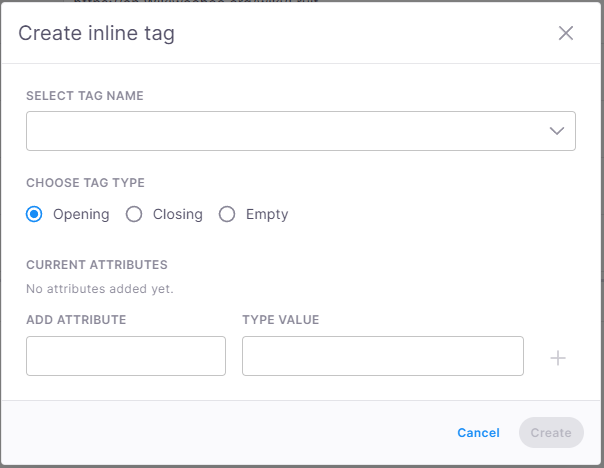
Here you can:
-
Select the tag name from the dropdown list or type a name.
-
Choose the tag you want to insert:
-
Opening - Starts a tag pair.
-
Closing - Ends a tag pair.
-
Empty - Inserts a tag that doesn't have a separate opening or closing tag.
Choose a type that fits the tag and its position. If you insert an opening tag, make sure you also added the corresponding closing tag and that the tag pair doesn't overlap with another pair.
-
-
Add any attributes the tag requires.
The Current attributes section lists the tag's existing attributes.
To add an attribute:
-
Under Add attribute, enter or select an attribute name from the dropdown list.
If you enter an attribute name that already exists with the same capitalization, memoQ editor updates its value instead of adding a duplicate. Remember that attribute names are case-sensitive.
When an asterisk (*) appears next to an attribute it means that it's required by the document format. Make sure to add a value for every attribute before saving it because memoQ editor won't check it for you.
-
Under Type value, enter its value.
-
To add the attribute, click the plus button next to the Type value field.
-
You can delete an existing attribute by selecting the Delete icon
 next to it.
-
-
When you're done with managing attributes, click Create. The new tag is inserted at the current cursor position.
-
-
Edit inline tag
Use Edit inline tag to change the type or attributes of an existing inline tag.
To edit an inline tag:
-
Select an inline tag in an editable segment.
-
On the Edit menu, select Tags, and then select Edit inline tag. You can also press Ctrl+F9.
The Edit inline tag window opens.
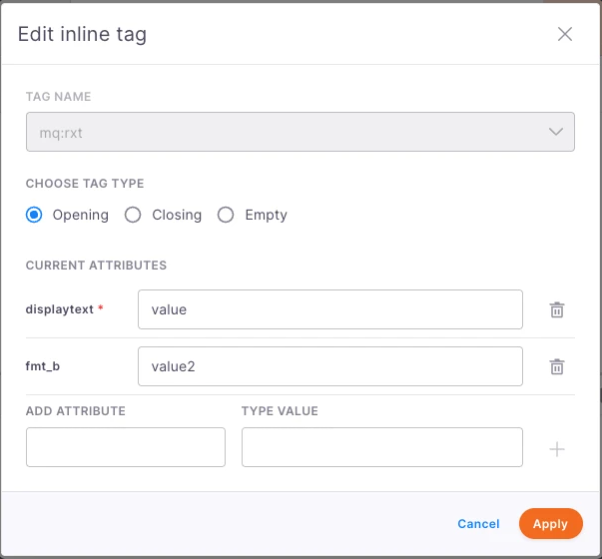
Here you can:
-
Check the name of the selected tag under the Tag name field. You can't change the tag name in this window.
-
Under Choose tag type, you can view or change the tag type:
-
Opening - Starts a tag pair.
-
Closing - Ends a tag pair.
-
Empty - Inserts a tag that doesn't have a separate opening or closing tag.
-
-
Edit attributes. The Current attributes section lists the tag's existing attributes.
-
Add any attributes the tag requires.
The Current attributes section lists the tag's existing attributes.
To add an attribute:
-
Under Add attribute, enter or select an attribute name from the dropdown list.
If you enter an attribute name that already exists with the same capitalization, memoQ editor updates its value instead of adding a duplicate. Remember that attribute names are case-sensitive.
When an asterisk (*) appears next to an attribute it means that it's required by the document format. Make sure to add a value for every attribute before saving it because memoQ editor won't check it for you.
-
Under Type value, enter its value.
-
To add the attribute, click the plus button next to the Type value field.
-
You can delete an existing attribute by selecting the Delete icon
next to it.
-
Some attributes are linked to a separate row in the document and they're read-only, so you can't change or remove them. Their values start with an @ sign followed by the row's identifier.
-
-
When you finish
When you're done working with tags, you're redirected to the translation grid in memoQ editor.