

View topics
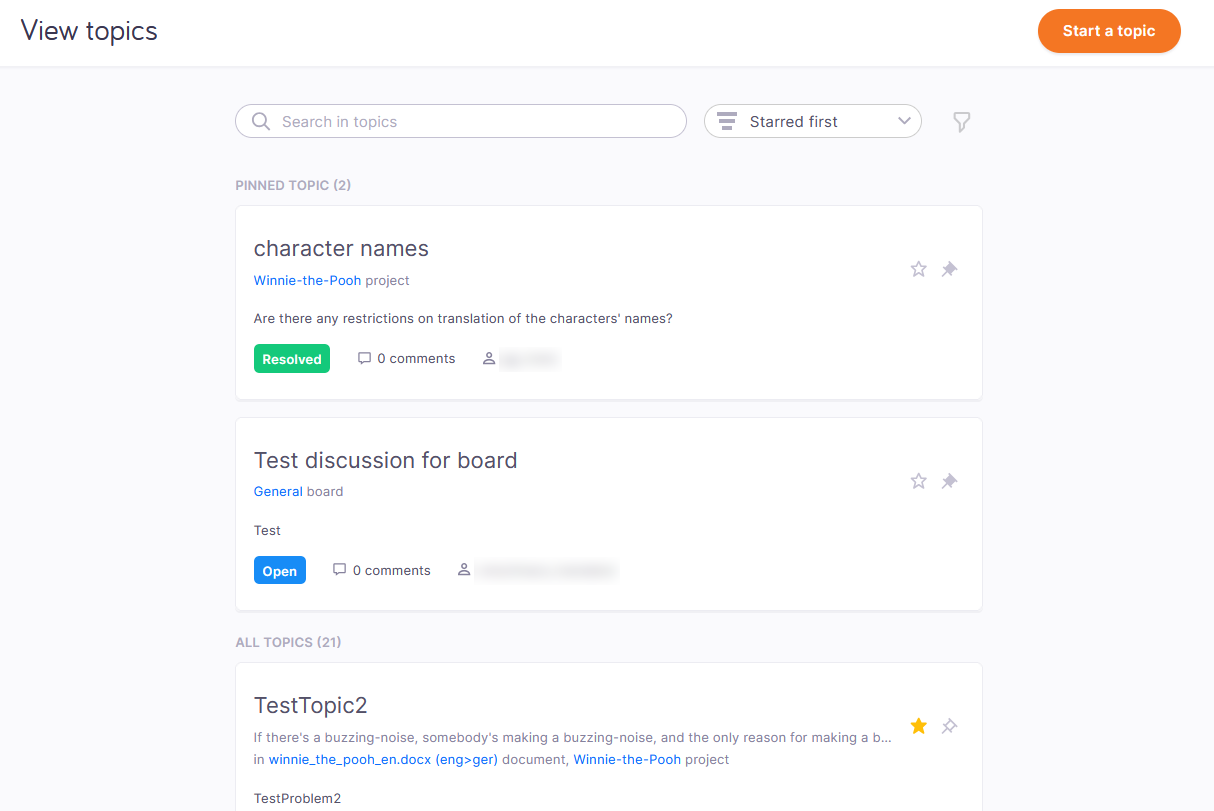
This page shows discussion topics as cards.
How to get here
- Log in to memoQweb.
- On the left sidebar, click Discussions.
-
Under Discussions, click View topics. The View topics page opens.
What can you do?
To manage topics: On the left sidebar, under Discussions, click Manage topics.
To manage boards: On the left sidebar, under Discussions, click Manage boards.
You need admin rights to see the Manage topics and Manage boards pages.
To view a topic, click its title. The topic's page opens.
Start a topic
To start a topic: In the top right corner, click the Start a topic button. The Start topic page opens.
Pin or star a topic
The Discussions tab shows each topic on a card. Pinned topics are at the top of the list. Starred topics can be sorted to the top of the pinned and unpinned topic lists.
To pin a topic: On its card, click the Pin topic  icon. To unpin it: Click the Remove pin
  icon.
icon.
To star a topic: On its card, click the Make it starred  icon. To unpin it: Click the Remove starred
  icon.
icon.
Search for a topic. Sort the list.
To search the list: Type something into the search bar above the list. Press Enter. If the text you typed can be found in some topics' summary, the list will only show those. To see the whole list again, click the X icon at the end of the search bar.
To sort the list: Click the dropdown that says Starred first, and choose from the list.
- Starred first shows starred topics at the top of the pinned and unpinned topic lists.
- Most active shows topics with the most comments at the top of the pinned and unpinned topic lists.
- Most recent shows the newest topics at the top of the pinned and unpinned topic lists.
Filter the topic list
To filter the list: Next to the dropdown, click the Filter  icon. The Filter discussions pane opens.
To use a previously saved filter: Choose a filter the from the Select saved filter dropdown.
To filter by for topics containing certain words: Type something in the Topics containing text field.
To filter by users: In the Assigned to or Created by dropdown, click a user.
To filter by topic status: In the Status dropdown, click a status.
To hide topics: In the Hide status dropdown, click a status.
To show starred topics first: Select the Starred topics have priority checkbox.
To show starred topics only: Select the Show only starred topics checkbox.
To save the filter setting: In the Filter name text box, type a name for the filter. Then, select the Save current filter settings checkbox.
To apply the filter: At the bottom, click the Done button. To discard the changes: Click the Reset filters link.
Learn details of a topic
Under the topic summary, you can see the related project, document, segment, or term, and the issue - the question asked in the topic.
At the bottom of the topic's card, you can see the current status of the topic, with a colored background: blue is Open, green is Resolved, and White is Closed. Next to it, there is the number of comments, and the user the topic is assigned to..