

Create or edit a multilingual Excel or CSV filter in memoQweb
Some Excel, CSV, or other text files with comma- or tab-separated values contain multiple languages in columns.
Each row contains related texts, and each column defines what the text represents (for example, source text or translation).
On this page, you can tell memoQweb how to import such documents.
To keep things simple, the filter says CSV, but also supports other delimited formats.
How to get here
- Log in to memoQweb as an administrator or a project manager.
- On the left sidebar, click Resources.
-
Under Resources, click Filters.
- Click the Create button in the top right corner of the page.
- In the dropdown, click Create new filter.
-
In the Create filter window, fill in the Name and Description fields.
-
In the Filter type dropdown, choose Multilingual Excel or CSV.
-
Click Continue at the bottom of the page.
The filter's page opens.
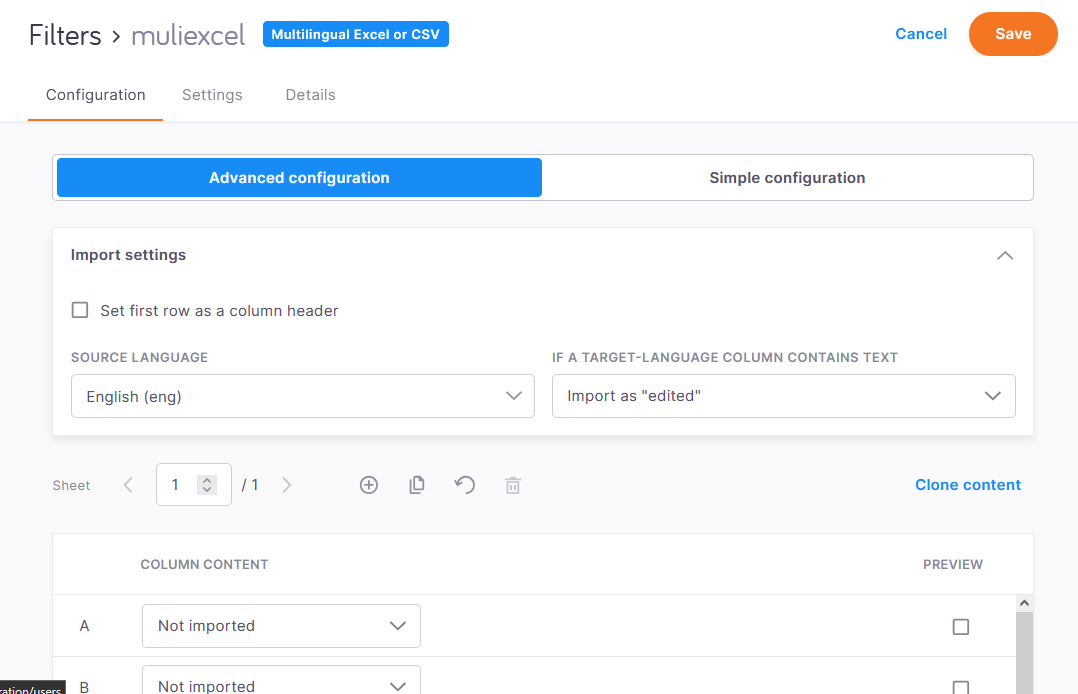
What can you do?
 Change the filter's name and description
-
At the top of the page, click the Details tab.
-
Change the contents of the Name and Description fields as needed.
Choose import preferences for an Excel file
On the Settings tab, under Select format, choose Excel.
Include or exclude cells with a certain background color
Under What to do with cells with selected background colors:
-
Click a radio button:
-
Skip: This is the default setting. memoQ skips the cells formatted with the listed background colors.
-
Import: If you choose this option, memoQ only imports the cells formatted with the listed background colors.
-
-
Click Add cell color.
-
The Add cell color pop-up window tells you how to get a cell's hex color code in Excel.
Enter the code in the Add Hex color code text field, and click Add.
A label appears next to the Add cell color button, showing the color and the hex color code.
To add another color, click Add cell color again.
To remove a color, click the X on its label.
Set other options
-
To import text from hidden worksheets, select the Hidden sheets checkbox.
-
To import text from hidden rows, select the Hidden rows checkbox.
-
To import numbers or formulas in source and target cells: Select the Cells containing formulas or numbers checkbox.
-
To keep the previous formula or number in the target cell, clear the Overwrite cells with numbers or formulas using source content checkbox.
This option is useful when the target cells already contain (different) numbers or formulas. By default, memoQ overwrites these as it copies the number or formula (or text) from the source cell.
-
To keep extra formatting inside cells, select the Inline formatting in cells checkbox. memoQ will export the translations (and the source text) with the same formatting as it was imported.
Choose import preferences for a CSV file
On the Settings tab, under Select format, choose CSV.
Set encoding options
-
Choose an encoding: By default, memoQ detects the encoding (the code page) of the files you're importing. If the encoding can't be detected, memoQ uses Unicode (UTF-8). To use a different encoding, select it from the Codepage if not detected dropdown.
-
Export the translation in a different encoding: If the source encoding is not Unicode, and you're translating into a language with a different writing system (for example, from English into Japanese), choose a different encoding for the translation from the Export code page dropdown.
-
Decide about BOMs (byte order marks) that can appear at the beginning of a text file and signals the text encoding. You can:
-
Add a BOM to the translations if the source file has one: Leave the default setting (Same as import).
-
Add a BOM to all exported translations: Select Write.
-
Export all translations without a a BOM: Select Do not write.
-
Select the separator character
Choose the character that separates the columns: By default, memoQ uses the Tab character. You can click the radio buttons to choose other common separator characters (Comma or Semicolon). If your file uses a different separator, click the Other radio button, and type the character in the text box.
Set segmentation
On the Settings tab, under Select cell segmentation, click a radio button:
-
Never split - one segment per cell - memoQ doesn't split
<segment>elements based on language rules. This is the default option. -
When there is no target - memoQ splits
<segment>elements that have no<target>elements based on the language rules. -
Only with the same number of segments in the source and target - memoQ splits
<segment>elements that have<target>elements when the source and target have the same number of segments.Need more information? Read about segmentation rules in memoQ.
Import a simple bilingual file, or only two languages from a multilingual file
Do this if your project has just one target language.
-
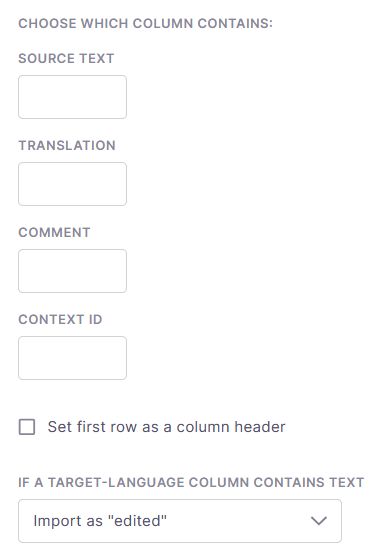
At the top of the Configuration tab, click Simple configuration.
-
Fill in the Source text and Translation boxes.
-
If there are comments in the file, enter their column letter in the Comments text box.
-
If there is context information in the file, enter its column letter in the Context text box.
memoQ uses information in this column for context matching and returning 101% matches from translation memories or LiveDocs corpora.
-
If the table has a header row, and you don't want to import it, select the Set first row as a column header checkbox.
-
If the Translation column already has translations, memoQ by default imports them as target text, with the segments in Edited status.
To use a different segment status, select it from the If a target-language column contains text dropdown.
If you don't want to import existing translations, select the Do not import from the dropdown.
Import a multilingual file
Multilingual projects only: The filter's and the project's target languages should match.
Set basic import options
-
At the top of the Configuration tab, click Advanced configuration.
-
Under Import settings:
-
If the table has a header row, and you don't want to import it, select the Set first row as a column header checkbox.
-
If the Translation column already has translations, memoQ by default imports them as target text, with the segments in Edited status.
To use a different segment status, select it from the If a target-language column contains text dropdown.
If you don't want to import existing translations, select the Do not import from the dropdown.
Manage column configurations of Excel sheets
Above the column list, there's a toolbar you can use to manage sheets within an Excel file:

-
To add a sheet with an empty configuration, click Add new sheet

-
To add another sheet with the same configuration, click Duplicate sheet

-
To clear the current sheet's configuration, click Reset sheet

-
To delete the current sheet, click Delete sheet

-
To copy a sheet's configuration one or more times, click Clone content on the right of the toolbar. Then choose:
-
To copy a given sheet's configuration to the current sheet, click Clone content from sheet, and set the sheet number.
-
To create new sheets with the current sheet's configuration, click Clone current sheet X times. Add after sheet Y, and set how many sheets you want to create (X), and where they should appear (Y).
-
Set up columns
By default, the list shows columns A to Z. If you need to set up more columns, click Add AA-AZ columns below the list.
-
To set a column as source text, select Source text in its dropdown.
memoQ doesn't import rows where the source cell is empty.
-
If you need to put the translation into the source column, select In-place translation in the source column's dropdown, not Source text.
-
To set a column as translation:
-
Select Translation in its dropdown.
-
In the Translation pop-up window, select the source column you need to translate and the target language from the two dropdowns.
memoQ ignores the column if the project's target languages don't include the selected language.
-
Click Apply.
-
-
To set a column as context ID, select Context ID in its dropdown.
memoQ editor shows this cell's content as context ID in the status bar.
-
To set a column as comment:
-
Select Comment in its dropdown.
-
In the Comment pop-up window, select a source column or All source columns.
memoQ editor shows this cell's content as a row comment for the selected source language, or for all of them.
-
Click Apply.
-
-
To set a column as a filter condition:
-
Select Condition in its dropdown.
-
In the Condition pop-up window, select a source column or All source columns.
-
Type a word or expression in the Don't import if row contains text field, and press Enter. The text appears as a label. Add as many expressions as you need.
memoQ doesn't import rows for the selected source language if this column's content equals one of the listed expressions.
-
Click Apply.
-
-
To set a column as length limit:
-
Select Length limit for characters in its dropdown.
-
In the Length limit in characters pop-up window, select a source column or All translation columns for column X (where X is a column you set up as source text).
If a translation is longer than its limit, memoQ editor shows a QA issue for the segment.
-
Click Apply.
-
Choose settings for the memoQ video preview tool
Do this on the Specify subtitle options section of the Settings tab.
When you are working on a video translation, it is important to know how much text you can put on the screen at once.
Change the value of the Character limit for line length field as needed.
Density means how much text is on the screen over time. You can set limits for Words per minute and Characters per second - the two most common measurements.
No warnings in memoQ itself during translation: when you confirm a segment, memoQ does not warn you if you are over these limits. You see which lines are longer than the limit only when you export the file.
However, the memoQ video preview tool shows all three values in real time when playing the video:
When you finish
In the upper right corner, click Save.
If there is an invalid setting in the filter, a red dot appears on its tab (Settings or Details):
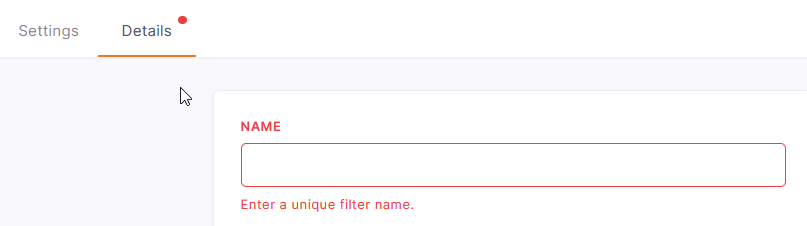
Correct the mistake and click Save again.