

Create or edit a Phrase MXLIFF filter in memoQweb
MXLIFF is an extension of the XLIFF 1.2.
How to get here
- Log in to memoQweb as an administrator or a project manager.
- On the left sidebar, click Resources.
Under Resources, click Filters.
- Click the Create button in the top right corner of the page.
- In the dropdown, click Create new filter.
In the Create filter window, fill in the Name and Description fields.
In the Filter type dropdown, select Phrase (Memsource) XLIFF filter.
Click Continue at the bottom of the page.
The filter's page opens.
What can you do?
 Change the filter's name and description
At the top of the page, click the Details tab.
Change the contents of the Name and Description fields as needed.
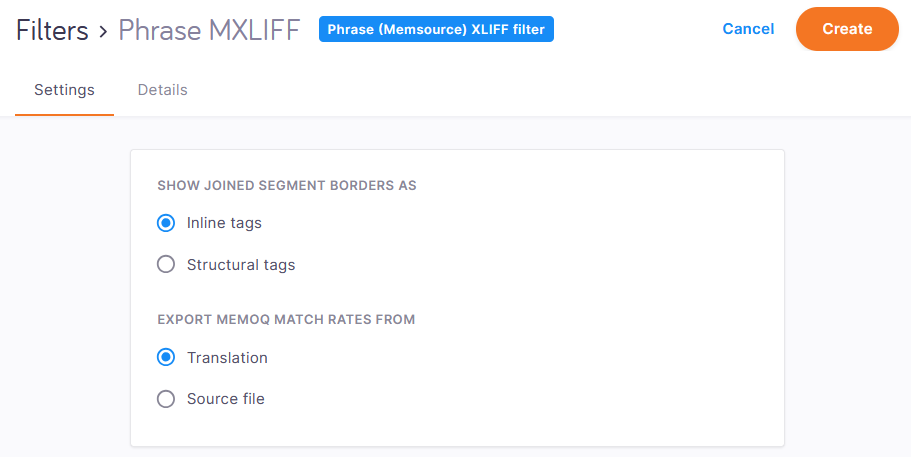
Decide how to import joined segmentsUnder the Show joined segment borders as section, you can decide how to mark your joined segments when importing a file to memoQ.
In MXLIFF files, join tags ({j}) mark the former segment borders inside joined segments. memoQ can show them as:
Inline tags - show data in a gray hexagon. You can duplicate or delete them. If you delete an inline join tag, QA checks mark the segment with a warning, and the tag will be missing from the exported MXLIFF file. This might cause problems when the file is imported into Phrase.
Structural tags - show data between purple curly brackets. You can't duplicate them. If you delete a structural join tag, QA checks mark the segment with an error, and you can't export the document.
You can split and join segments
Choose which match rate to exportUnder Export memoQ match rates from, click:
Translation to add the match rates of your inserted matches to the exported MXLIFF files.
Source file to keep the imported match rates without any changes.
When you finish
In the upper right corner, click Save.
If there is an invalid setting in the filter, a red dot appears on its tab (Settings or Details):
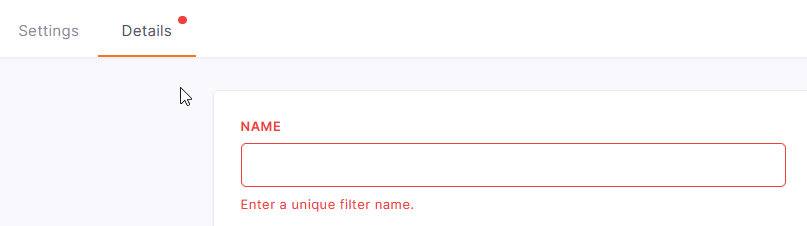
Correct the mistake and click Save again.