

Create or edit a plain text filter in memoQweb
Use this filter to import plain text documents that don't have an internal structure.
To import text files that contain a table, use the Multilingual Excel filter.
How to get here
- Log in to memoQweb as an administrator or a project manager.
- On the left sidebar, click Resources.
-
Under Resources, click Filters.
- Click the Create button in the top right corner of the page.
- In the dropdown, click Create new filter.
-
In the Create filter window, fill in the Name and Description fields.
-
In the Filter type dropdown, select Plain text filter.
-
Click Continue at the bottom of the page.
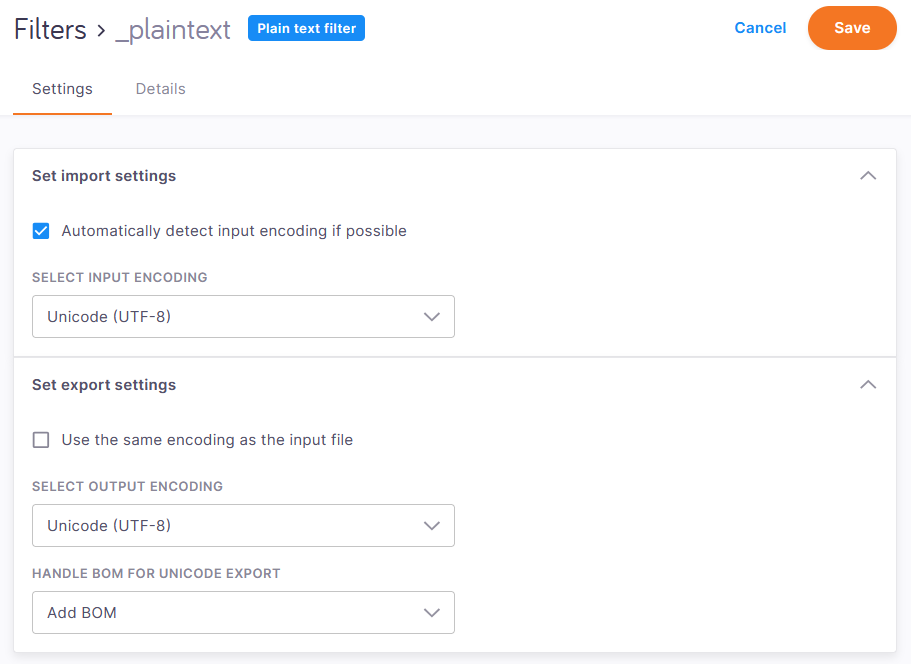
The filter's page opens.
What can you do?
 Change the filter's name and description
-
At the top of the page, click the Details tab.
-
Change the contents of the Name and Description fields as needed.
Set export settings
Under Set export settings, clear the Use the same encoding as the input file checkbox. In the Select output encoding dropdown, select the encoding you want.
When you export the translation with a Unicode encoding, you can tell memoQ how to handle Unicode byte order marks (BOMs): Select or clear the Write BOM to Unicode-encoded files on exportAdd BOM to unicode files when exporting checkbox.
When you finish
In the upper right corner, click Save.
If there is an invalid setting in the filter, a red dot appears on its tab (Settings or Details):
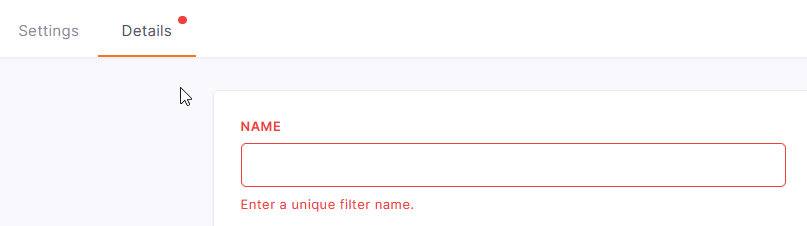
Correct the mistake and click Save again.