

Multilingual Excel and delimited text files
Use this filter to import Excel, CSV, or other text files with comma or tab separated values that contain multiple languages in columns.
Each row contains related texts, and each column defines what the text represents (for example, source text or translation).
You can define how memoQ imports text from each column into the project’s source and target languages. If you have a project manager license, you can also export multiple target languages in one go, into a single export file.
To keep things simple, the filter says CSV, but also supports other delimited formats.
You can't import a multilingual Excel or text file into a LiveDocs corpus.
How to get here
-
In the Document import options window, select the Excel or text files, and click Change filter & configuration.
-
The Document import settings window appears. From the Filter drop-down list, choose Multilingual delimited text filter.
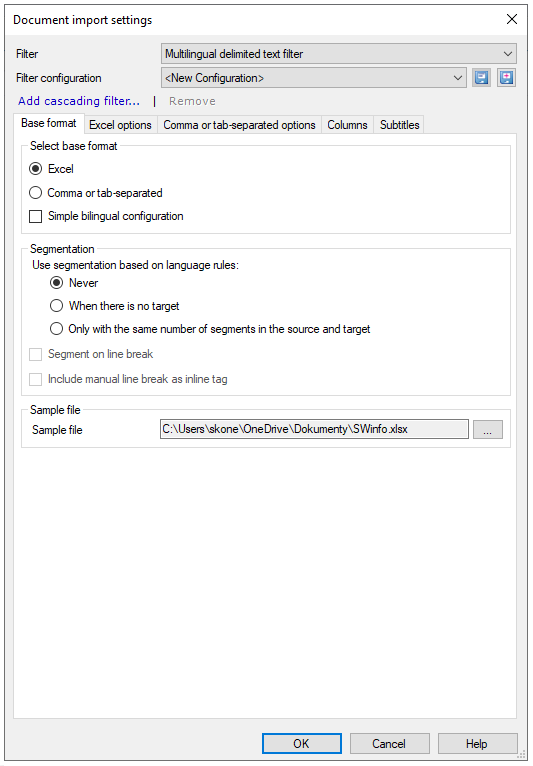
By default, memoQ doesn't import numbers or formulas from Excel files. To import them, use the Excel options tab.
What can you do?
 Choose base format and segmentation
The settings are a bit different for Excel files and for CSV or tab-separated files.
On the Base format tab, choose between Excel and Comma or tab-separated.
If you translate into one target language only: Select the Simple bilingual configuration checkbox, and work with the columns at the bottom of the window. For more details, see the Dealing with columns section.
Under the Segmentation section, you can:
-
Use segmentation based on language rules:
-
Never - memoQ doesn't split
<segment>elements based on language rules. This is the default option. -
When there is no target - memoQ splits
<segment>elements that have no<target>elements based on the language rules. -
Only with the same number of segments in the source and target - memoQ splits
<segment>elements that have<target>elements when the source and target have the same number of segments.Need more information? Read about segmentation rules in memoQ.
-
-
Segment on line break - start a new segment each time there is a line break in the cell (Excel only).
-
Include manual line break as inline tag - insert an inline tag for each manual line break in the cell (insert in Excel with Alt+Enter).
Import an Excel file
-
On the Base format tab, click the Excel radio button.
-
Click the Excel options tab.
You can set the following:
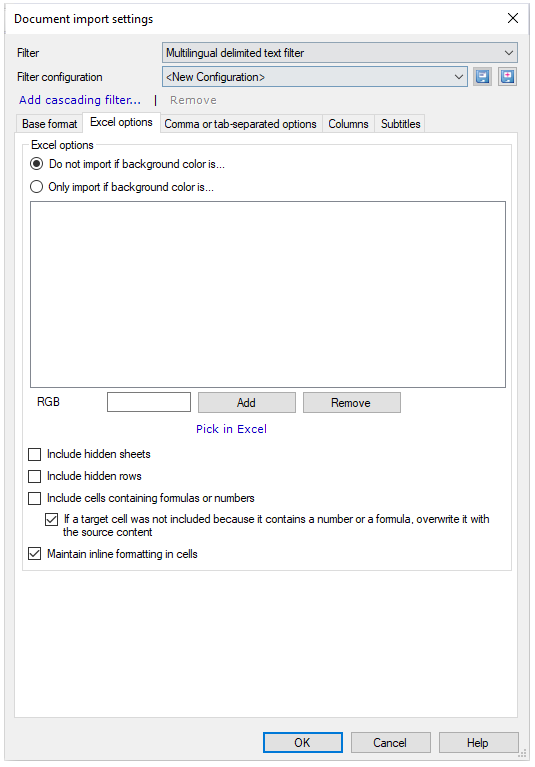
You can import content that is formatted – or not formatted – with specific background colors.
Click a radio button:
-
Do not import if background color is: This is the default setting. memoQ skips the cells formatted with the listed background colors.
-
Only import if background color is: If you choose this option, memoQ only imports the cells formatted with the listed background colors.
To add colors to the box below the radio buttons:
-
Type a color code in the RGB text field, and click Add.
The color code is a six-digit hexadecimal number: the first two digits are for red, the third and fourth for green, and the last two are for blue. For example, the code 00FF00 stands for pure green.
OR
-
Pick the color in Excel.
-
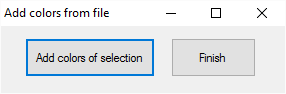
Click the Pick in Excel link. memoQ opens the source document in Excel (Excel must be installed). Then the Add colors from file window appears:
-
In Excel, select a range that contains the background colors you want to use. Then click Add colors of selection. The colors appear on the list in the Document import settings window.
-
To add more colors to the list: Repeat step 2.
-
Click Finish. This closes the Add colors from file window, and Excel, too.
To remove a color from the list: Select the color, and then click Remove.
-
You can also:
-
To import text from hidden worksheets, select the Include hidden sheets checkbox.
-
To import text from hidden rows, select the Include hidden rows checkbox.
-
To import numbers or formulas in source and target cells: Select the Include cells containing formulas or numbers checkbox.
-
To keep the previous formula or number in the target cell, clear the If a target cell was not included checkbox.
This option is useful when the target cells already contain (different) numbers or formulas. By default, memoQ overwrites these as it copies the number or formula (or text) from the source cell.
-
To keep extra formatting inside cells, select the Maintain inline formatting in cells checkbox. memoQ will export the translations (and the source text) with the same formatting as it was imported.
Import a text file with columns of data (a comma-separated or a tab-separated file)
-
First, on the Base format tab, click the Comma or tab-separated radio button.
-
Then, click the Comma or tab-separated options tab.
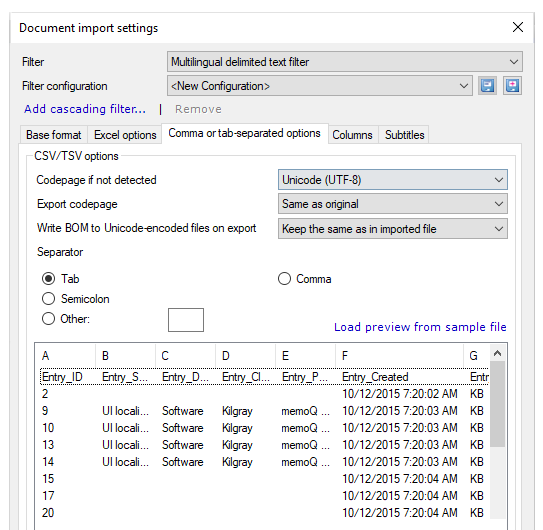
Here you can:
-
Choose an encoding: By default, memoQ detects the encoding (the code page) of the files you're importing. If the encoding can't be detected, memoQ uses Unicode (UTF-8). To use a different encoding, select it from the Codepage if not detected dropdown.
-
Export the translation in a different encoding: If the source encoding is not Unicode, and you're translating into a language with a different writing system (for example, from English into Japanese), choose a different encoding for the translation from the Export codepage dropdown.
-
Decide about BOMs (byte order marks) that can appear at the beginning of a text file and signals the text encoding. You can:
-
Add a BOM to the translations if the source file has one: Leave the default setting (Same as original).
-
Add a BOM to all exported translations: Select Add BOM to all files.
-
Export all translations without a a BOM: Select Do not add BOM to any file.
-
-
Choose the character that separates the columns: By default, memoQ uses the Tab character. You can click the radio buttons to choose other common separator characters (Comma or Semicolon). If your file uses a different separator, click the Other radio button, and type the character in the text box.
-
Watch the preview: At the bottom of the window, you can see how memoQ would import your file with the current settings. Check if the characters appear correctly, and if the columns are separated properly. If you are importing several files, memoQ shows the preview from the first one. If it's too small, or not showing the result clearly, choose a different file for preview: Click Load preview from sample file, and choose the file to use for the preview.
-
Are there double quotes or line breaks in the CSV file? The CSV specification has complicated requirements for handling these characters (see section 2., points 5., 6., and 7 of the linked document). If a CSV file doesn't meet these requirements, memoQ fixes the issues before exporting. This means the imported and the exported files will be different. Keep this in mind if you are using non-standard CSV files.
Dealing with columns
Import a simple bilingual file, or only two languages from multilingual files
Always use this in bilingual projects: If your project has just one target language, or you are using memoQ translator pro, always use this setting.
-
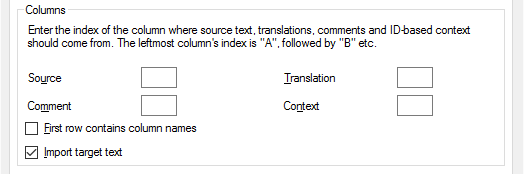
On the Base format tab, under Select base format, select the Simple bilingual configuration checkbox. A Columns section appears at the bottom.
-
Choose the column that has the source text: In the Source text box, type the letter of the column.
-
Choose the column where the translation should go: In the Translation text box, type the letter of the column.
-
Choose the column that has the comments: In the Comments text box, type the letter of the column.
-
Choose the column that has the context IDs: In the Context text box, type the letter of the column. memoQ uses the contents of this column for context matching and returning 101% matches from translation memories or LiveDocs corpora.
If the table has a header row, and you don't want to import it: Select the First row contains column names checkbox.
If the Translation column already has translations: memoQ imports them as target text. If you don't want to import them, clear the Import target text checkbox.
Import multilingual files (project manager edition and multilingual projects only)
Multilingual projects only: Use this setting only in memoQ project manager edition, and only when you're preparing a multilingual project for several translators.
MQXLIFF export for one target language at a time: The MQXLIFF format is bilingual - it has one target language. In the project, you must select a target language before you export a multilingual document in MQXLIFF. The MQXLIFF export of such files will have that target language.
- On the Base format tab, make sure that the Simple bilingual configuration checkbox is cleared.
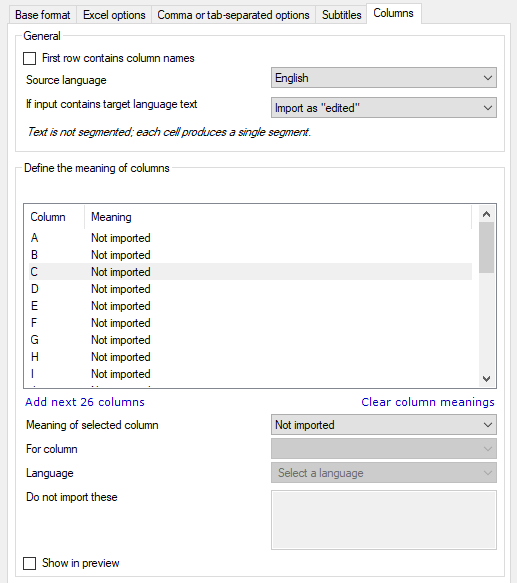
- On the Columns tab, set the meaning of each selected column.
-
Choose the status of segments that already have translations. By default, it's set as edited, but you can choose another status in the If input contains target language text drop-down box.
If the table has a header row, and you don't want to import it: Select the First row contains column names checkbox.
To ignore target text that's already there: From the If input contains target language text drop-down, choose Do not import.
Cells are never segmented. If a cell in the table contains several sentences, those will be imported in a single segment.
Set up columns
memoQ lists all the columns from your file, and sets their meaning to Not imported. In the beginning, only the first 26 columns are visible. To see more, click the Add next 26 columns link.
Set a column as source text
- Select the column in the list.
- In the Meaning of selected column drop-down, choose Source text.
If a source cell in a row is empty or contains spaces only, memoQ won't import that cell, its translations, contexts and comments.
Overwrite the source text
If your customer asked you to overwrite the source text:
- Select the column in the list.
-
In the Meaning of selected column drop-down, choose In-place translation.
memoQ will export the translation to the same column, replacing the source text.
Set a column as translation
- Select the column in the list.
- In the Meaning of selected column drop-down, choose Translation.
- In the For column drop-down, choose one of the columns that are already marked as Source text. If there is only one column that has source text, the list will contain that column only.
- In the Language drop-down, choose the target language of the column. You can choose any language that memoQ supports. But if the project doesn't have that language, the column won't be imported.
If you don't choose a language: The column will be set to In-place translation. memoQ imports this column as source text, and replaces this source text with the translation.
Set a column as context
To set a column as context for matching:
- Select the column in the list.
- In the Meaning of selected column drop-down, choose Context.
- memoQ uses the cells in this column as context IDs for source-text cells that are in the same row.
You can choose several context columns: In this case, memoQ will add them together at the end of your document, and use the result as the context.
Set a column as comment
To set a column as comment:
- Select the column in the list.
- In the Meaning of selected column drop-down, choose Comment.
- From the For column drop-down, choose which column this comment belongs to. You can also choose All: memoQ imports this comment for every cell in the same row.
You can import a different comment for every source and target column.
Filter imported rows using conditions
If you don’t want to import all rows from a file, you can define conditions to exclude specific data.
To do that:
-
In the list, select the column that contains the values you want to evaluate.
-
In Meaning of selected column, choose Condition.
-
In For column, select the column this condition applies to.
You can also choose All to apply the condition to the entire row.
-
In Do not import these, enter one or more values (words or expressions) that should prevent import.
How it works:
-
Enter multiple values by separating them with commas, without spaces.
For example: error,skipped,invalid
If a space is added after a comma, memoQ takes only the first value into account.
-
If a value itself contains a comma, put it in quotes.
For example: "New York, NY"
-
If a condition cell's content equals one of these values, it won't be imported.
-
If you selected All to apply the condition to the entire row, memoQ skips the entire row.
-
Use length limits
Your file may have length limits - contain a column with numbers. This means that the translations can't be longer than the number in the column.
To use length limits:
- In the list, select the column that has the length limits.
- In the Meaning of selected column drop-down, choose Length limit (characters).
- From the For column drop-down, choose which column this length limit belongs to. If you choose a target column, memoQ uses the limits for those cells. If you choose a source column, memoQ uses the limits for all translations that belong to that source column.
Hide a column from the preview
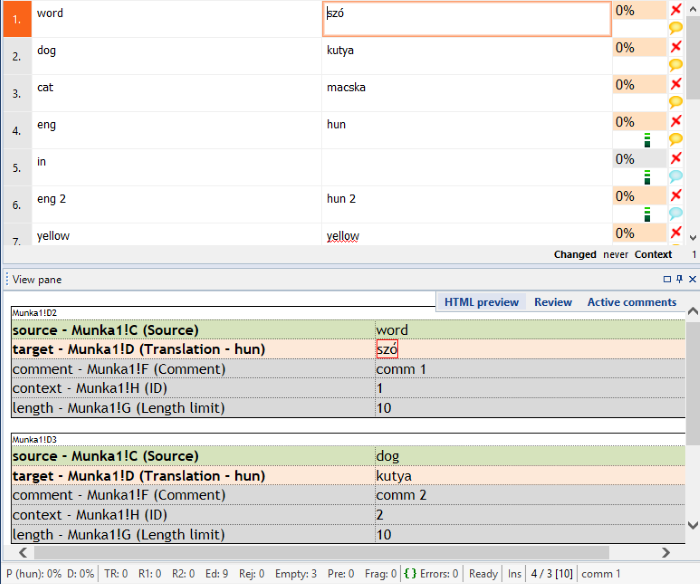
By default, memoQ shows every meaningful field in the preview.
If you want to hide a column or two from the preview:
-
Select the column in the list.
-
Then clear the Show in preview checkbox.
The result will look like this:
Import video subtitles from Excel
- On the Base format tab, make sure that the Simple bilingual configuration checkbox is cleared.
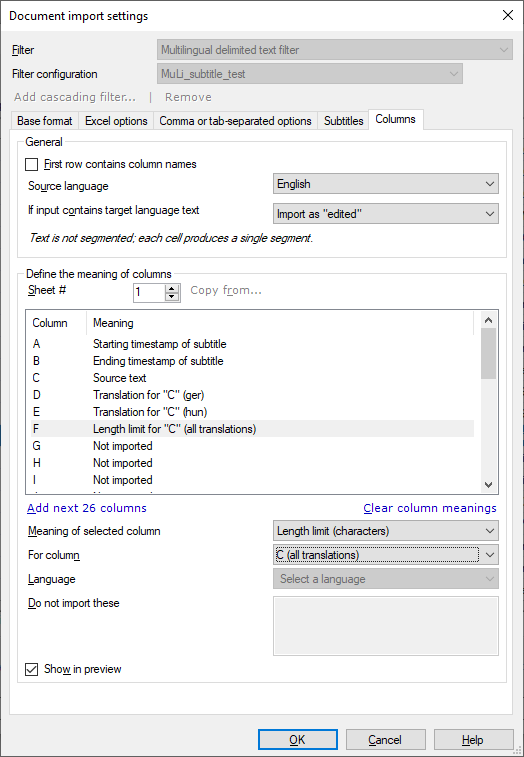
- On the Columns tab, set the meaning of each selected column.
Set column as a source text
- Select the column in the list.
- In the Meaning of selected column drop-down, choose Source text.
If a source cell in a row is empty or contains spaces only, memoQ won't import that cell, its translations, contexts and comments.
Set a column as translation
- Select the column in the list.
- In the Meaning of selected column drop-down, choose Translation.
- In the For column drop-down, choose one of the columns that are already marked as Source text. If there is only one column that has source text, the list will contain that column only.
- In the Language drop-down, choose the target language of the column. You can choose any language that memoQ supports. But if the project doesn't have that language, the column won't be imported.
If you don't choose a language: The column will be set to In-place translation. memoQ imports this column as source text, and replaces this source text with the translation.
Set a column as start or end time for the segment
To set a column as start or end time for the segment:
- Select the column in the list.
- In the Meaning of selected column drop-down, choose Starting timestamp of subtitle or Ending timestamp of subtitle, as needed.
Set a column as length limit
To set a column as length limit:
- Select the column in the list.
- In the Meaning of selected column drop-down, choose Length limit (characters).
-
From the For column drop-down, choose which column this length limit belongs to. If you choose a target column, memoQ uses the limits for those cells. If you choose the source column (it has "(all translations)" next to it), memoQ uses the limits for all translations.
Choose settings for the memoQ video preview tool
Do this on the Subtitles tab.
When you are working on a video translation, it is important to know how much text you can put on the screen at once.
Change the value of the Line length limit (characters) field as needed.
Density means how much text is on the screen over time. You can set limits for Words per minute and Characters per second - the two most common measurements.
No warnings in memoQ itself during translation: when you confirm a segment, memoQ does not warn you if you are over these limits. You see which lines are longer than the limit only when you export the file.
However, the memoQ video preview tool shows all three values in real time when playing the video:
"Online" means a file on a server: At the moment, streaming video services such as YouTube are not supported.
When you finish
-
To confirm the settings, and return to the Document import options window: Click OK.
In the Document import options window: Click OK again to start importing the documents.
-
To return to the Document import options window, and not change the filter settings: Click Cancel.
-
If this is a cascading filter, you can change the settings of another filter in the chain: Click the name of the filter at the top of the window.
It is possible to cascade filters after the bilingual and multilingual filters. For example, Multilingual Excel and delimited text can be the first filter in a filter chain, but remember that regex tagger should always be the last filter applied.