

Configure OIDC SSO
memoQ TMS has different kinds of single sign-on: This document is mainly about OIDC-based SSO. The phrases "single sign-on" and "SSO" refer to the OIDC-based solution. The phrases "Windows SSO" and "Windows AD SSO" refer to memoQ TMS's older, Windows Active Directory-based SSO solution. Windows SSO users can switch to OIDC SSO just like regular memoQ TMS users.
Setting up OIDC-based SSO on your memoQ TMS adds new tables to the memoQ TMS database. This means you cannot use rollback to get back to your previous version.
What you need first
Before you start configuring, gather the information below. You will need these at different points during the process.
-
The certificate the OIDC backend will use. It should be a commercial (not self-signed) certificate. It can be the one your memoQ TMS uses. On the server machine, open the Manage Computer Certificates application (or run the certlm.msc command). Find the certificate in the Certificates - Local Computer/Personal/Certificate folder.
 Register your memoQ TMS as a client at your IDP service
When registering your memoQ TMS as the client of an IDP service, you need to set a callback URL. This is where the IDP can reach the OIDC backend.
-
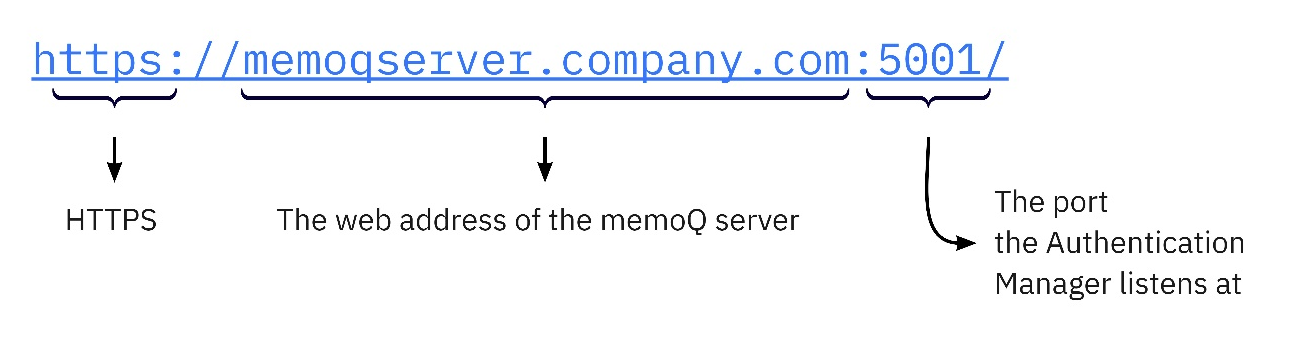
For running the OIDC backend as a Windows service, the callback URL looks like this:
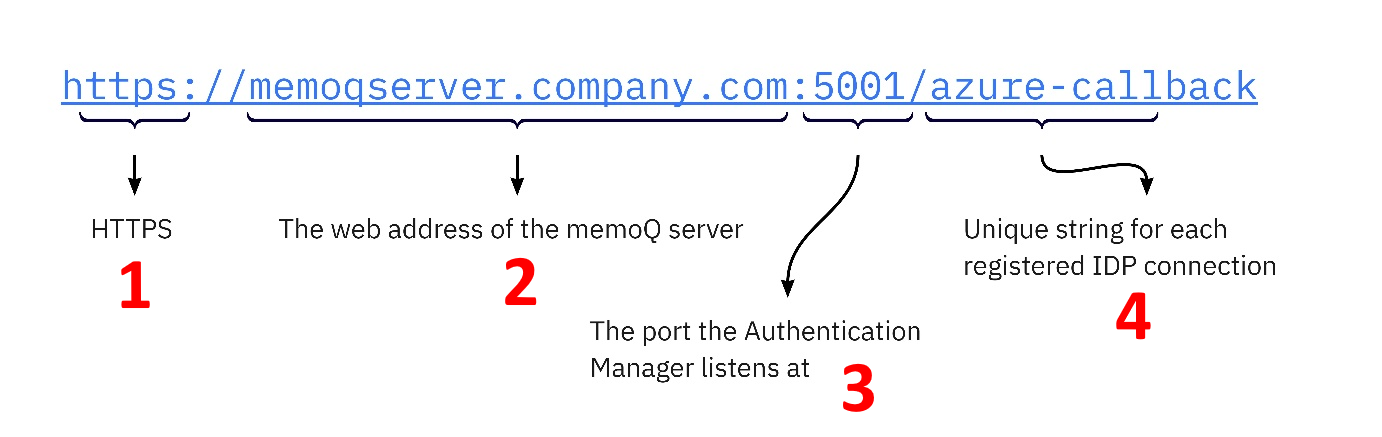
The OIDC backend needs a port (3) for communication with the IDPs. By default, this is port 5001. This port should be open for inbound and outbound communication. If needed, you can configure a different port in the application settings file.
-
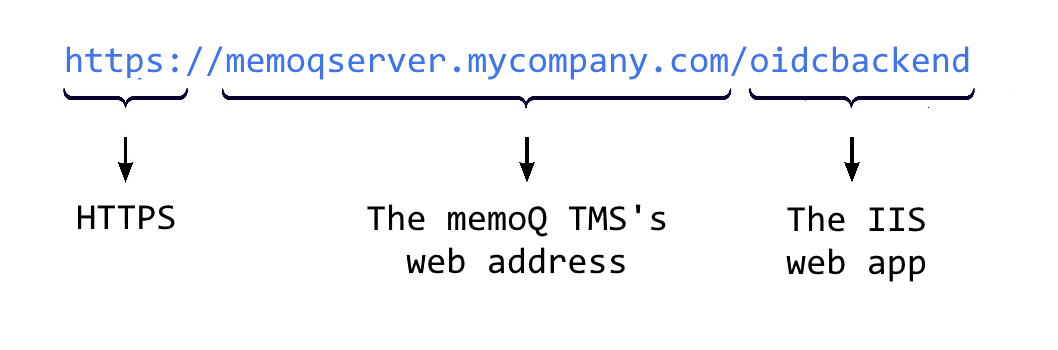
For running the OIDC backend as an IIS web application, the callback URL looks like this:
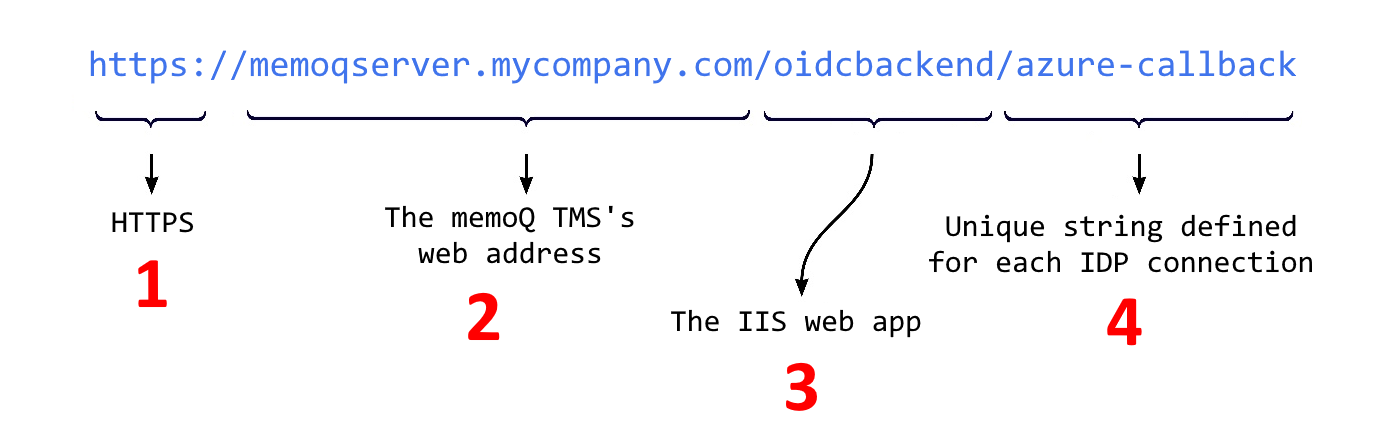
You can choose the callback URL’s last part (4) as needed, but:
-
It must not be “login”, “logout”, or “auth”.
-
If you register at more than one IDP, this part must be unique for each of them.
When you register the memoQ TMS as a client at the IDP, the memoQ TMS receives a Client ID and a Client Secret. You will need these to set up your IDP in the OIDC backend configuration.
Make sure your firewall is set up correctly: The IDP might require opening some ports on the company firewall. To learn more, search your IDP's documentation.
Set up allowed hosts and logging
The OIDC backend needs to learn about the host name(s) it must answer.
Set these up in the file %PROGRAMDATA%\MemoQ Server\Oidc Backend\appsettings.User.json.
Logging details are stored in a separate file, %PROGRAMFILES%\Kilgray\MemoQ Server\Oidc\appsettings.json.
Hosts allowed to call the OIDC backend
In this example, “*” stands for any host name. If you want to limit access, edit the value of the AllowedHosts key: Enter one or more domains (for example, “*.mycompany.com”) or specific host names (for example, "machine1.mycompany.com"), separated by semicolons (;). Else, leave the AllowedHosts value unchanged.
If you changed the port number from the default, change the part after the colon (:) in the urls key: 
Else, leave the urls value unchanged.
Logging
The %PROGRAMFILES%\Kilgray\MemoQ Server\Oidc\appsettings.json file defines the logging details.
Find the key "Name": "File" under Serilog.WriteTo. The keys under Args here define important parameters:
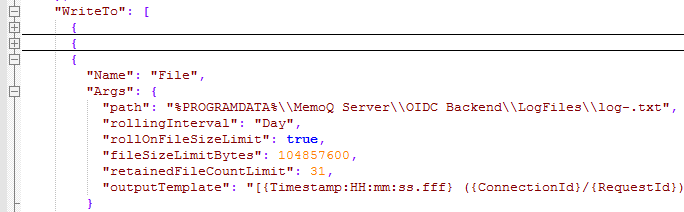
path: By default, the log is stored in the file %PROGRAMDATA%\MemoQ Server\Oidc Backend\LogFiles\log-.txt.
rollingInterval, rollOnFileSizeLimit, fileSizeLimitBytes: Logs are written to daily files (do not change this), but if the file size reaches the limit (100 MB by default), a second file will be created for that day.
retainedFileCountLimit: By default, the last 31 log files are kept on the server.
By default, logging level is Information.Serilog.MinimumLevel.Default key's value to Debug or Verbose.
Verbose lists everything, even names and secrets – use it only when it is really needed, and only if it complies to your organization's data protection policies.
These settings are not permanent: When you update memoQ TMS, its whole folder under %PROGRAMFILES% is overwritten. This means that all settings in appsettings.json will change back to their default values. We recommend not changing them - unless you really need to.
How to get here
When you do this, memoQ TMS will already be installed on the server computer.
- Log in to the memoQ TMS server computer through Remote Desktop.
-
Windows may ask you to confirm to run the program. Click Yes or Run.
-
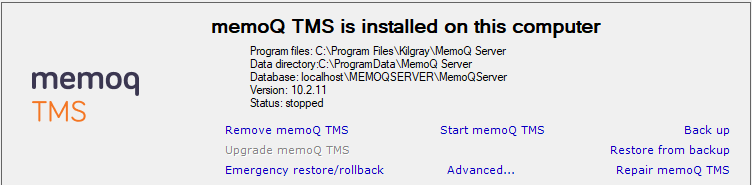
The memoQ TMS deployment tool window opens.
-
Click Stop memoQ TMS. Wait until memoQ TMS stops.
-
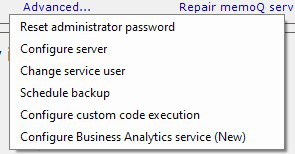
Click Advanced:
-
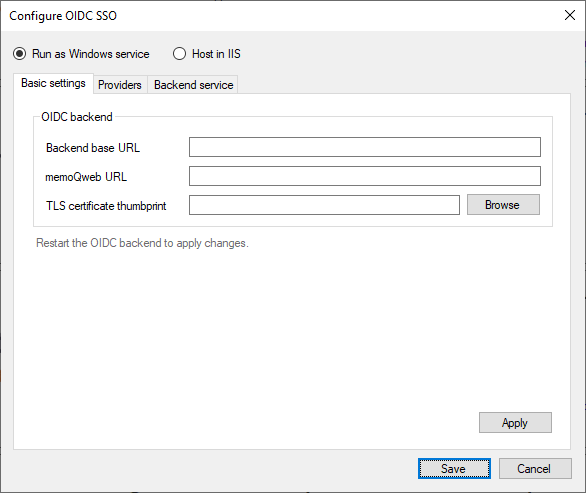
From the menu, choose Configure OIDC SSO. This window opens:
What can you do?
Set up OIDC SSO as a Windows service
The MemoQ OIDC Backend Service is a separate Windows service next to the memoQ Server service. It is installed together with memoQ TMS, but to make it work, you need to configure it (after registering your memoQ TMS at an IDP).
-
Make sure Run as Windows service is selected at the top.
-
On the Basic settings tab, fill in these fields:
-
Backend base URL:
-
memoQweb URL: Use the same value as on the Address tab in the Configure server window.
-
TLS certificate thumbprint: Click Browse and select the certificate from the list.
-
-
At the bottom, click Apply.
-
On the Providers tab:
-
Click Add provider.
-
In the Add provider window, select a provider from the dropdown.
As of version 12.6,
-
Some fields are populated. Fill in the empty ones.
Generic settings Parameter Description NameThe IDP’s name in the memoQ TMS database. Change as needed.
DisplayNameThe text on the IDP's button you’ll see on the login page. Change as needed.
ClientIdThe Client ID that the IDP generated for your memoQ TMS.
ClientSecretThe client secret or secret key you received when registering your memoQ TMS at this IDP.
CallbackPathThe last part of the callback URL that you registered at the IDP. You need to change the default value.
IDP-specific settings Parameter Description TenantYour Microsoft Azure tenant.
TenantIdYour OneLogin tenant.
OktaDomainYour Okta domain.
AuthServerIdYour Okta authorization server's ID.
OktaOrgYour Okta organization's base URL (without
http://). -
At the bottom of the window, paste the client secret you received from the IDP.
-
To use a custom icon for the IDP on the memoQweb login page, click Browse and navigate to the icon file. Accepted formats are PNG, SVG, JPG, and ICO.
-
To add the provider, click Apply.
The provider appears in the list.
-
To add another provider, click Add provider again, and repeat the procedure.
To change a provider's settings, select it and click Edit info.
To remove a provider from the list, click Remove provider.
-
-
On the Backend service tab:
-
Click Install.
-
In the Install OIDC backend service window, choose an account type. Only change the default setting if it's necessary.
Note: The account that you choose for running the service needs to have read and write access to the memoQ TMS database, and read access to the certificate. This is true for all account types (LocalSystem, NetworkService, VirtualService, or ServiceUser).
-
After the service is installed. click Start.
-
At the bottom, click Save.
-
-
At this point, you need to restart:
-
the memoQ TMS service
-
the IIS application pool that runs memoQweb.
-
OIDC backend is now configured on your memoQ TMS. The server accepts:
- SSO logins: Users choose an IDP service, and sign in with the usernames and passwords they have at that IDP.
- Legacy SSO logins: Users sign in with the usernames and passwords they have in the company's Windows Active Directory. From the OIDC point of view, these users behave like local logins, and they can be changed to OIDC-based SSO.
- Local logins: Users who have neither IDP credentials nor Windows AD accounts can still use their memoQ usernames and passwords.
You can now tell a memoQ admin user to start creating or updating users on the memoQ TMS (see Part 2 of this document).
Set up OIDC SSO as an IIS web app
-
Make sure Host in IIS is selected at the top.
-
On the Basic settings tab, fill in these fields:
-
Backend base URL:
-
memoQweb URL: Use the same value as on the Address tab in the Configure server window.
-
-
At the bottom, click Apply.
-
On the Providers tab:
-
Click Add provider.
-
In the Add provider window, select a provider from the dropdown.
As of version 12.6,
-
Some fields are populated. Fill in the empty ones.
Generic settings Parameter Description NameThe IDP’s name in the memoQ TMS database. Change as needed.
DisplayNameThe text on the IDP's button you’ll see on the login page. Change as needed.
ClientIdThe Client ID that the IDP generated for your memoQ TMS.
ClientSecretThe client secret or secret key you received when registering your memoQ TMS at this IDP.
CallbackPathThe last part of the callback URL that you registered at the IDP. You need to change the default value.
IDP-specific settings Parameter Description TenantYour Microsoft Azure tenant.
TenantIdYour OneLogin tenant.
OktaDomainYour Okta domain.
AuthServerIdYour Okta authorization server's ID.
OktaOrgYour Okta organization's base URL (without
http://). -
At the bottom of the window, paste the client secret you received from the IDP.
-
To use a custom icon for the IDP on the memoQweb login page, click Browse and navigate to the icon file. Accepted formats are PNG, SVG, JPG, and ICO.
-
To add the provider, click Apply.
The provider appears in the list.
-
To add another provider, click Add provider again, and repeat the procedure.
To change a provider's settings, select it and click Edit info.
To remove a provider from the list, click Remove provider.
-
-
On the Backend service tab:
-
At this point, you need to restart:
-
the memoQ TMS service
-
the IIS application pool that runs memoQweb.
-
OIDC backend is now configured on your memoQ TMS. The server accepts:
- SSO logins: Users choose an IDP service, and sign in with the usernames and passwords they have at that IDP.
- Legacy SSO logins: Users sign in with the usernames and passwords they have in the company's Windows Active Directory. From the OIDC point of view, these users behave like local logins, and they can be changed to OIDC-based SSO.
- Local logins: Users who have neither IDP credentials nor Windows AD accounts can still use their memoQ usernames and passwords.
You can now tell a memoQ admin user to start creating or updating users on the memoQ TMS (see Part 2 of this document).
Using multiple IDPs with a memoQ TMS
A memoQ TMS can accept user authentication from more than one IDP system. For example, two departments of a company might use different Azure AD tenants, or in-house employees might use Okta, while external vendors (freelance translators) can sign in with their personal Google or Microsoft accounts.
In addition, you can have the “traditional” users who can log in with memoQ TMS credentials.
No multiple IDP systems per user: One memoQ user can only be connected to a single IDP system - or none, if they use the “traditional” memoQ login.
Further information
See Part 2 of this document (for memoQ admins) here.
See troubleshooting tips, general user authentication schemas and a few tips for test environments here.