

Advanced filters in memoQ editor
The Advanced filters window helps you quickly narrow down the content in your translation document. You can set the conditions for filtering the rows in memoQ editor. This lets you focus on the segments or elements relevant to your current task, saving time and improving efficiency.
How to get here
- Open an online project.
- Open a document for editing.
- At the top of the translation grid, next to Clear filters and Apply filter, click Advanced filters.
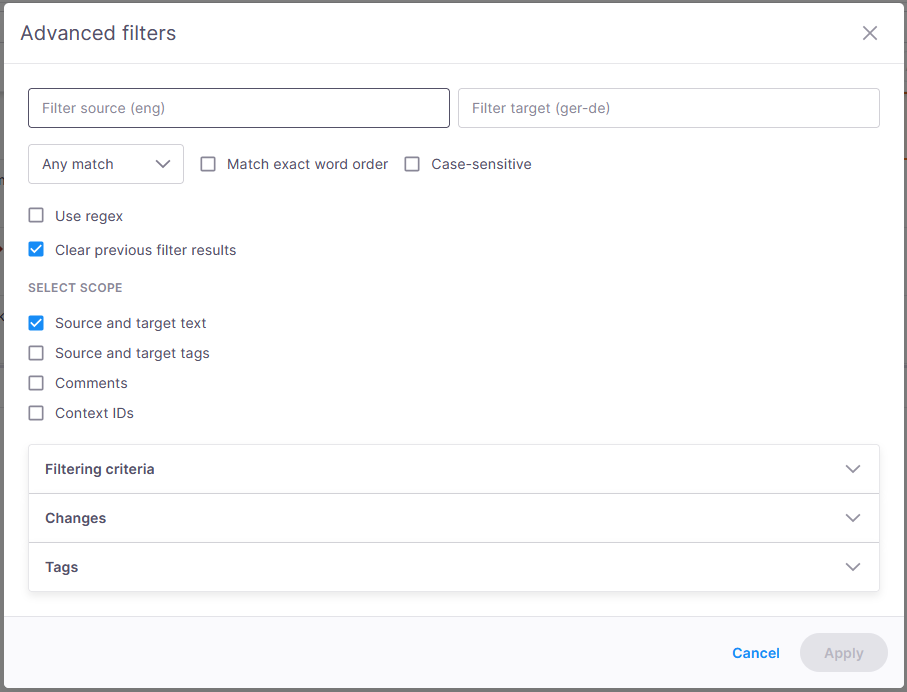
This opens the full Advanced filters dialog.
What can you do?
 Use basic filters
These controls match what you see on the main toolbar, and they always stay in sync.
-
Filter source and target input fields - They are synchronized with the main screen filter inputs. Changing text here or on the main screen updates both instantly.
-
Use the Match type dropdown to define how memoQ should look for your text:
-
Any match: any part of the text can contain the search term. Example: Filtering for "table" returns segments containing "tables", but not "tabloid".
-
Words match: this option means that your search term must match whole words in the text. Example: Filtering for "table" returns segments containing "table", but not "tables".
-
Entire segment: this means memoQ only returns segments that fully match your search term. Example: Filtering for "table" returns only segments whose full text is "table".
-
If needed, turn on the Match exact word order option to find words in the exact sequence you typed them.
When this is off, memoQ finds the same words in any order within the segment. This option isn't available when you select the Entire segment option from the dropdown.
-
Case-sensitive: uppercase and lowercase letters need to be exactly as in the search term. Example: Filtering for "table" returns segments containing "table", but not "Table".
-
-
Use regex - It lets you filter using regular expressions for more advanced and flexible search patterns.
When you check it and click Apply:
-
The matching dropdown, Match exact word order, and Case-sensitive options become unavailable, because regex takes over how matching works.
-
The font in both filter input fields changes to show that any text you enter is now interpreted as a regular expression.
-
The existing content of the filter input fields stays the same, nothing is cleared or reset.
Use this option when you need more powerful and precise filtering than what simple text matching provides.
-
-
Clear previous filter results (switched on by default) - memoQ editor automatically clears all previous filter results and applies your filters to the entire document again. When it’s not checked, each new filter keeps narrowing down the results you already have until you click Clear filters.
Set filtering criteria
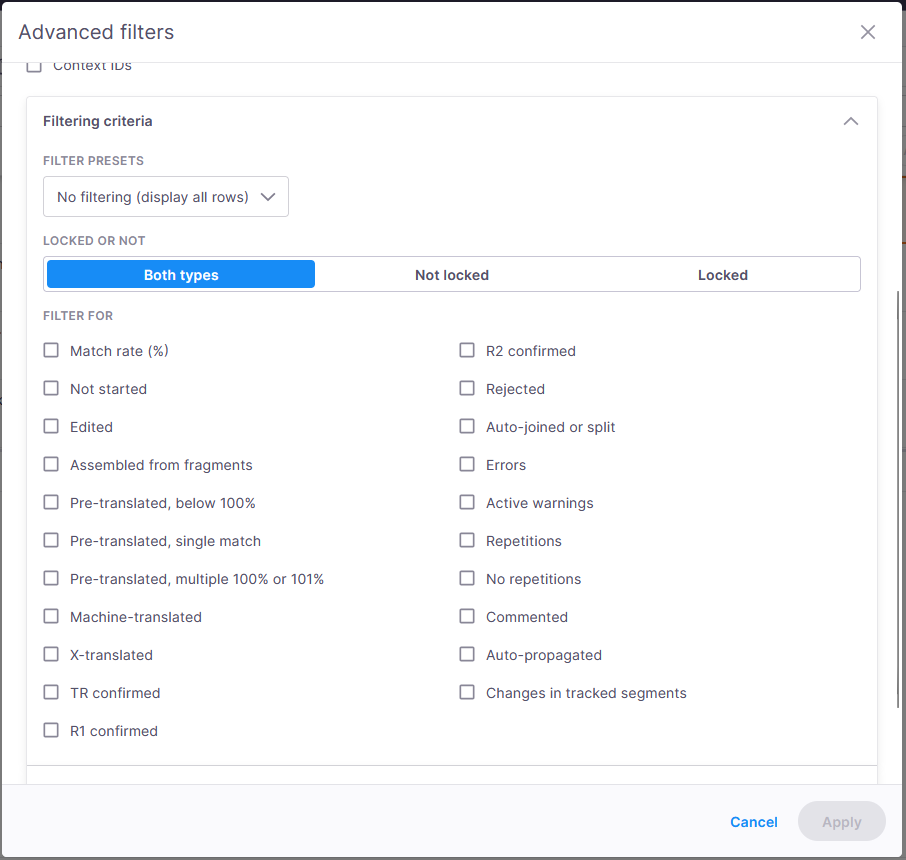
This is where you can fine-tune exactly what parts of your translation document you want to see by choosing from a set of handy filter options.
Here’s how it works:
-
Filter presets dropdown menu - lets you quickly pick from predefined filter sets that control what kind of segments are shown.
The options include:
-
No filtering — shows all rows (this is the default).
-
Not confirmed in any role — segments not confirmed by anyone.
-
Confirmed by TR or R1 or R2 — segments confirmed by any of these roles.
-
Match rate (%) — lets you filter based on the match percentage (see the Row properties section below for details).
-
Repetitions — segments that repeat within the document.
-
Locked — locked segments.
-
Not locked — segments that are not locked.
-
Custom — your own custom filter settings.
All your changes to the Custom preset are saved for the current session once you click Apply.
If you start changing any filter options manually while a preset is selected, the dropdown automatically switches to Custom to show that you’re using your own settings.
-
Locked or not section
Just below the presets, you’ll see a toggle with three options:
-
Both types (default) — shows both locked and unlocked segments.
-
Not locked — shows only unlocked segments.
-
Locked — shows only locked segments.
Filter for section
Here, you can pick specific conditions you want to filter by, using checkboxes:
-
Match rate (%) — when checked, you get to select a range between 0 and 102% to filter segments by their match score.
-
Not started — segments you haven’t started translating yet.
-
Edited — segments you’ve modified but haven't confirmed.
-
Assembled from fragments — segments created by combining fragments.
-
Pre-translated, below 100% — segments pre-translated using the Good TM or corpus match option.
-
Pre-translated, single match — segments pre-translated from a single exact match.
-
Pre-translated, multiple 100% or 101% — segments pre-translated from multiple exact or context matches.
-
Machine-translated — segments translated with an MT service.
-
TR confirmed, R1 confirmed, R2 confirmed — confirmed by specific roles.
-
Rejected — segments you’ve rejected.
-
Auto-joined or split — segments automatically combined or split.
-
Errors — flagged errors.
-
Repetitions — repeated segments within the document.
-
Not repetitions — segments that are not repetitions.
-
Commented — segments with comments.
-
Auto-propagated — segments updated by auto-propagation.
-
Changes in tracked segments — segments where tracked changes were made.
Filter by specific changes
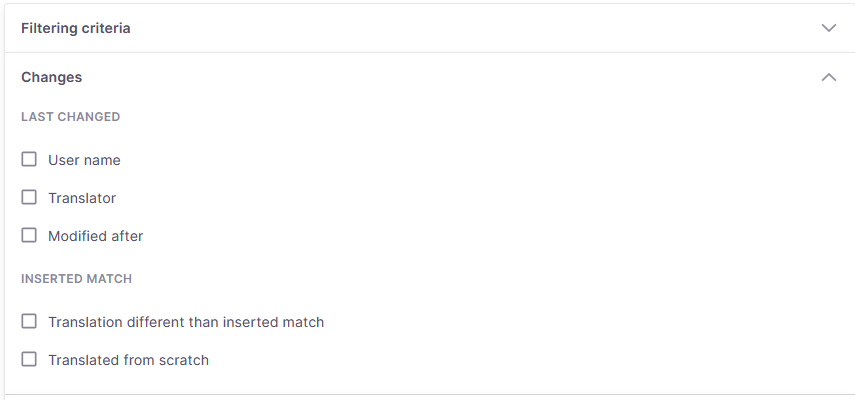
This accordion helps you filter segments based on editing history or status.
Here’s what you can filter by:
-
Last changed -This section lets you filter rows based on who last changed them or when they were last changed.
-
User name - Use it to filter by the person who last edited a row. You’ll get a dropdown of users who made changes, with the default selection set to Everyone but me (so you don’t filter out your own work).
-
Translator - Similar to the User name filter, but specifically for translators who worked on the rows, with the default selection set to “Everyone but me” (so you don’t filter out your own work).
In both cases above, the user list loads only when you select this option, so it won’t slow you down.
-
Modified after - Choose a date and time to see only rows that were changed after that moment.
-
-
Inserted match - This section helps you filter rows based on the status of inserted matches.
-
Translation different than inserted match - Check this if you want to find rows where the inserted match was changed.
-
Translated from scratch - Check this to see rows the translation was done entirely from scratch (no match inserted).
-
Filter by specific tag content
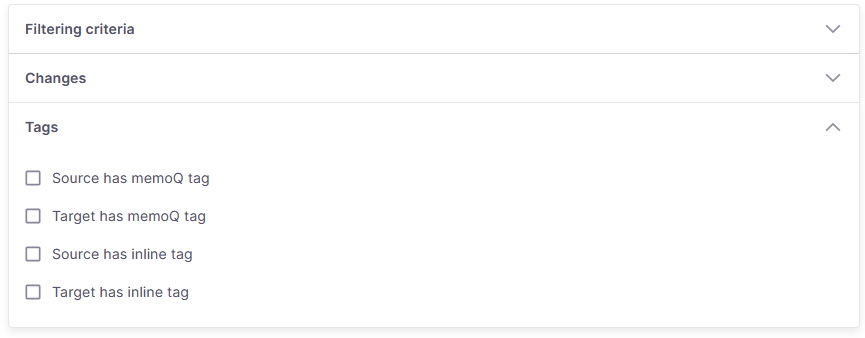
The Tags accordion helps you find rows that include certain tags to focus on the parts of your document that matter most.
Here’s what you can do:
-
Source has memoQ tag - Find rows where the source text includes special formatting tags that memoQ doesn’t interpret as text.
-
Target has memoQ tag - Find rows where the target text includes uninterpreted formatting tags, which might be important if you need to check or fix formatting issues.
Uninterpreted formatting tags are special codes or markers in the text that aren’t shown as normal words but control formatting or structure like bold, italics, hyperlinks, or placeholders. In memoQ, these tags are part of the translation data but don’t appear as visible text in your editor. They’re called uninterpreted because the system treats them as special elements, not regular words.
-
Source has inline tag - Find rows where the source text contains inline tags with specific text inside them.
-
Target has inline tag - Find rows where the target text contains inline tags with specific text inside them.
When you finish
To confirm you filter selection, click Apply at the bottom of the window.
memoQ editor then:
-
Saves all your changes to the advanced filter settings and closes the dialog.
-
Updates the main screen so that the filter inputs there (source and target text fields, match dropdown, and the two checkboxes) show the exact same values you just set.
-
Filters the grid using both your basic filters and your advanced filter options, so the rows displayed match all the criteria you selected.
Thanks to the above actions, everything stays in sync and your filtered view reflects your most up-to-date settings.