

Edit term base entry in memoQ editor
While you’re translating a document, memoQ editor automatically looks up terms in the project’s term bases. When it finds a term in the current segment, it shows it in the Translation results panel. You can edit the term base entry directly from there.
How to get here
-
Open a document in the memoQ editor.
-
In the Translation results panel, memoQ editor displays the terms it finds. Right-click a term that you want to change and select Edit from the context menu.
The Edit term base entry pop-up window opens.
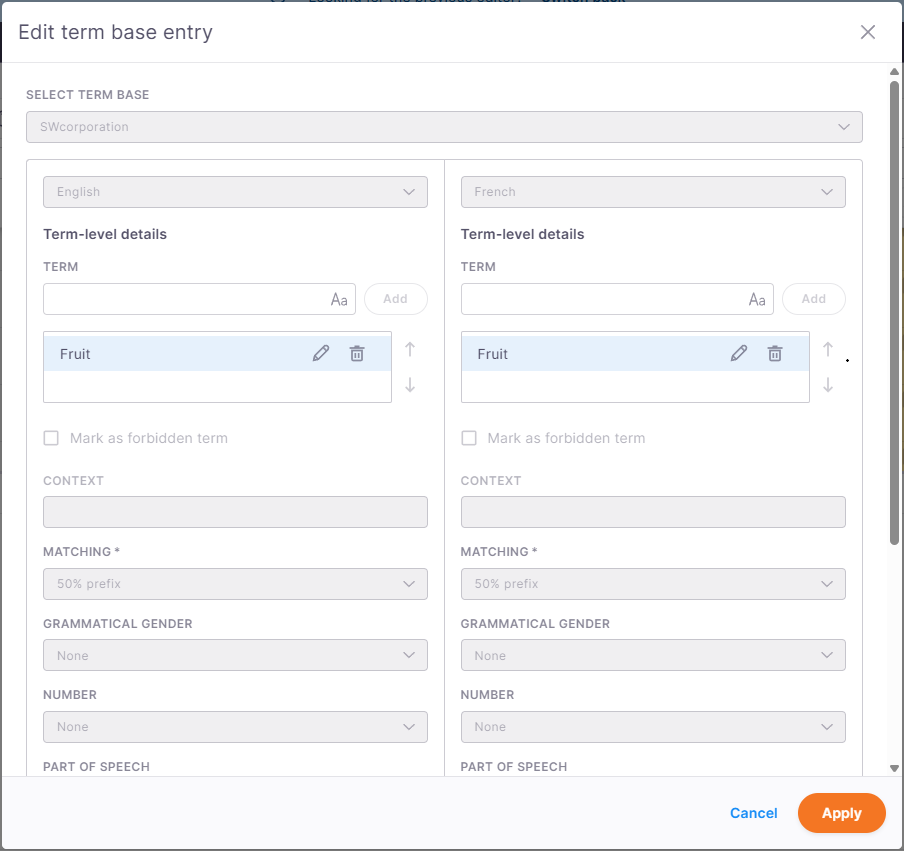
This window looks similar to the Create term base entry window, but it already contains the existing data from the selected entry.
memoQ fills in:
-
The existing terms in all languages.
-
The selected term in the term list.
-
Entry-level metadata (read-only).
-
Qterm-based fields (if the term base comes from Qterm)
For a Qterm-based term base, memoQ editor generates the dialog fields automatically based on the term base definition. The fields match the term base configuration.
-
What can you do?
-
 Modify selected term
memoQ editor selects the clicked term automatically in the term list, but the term input fields remain empty.
To start changing your term:
-
Click the Edit
 icon next to the term. It appears in the term input field below the source or target language depending on the term you selected.
 -
Make your changes and click Save to keep your changes or Cancel next to the original term if you decide not to change it at the end.
The term base name appears at the top of the dialog. You can't change it, because that would move the term to another term base.
-
-
Add new terms
If text is selected in the editor, memoQ editor fills the term input fields automatically.
To add a term, enter text in the term input field and click Add. memoQ editor adds the term to the term list for the selected language.
You can:
-
Enter a new term manually.
Want to change the letter case of a term? Click the Toggle Case
 icon to switch between formats. Each click cycles through lowercase, UPPERCASE, Title Case, Sentence case, and back to the original form. Some variants may be missing (for example Title Case or Sentence case don't apply to single-word terms). The change is also reflected in the list.
 -
Edit terms on either side.
Click the Edit
icon next to the term. It appears in the term input field below the source or target language depending on the term you selected. Make your changes and click Save, or Cancel next to the original term if you decide not to change it at the end. -
Add multiple term variants per language.
-
Move more preferred terms up in the list.
To do that, use the arrows next to the fields with your terms.
-
Delete terms from either side.
To do that, click the Delete
 icon next to the term you want to delete.
Each term list can contain multiple terms and is always visible for each language. You can edit and reorder terms at any time.
-
-
Edit Term-level details
For each term, you can define additional information. They affect how the term is used in terminology lookup and quality checks.
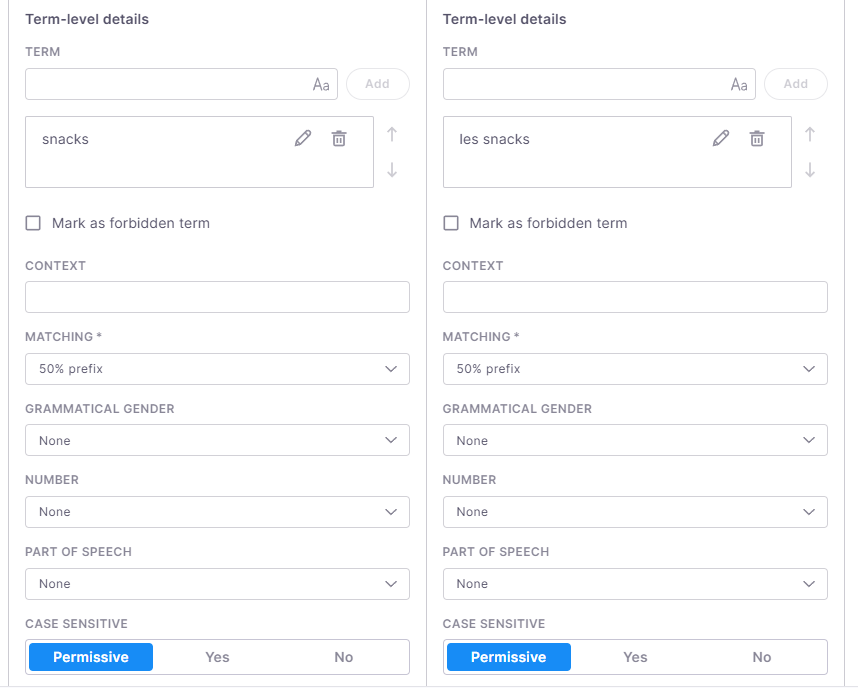
You can choose from the below options:
-
Mark as forbidden term - A forbidden term is a word or phrase that shouldn't be used in the translation.If a source term is marked as forbidden, it won’t appear in the Translation results pane.If a target term is forbidden, it will still appear in the Translation results pane, but it won’t be highlighted - it will just show up in plain black text.Forbidden terms are never highlighted in the text itself. This helps make sure that incorrect or unwanted terms are avoided during translation.
-
Context - Add context in which you would like this word to be used in the future.
-
Matching - It helps to recognize grammatical variants of the term, such as prefixed and suffixed forms. You can choose from custom, fuzzy, exact, or 50% prefix.
50% prefix: This is the default setting. memoQ compares your word from its very beginning (letter by letter) and finds a word if it starts the same way as an entry, and a suffix is added to it. This option suggests terms for words in the text where at least the first half of the word matches the term. Let's see it in use:

Use suggestion: it allows various endings and suffixes, but not if the ending or suffix is longer than the base entry – in other words, if it is more than 50% of the whole word.
Examples of 50% prefix matching:
- the term 'cat' will match 'cats', but not 'catnapping' (cat - 3 + napping - 7)
- term 'review' will match 'reviewer', but not 'reviewability' (6+7)
- the term 'man' will match 'manner', but not 'maneuver' (3+5)
- term 'Projekt' will match 'Projekte', and 'Projektion', but not 'Projektverwaltung' (7+11)
- the term 'noc' will match 'nocnik', but not in 'nocowanie' (3+6)
Fuzzy: Use this if there are variants where the beginning, middle, or end of the term changes. memoQ recognizes the term if a phrase in the source text is at least 80% similar. In this case, memoQ looks at the whole phrase, not its starting letters as in the case of 50% prefix matching. It also recognizes incorrectly typed terms.
This setting gives a lot more matches than the others. It will also find a lot of false positives when checking terms during QA, so use it with caution. Let's see it in use:
Term base entry: translate

The word can start with an additional prefix compared to the base entry ('pretranslate') or have a suffix ('translated'), but the it needs to contain the base entry unchanged.
Use suggestion: for languages where both prefixes and suffixes contain grammatical information, or for expressions containing several words.
Examples of fuzzy matching:
- the term 'Mutter' will match its plural form 'Mütter'
- the term 'Baum' will match its plural form 'Bäume'
- the term 'Anleitung' will match 'Gebrauchsanleitung'
- the term 'board of directors' will match 'boards of directors'
- the term 'manteau' will match 'porte-manteau'
- the term 'system operacyjny' will match 'systemu operacyjnego' or 'systemie operacyjnym'
- even 'superwoman' will match 'superman'
Exact: Use this if there can be no variants of a word. memoQ will find a word in the source text if there is an exact match. Let's see it in use:
Term base entry: spell

Use suggestion: useful for languages with fixed word forms (for example Arabic), or to avoid too many matches (but you may miss matches you need).
Custom: You can have more control over how memoQ finds terms in the text. Your most powerful ally is custom matching. Use this to allow slight changes in the stem when a word gets suffixes. Matches need to start with the base term, but wildcards – pipe ('|') or asterisk ('*') characters – allow variations. If you enter at least one wildcard character in the term, the Matching drop-down box will automatically switch to Custom.
In this document, "stem" means the root of the word, but not in the linguistic sense. It is simply the word part before the wildcard.
Use wildcards to increase the accuracy of the term base and produce fewer false positives during the QA.
What's the difference between '*' and '|' ?
asterisk '*'
- will match any number of characters after the stem
- only the stem is visible in the translation results
- can be placed at the end of the word to match the word's suffixed forms
pipe '|'
- will match any number of characters after the stem
- the full matched term is visible in the translation results
- can be placed in the middle of the word to mark the stem
- allows to define alternative endings
- will match any term that begins with the stem but not the stem itself
If the stem is the same, using a pipe or an asterisk will match exactly the same words, but will highlight different parts and produce different suggestions in the Translation results pane.
Let's see it in use:
Term base entry: text*

Term base entry: program|ming instruction|s

Use suggestion: for languages with flexible and long endings to recognize different word forms, also for languages that tend to write composite words together.
Examples of custom matching:
with a pipe '|':
- the term 'glorif|y will match 'glorify' or 'glorifies' or 'glorified'
- the term 'articula|tion' will match with 'articulations', 'articulaire', 'articulatoire'
- the term 'Wassert|urm' will match with 'Wasserturm', 'Wassertürme', 'Wassertropfen', but not Wasserschutz
- the term 'flick|a' will match with 'flicka', 'flickor'
- the term 'wrażliw|ość sensoryczn|a' will match with 'wrażliwy sensorycznie', 'wrażliwości sensoryczne',
with an asterisk '*':
- the term 'tid*' will match 'tid', 'tider', 'tidning'
You can also use pipe '|' and asterisk '*' at the same time:
- term: 'beautiful* writ|ing' will match 'beautifully written'
- term 'program|mer guide*' will match 'programmer's guide', 'programming guides', and 'program guide'
- term 'gul|t hårstrå*' will match 'gult hårstrå' and 'gula hårstrån'
-
Grammatical gender - Masculine, Feminine, Neuter, None.
The same term may have masculine, feminine, maybe even neutral variants. For example, the French terms 'directeur' and 'directrice' should go into one term base entry. But 'directeur' must be marked as masculine, and 'directrice' must be marked as feminine.
-
Number - Singular, Plural, None.
Use this option when the singular and plural forms are too different to be included as one term, or when the concept exists only in either singular or plural form. memoQ doesn't support dual forms yet.
-
Part of speech - Noun, Adjective, Adverb, Verb, Other, None.
-
Case sensitive - Permissive, Yes, No.
It helps recognize the same term if the uppercase and lowercase letters are different in the term and the text.
-
Permissive - This is the default setting. The term matches the text if their capital letters are the same. Lowercase letters in the term can be capitalized in the text. Use this setting for most proper names.
Term base entry: Editor-in-chief

Other examples:
- ‘it’ will match 'it', 'IT', 'It'
- ‘sample’ will match ‘sample’, ‘Sample’, ‘SAMPLE’
- 'memoQ' will match 'MEMOQ' or 'MemoQ' but won't match 'memoq' or 'Memoq'
-
Yes - The term matches the text only if it has the identical case as the word in the text. Use this for abbreviations like 'TBD' or 'XML'.
Let’s see it in action:
Term base entry: memoQ

Other examples:
-
"IT" in the term base appears only if the source text has "IT" in uppercase, not for the word "it".
-
"Can" in the term base appears only if the source text has "Can" with an uppercase C, not for "CAN" or "can".
-
-
No - The term matches the text if they are the same or the only difference is in letter case. Use this setting for common words.
Term base entry: CAT

Other example:
-
'translation' will match 'Translation', 'TRANSLATION' or 'TranslatioN'
Always set this to No when importing glossaries with initial capital letters. If you use Permissive case sensitivity, memoQ won't recognize the all-lowercase forms of these terms. The same problem occurs if you add the first word of a sentence (with an uppercase initial letter) to a term base.
-
-
-
-
Add language-level details
You can add a definition to each language section. It should describe the meaning of the term in that language and is stored per language, not per entry.
You can find this section below the Term-level details section at the bottom of the window.

-
Modify entry-level details
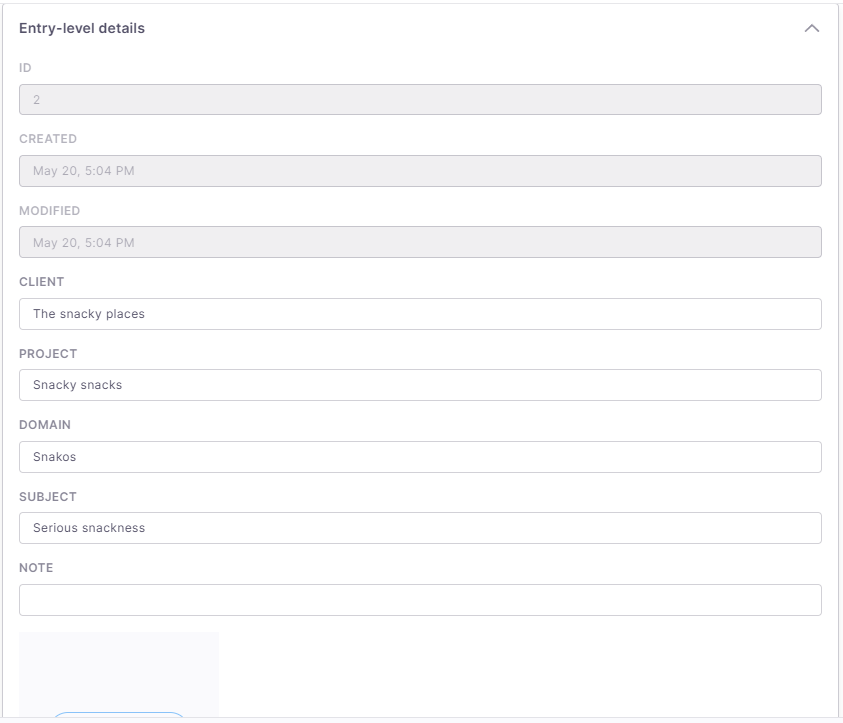
The dialog includes additional read-only fields - ID (the term base entry ID), when the term was created, and its last modification date. You can't edit those fields.
At the entry level, you can store more details information about the entry, such as for which client and project it is, what's the domain and subject, or simply add a note about it.
To add visuals and help clarify the term, click the Upload image button.
Some of these values may already be filled in based on your project settings, but you can adjust them if needed.
You can find all those details under Show details under Translation results.
memoQ editor automatically assigns ALT text to the image to follow the accessibility requirements. It tries to use the first source term, the first target term, the typed term or the uploaded file name. We recommend to double-check it.
When you finish
When you’re ready, click Apply at the bottom of the window.
What happens next? memoQ editor updates the term base entry and shows changes automatically in the Translation results list.
If anything is missing, the required fields are highlighted so you can fix them right away.