

memoQ editor for project managers
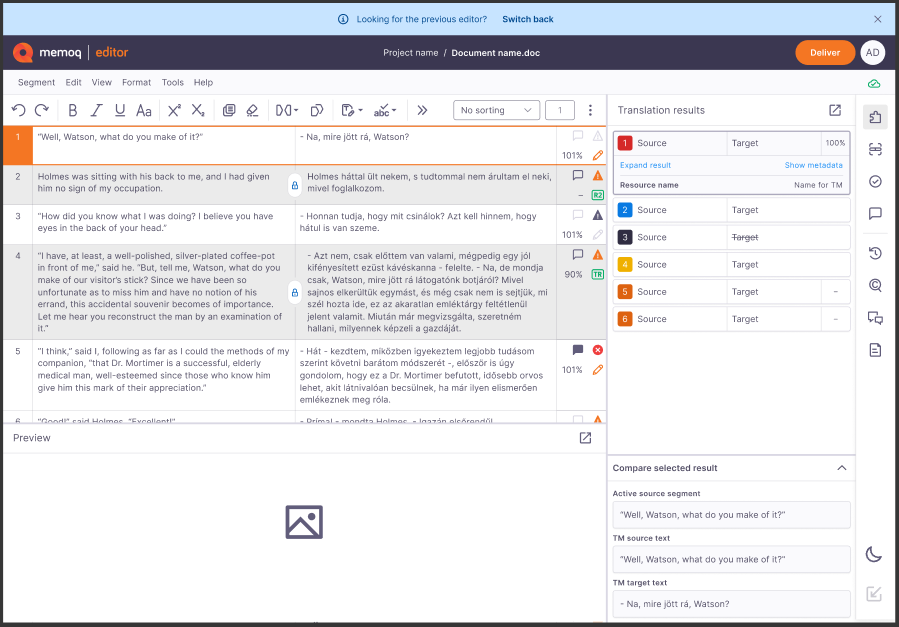
This is our fresh take on the classic webtrans - the tool where you can write, edit, or review your translation in a browser.
Who can use memoQ editor?
Companies: Can use it with an active memoQ TMS subscription. They handle the licensing.
In-house translators: Can use it with a web license provided by their company.
Freelance translators: Can access memoQ editor via a web license assigned by a client for specific projects. Unfortunately, they can’t buy memoQ editor for personal use.
How to get here
Log in to memoQweb as a project manager.
In the Active projects list, click the project you want to work on.
Then, click the document's name.
It opens in a separate browser tab, in the new memoQ editor.
 First time in memoQ editor?
When you open a translation document for the first time after an update to memoQ 11.5 or later, you’ll see a What's new window. It highlights the latest features, so you can quickly see what’s changed and start using the improvements right away.
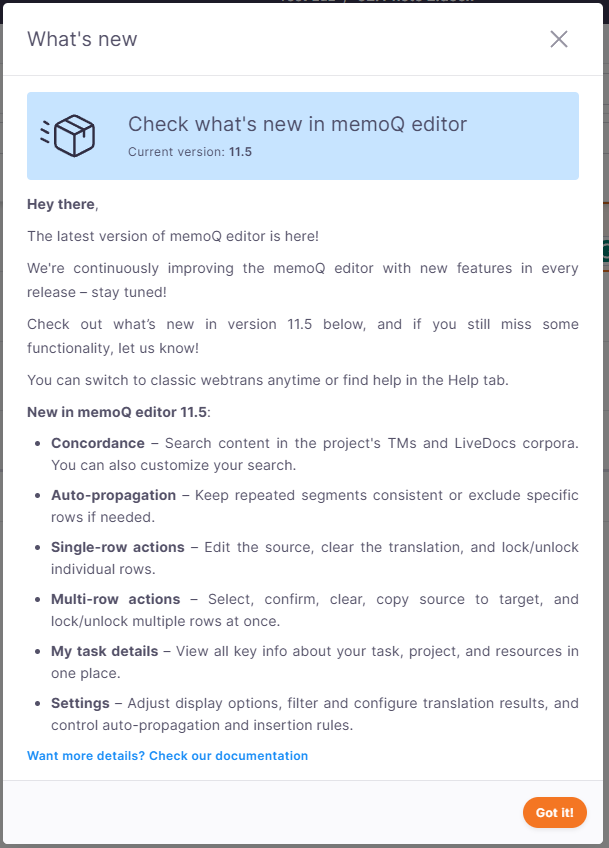
If you need more details about the latest features, click Check our documentation.
To open this window anytime, in the top menu, click Help, then choose What's new.
Switch between editorsYou can switch between the new memoQ editor and the classic webtrans interface at any time, depending on your workflow and feature requirements.
How to switch back to webtrans?
Click Switch back on the banner at the top of the page.
If the banner is no longer visible, click Help in the top menu and select Switch back to the previous editor.
What happens when you switch?
Once you switch, you'll be able to continue working in the classic webtrans.
If you want to return to the new memoQ editor later, use the Try the new editor button in the header. You can switch between the two editors at any time.
When a new version of the memoQ editor is released, you’ll see the What's new screen. You can still switch back if the new version doesn’t yet have all the features you need.
Your feedback is crucial in shaping the new memoQ editor. If you switch back, let us know what’s missing so we can improve the tool and your experience.
What can you do?
- Lock and unlock segments
If you are a project manager or an admin, you can lock rows to prevent translators or reviewers from editing them.
To do that, in the top menu click the Segment tab, and then from the dropdown choose Lock/unlock segment.
You can also press Ctrl+Shift+L.
Locked rows show a lock icon and are excluded from editing. Unlocking removes the lock icon and allows editing. It's possible to lock or unlock multiple segments at once.
- Clear multiple comments at once
The Clear comments function lets you remove multiple or all comments from a document before sharing it with others or saving it. This is useful if the document contains internal notes or discussions that shouldn’t be shared outside the team.
For example, when you export a translated .docx document, memoQ can include comments in the exported file. If you want to make sure that no internal comments are shared with the client or other external reviewers, use Clear comments first to remove them from the document.
To do that:
From the top menu, choose Edit and then click Clear comments.
When opened, the Clear comments dialog allows you to define:
Scope
All rows (default if no rows are selected)
Selected rows
Comment types to clear
All comment types (selects all categories)
Information
Warning
Error
Other
After selecting the desired scope and categories, click Clear.
- Allow linguists to export documents
As a project manager, you can allow linguists to export documents. To do that:
- Log in to memoQweb as an administrator or a project manager.
- On the Active projects list, click a project.
- At the top of the screen, click the Settings tab.
- On the Settings page, click the Options tile.
Under the Document options section, choose the Allow users to export translated document option.
Linguists can see this info under the Task rules section in the My task details window.
- Allow linguists to edit source text
As a project manager, you can allow linguists to edit source segments in memoQ editor. This is useful when the imported document contains source errors that you don't want to get into the project's translation memories.
To do that:
- Log in to memoQweb as an administrator or a project manager.
- On the Active projects list, click a project.
- At the top of the screen, click the Settings tab.
- On the Settings page, click the Options tile.
Under the Document options section, choose the Users can edit source text option.
Linguists can see this info under the Task rules section in the My task details window.
- Use shortcuts for faster work
When you finish
At this point you can:
Export finished document