

Options - Privacy
When you start memoQ for the first time, you see the Help us make memoQ better window. In that window, you decide if you want to share anonymous usage data with memoQ's designers and developers. That window appears not more than three times. If you change your mind later, or want to learn again about our privacy policy or the Customer Insights Program, open the Privacy pane of Options. For memoQ TMS, see Help about Server Administrator's Configuration and logging pane.
How to get here
- At the very top of the window, click the Options
 icon. The Options window opens.
 - In the Category list, click Privacy. The Privacy pane appears.
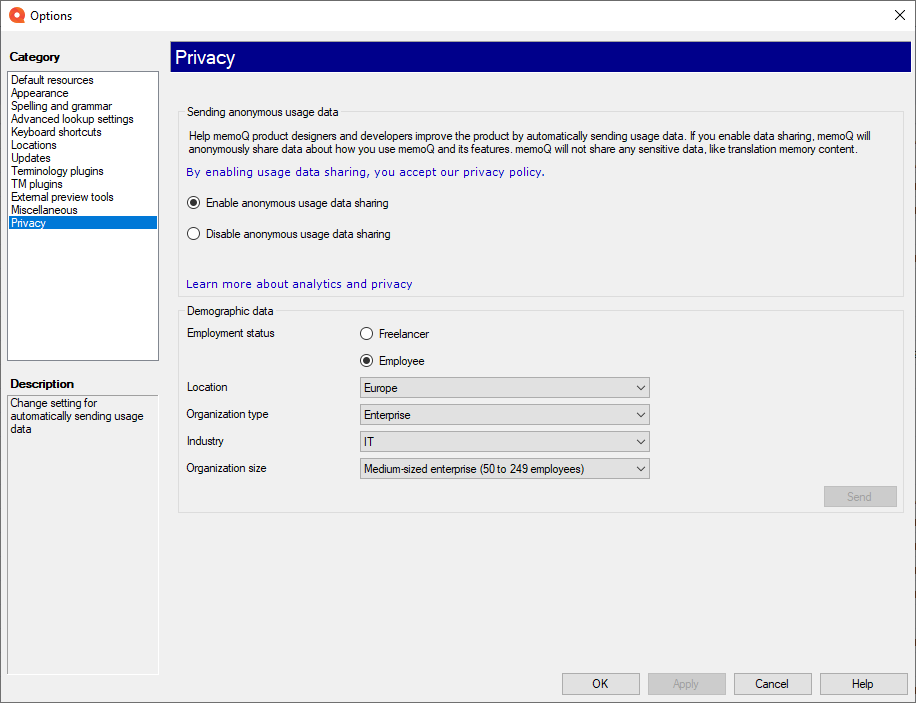
What can you do?
Learn about what data you share with us and how we use those data
- To read memoQ's general privacy policy: Click the privacy policy link.
- To learn more about the Customer Insights Program: Click the Learn more about analytics and privacy link.
Allow or forbid sending us anonymous data about how you use memoQ
- To share anonymous usage data with memoQ's designers and developers: Choose the Enable anonymous usage data sharing radio button.
- To not share any usage data: Choose the Disable anonymous usage data sharing radio button.
Tell us a little about yourself
In the Demographic data region, choose from the first dropdown.
- If you choose Freelancer as your Employment status, choose a region from the Location dropdown.
- If you choose Employee as your Employment status, more dropdowns appear. Choose one answer from the Location, Industry, Organization type, and Organization size dropdowns.
- To not answer a question: Choose Don't want to share from that dropdown.
To send this data to memoQ Zrt.: Click the Send button.
Choose what memoQ TMSs you can connect to
Certificates prove that a server can be trusted. They are needed for secure communication.
If you use the memoQ desktop app to connect to a memoQ TMS via the HTTPS (or the Secure TCP) network protocol, the memoQ TMS server needs a certificate.
There are two types or certificates:
-
you can buy a commercial one from a certificate authority, or
-
you can create a self-signed one yourself.
This is acceptable when working on a company intranet, but you should never connect to another organization’s memoQ TMS server if it uses a self-signed certificate. It can lead to security issues: for example, third-party attackers can gain access to your communication.
To allow connecting to such a memoQ TMS, under Network security, select the Allow connections to servers with self-signed certificates check box.
Don't do this. The only exception is if your PC and the memoQ TMS are both on your company's intranet.
When you finish
To save the settings and return to memoQ: Click OK.
To save the settings and remain in the Options window: Click Apply.
To return to memoQ without making changes: Click Cancel.
 Or, choose another category:
-
Default resources: Choose default resources (segmentation rules, QA settings, ignore lists etc.) for new projects. Do not mix these with resources in project templates. If you create a project from a template, memoQ will use the settings from the template, and not from these options.
-
Appearance: Font and color settings for the translation editor and the Translation results pane. Use this to make the translation editor more readable.
-
Spelling and grammar: Open this to set up the spell checker. Choose to use Word or Hunspell. If you choose Hunspell, you can download and install new dictionaries. Set up the spell checker for every target language you work with.
-
Advanced lookup settings: Choose how memoQ should offer automatic concordance results, and how it should put together suggestions from fragments (shorter translation memory units and terms). Do not change the defaults unless you are entirely certain that you will get better suggestions as a result. If you just tamper with these settings, you may lose productivity. To learn more about these types of suggestions, see Help about the Translation results pane.
-
Keyboard shortcuts: Choose or edit keyboard shortcuts for frequent commands in memoQ. Do not change these before you learn to use memoQ thoroughly. After you change keyboard shortcuts, the Help pages may not help you find them.
-
Locations: Check or change the locations of memoQ folders. These are the folders where memoQ places local projects and checked-out copies of online projects, translation memories, term bases, and others. You may need to change these if you are running low on disk space on your default drive. Do not change them unless it is absolutely necessary. Do not place them on network drives. If you place these folders in synchronized locations (local copies of Dropbox, Onedrive etc.), memoQ may become slower.
-
Updates: Choose how memoQ should check for updates.
-
Terminology plugins: Set up external terminology resources. memoQ can connect to various external terminology providers.
-
TM plugins: Set up access to external translation memory services.
-
External preview tools: Manage preview tools that are not built into memoQ, but installed separately.
-
Miscellaneous: Configure various settings that control how memoQ's editing interface works.
-
Privacy: Learn about memoQ's privacy policy, and enable or disable anonymous usage data sharing with memoQ's designers and developers.