

Manage your filters in memoQweb
A filter tells memoQ how to read - import - a document that needs to be translated. When memoQ imports a document, it gets the text out of it, and stores the formatting (and everything else that doesn't need to be translated) in a safe place. The part that is not the text is called a skeleton. When the translation is done, memoQ puts the translated text back in the original skeleton. This is how the translated document is produced.
How to get here
- Log in to memoQweb as an administrator or a project manager.
- On the left sidebar, click Resources.
-
Under Resources, click Filters.
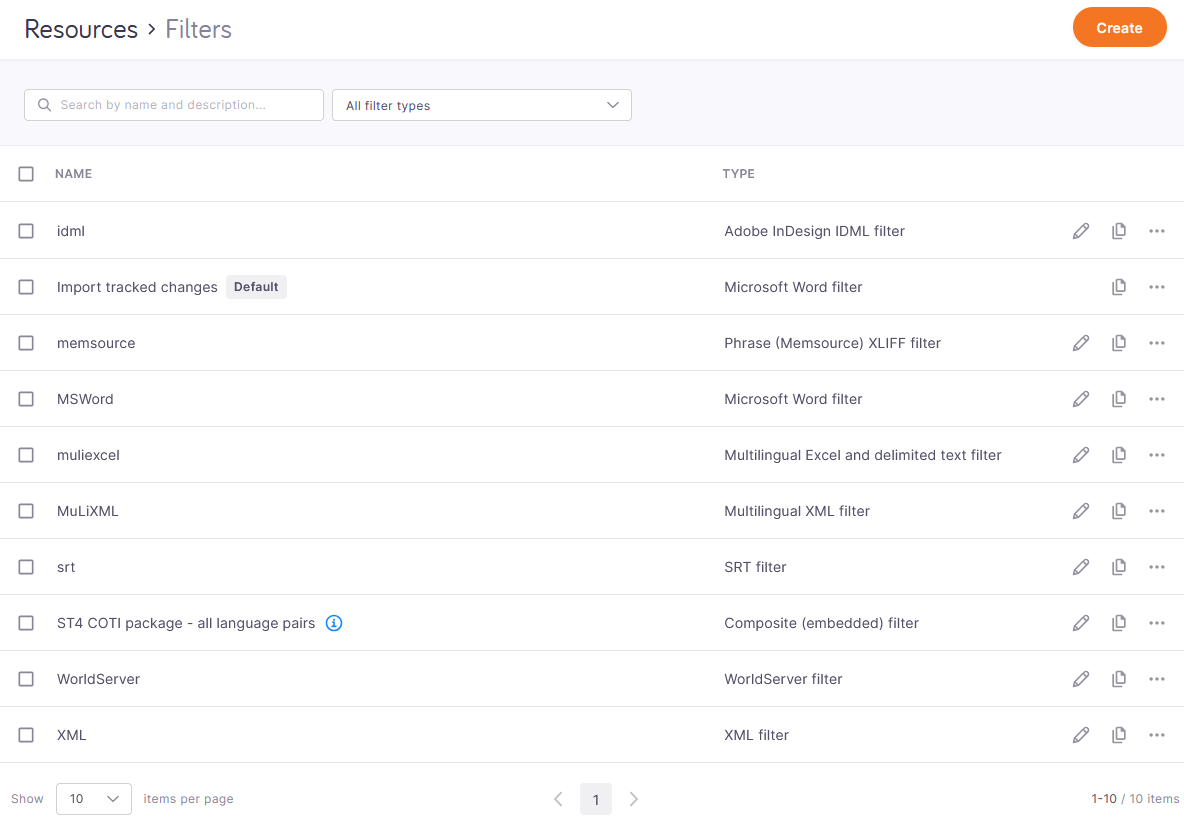
The Filters page opens.
 .
.
What can you do?
 Create a new filter
-
Click the Create button in the top right corner of the page.
- In the dropdown, click Create new filter.
-
In the Create filter window, fill in the Name and Description fields.
-
In the Filter type dropdown, choose a file format.
In memoQ 12.6, you can create a filter for these file formats. We'll keep adding more in each future version.
-
Click Continue at the bottom of the page.
The chosen filter's page opens.
Your new filter appears in the list.
Import a filter from an .mqres file
-
Click the Create button in the top right corner of the page.
-
In the dropdown, click Import filter from file.
-
In the File upload window, find the .mqres file that contains the exported filter, and double-click it.
-
In the Import filter window, fill in the Name and Description fields.
-
Click Import at the bottom of the page.
Your new filter appears in the list.
Get information about a filter. Search or filter the list.
To see information about a filter, hover your mouse over its Info  icon. The tooltip shows the filter's Description field.
Read-only and default filters have tags, and you can't edit or delete them.
To search the list, type a keyword in the search bar above the list and press Enter. The list updates to show only filters that contain the text you typed. To show all filters again, click the X at the end of the search bar.
To see only one type of filters (for example, XLIFF or Multilingual Excel filters), click the dropdown that says All filter types, and choose a type.
When you choose Cascading filter or Composite (embedded) filter from the list, all such filters appear in the list, no matter what file format they are for.
Edit the settings of an existing filter
This feature is available only for the filters you can create.
-
Click the Edit
 icon at the end of filter's row.
 -
The filter's page opens.
-
Make your changes, and click Save in the top right corner.
Clone a filter
-
Click the Clone
 icon at the end of the filter's row.
 -
On the Clone filter page, change the Name and Description fields.
By default, your new filter has the same name as the cloned one, with - copy at its end, for example: My filter - copy. You can easily change it and make it more descriptive.
-
To confirm your changes, click Clone. Your new filter appears in the list.
Download (export) filters
-
To download a single filter:
-
To download multiple filters:
Delete filters
-
To delete a single filter:
-
Click the More options
 icon at the end of the filter's row.
 -
From the menu, choose Delete. memoQweb displays a confirmation window.
-
To delete the selected filter, click Yes, delete.
-
-
To delete multiple filters:
-
Select their checkboxes and click Delete above the list:
-
memoQweb displays a confirmation window.
-
To delete the selected filters, click Yes, delete.
-
When you finish
To go back to the list of active projects, click Projects  .
.