

My tasks - My views
The My views tab helps you organize your work in memoQweb. You can create your own views from selected documents and return to them later whenever you need them.
Views are useful when you work on several related documents and want faster access to them.
How to get here
- You receive a web address (URL) from your customer. Open this address in a web browser. Normally, this will look like https://memoqserver.mycompany.com/memoqweb or https://memoqserver.mycompany.com/memoqweb/webtrans.
-
Open the link you received from your customer in a web browser.
It usually looks like:
-
https://memoqserver.company.com/memoqweb
or
-
https://memoqserver.company.com/memoqweb/webtrans
-
-
Log in using the username and password you received from your customer.
If you open webtrans for the first time (or after a longer time not visiting the app) it may take a bit longer to load. It's normal and should improve on later visits.
-
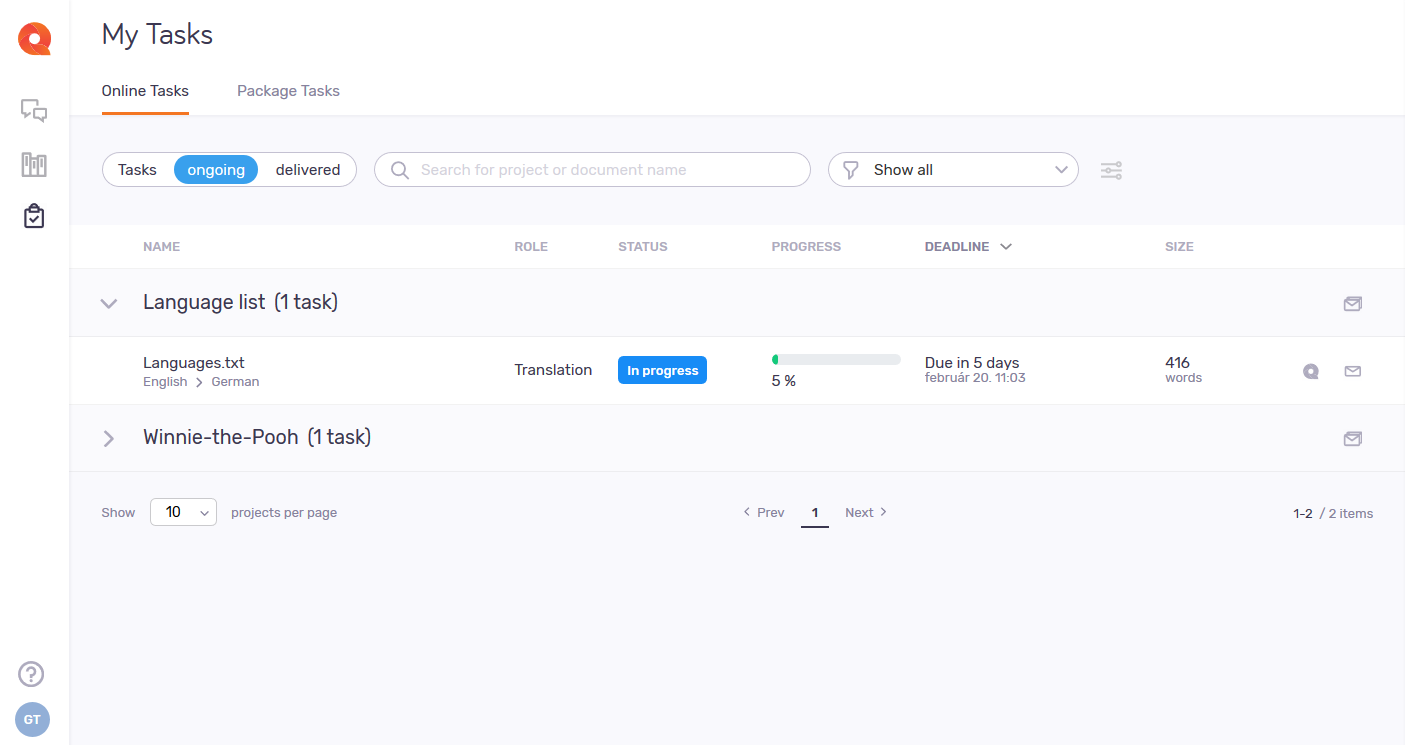
If the My tasks page doesn't open automatically, click the My tasks icon in the left sidebar. The page opens with a list of the documents assigned to you in online projects.
-
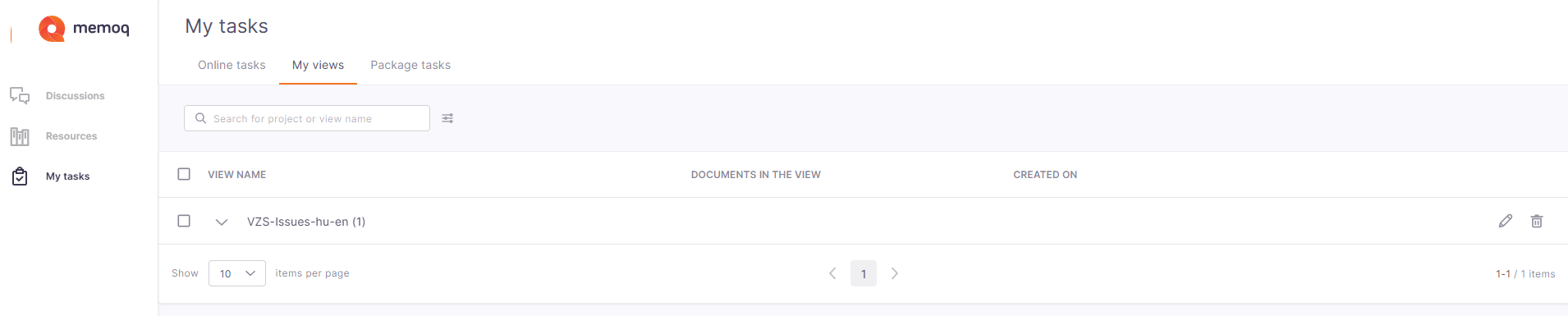
At the top of the screen, under My tasks, click My views. The page displays the views you can work on in online projects.
What can you do?
In memoQweb, project documents automatically open in memoQ editor. You can switch between editors at any time: to return to the classic editor, click Switch back in the banner, or click Try the new editor in the webtrans header to reopen memoQ editor.
 Create a view
You can create a view from the Online tasks tab.
To do that:
-
On the Online tasks tab, select the documents you want to include in your view.
You can use the checkbox in the project header to select all documents in the project. To create a view, you need to select more than one document.
When you select documents, a toolbar appears at the top of the page showing:
-
The number of selected documents.
-
The Create view button.
-
The Deliver documents button.
-
-
Click Create view. memoQ checks the selected documents first.
You can create a view only when all selected documents belong to the same project and use the same target language.
-
Type a name for the view in the Create view window.
Make sure to use a unique name for each view in the same project.
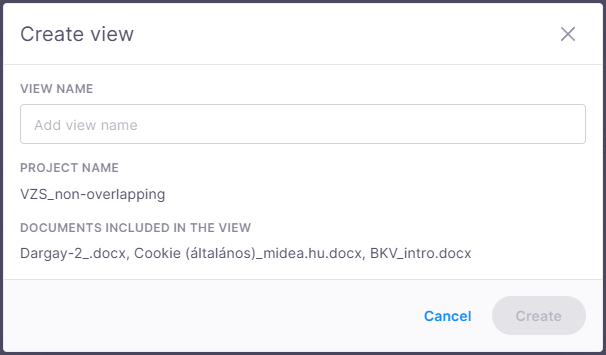
The dialog also shows the project name and all the documents included in the view.
Work in a view
Views are designed to make it clear that you’re working across multiple documents instead of inside a single file.
When you open a view from the My tasks page, it opens in the memoQ editor, even if you last used webtrans.The view’s name appears in the header, so it’s always clear which view you’re working in.
To keep the workspace focused and avoid confusion:
-
The My task details panel doesn't appear.
-
Banners, including the switch-back banner, stay hidden.
-
The Deliver button "isn't there.
-
Export translated document or Join and Split also become unavailable in views.
These actions depend on the rules of the currently active row. When an action isn’t supported for a specific row, its related menu item becomes unavailable.
You can find important information in the status bar as well. It shows the document name for the currently active row, and if the row belongs to a slice, the document name also includes the slice row range in this format:
<document name> (<start row number> – <end row number>)

When document names are too long to fully display, hovering over them shows the complete name in a tooltip.
Formatting options automatically adapt to the document type of the active row, so only relevant formatting tools stay available.
Track progress across multiple documents
When you work in a view that includes multiple documents, memoQ shows your overall progress in one place. This gives you a clear picture of how much work has already been confirmed across all editable documents in the view, no matter which role you're working in.
Progress is calculated by combining confirmed rows from every document you can actively work on.
For example:
-
Document 1 (TR): 5 out of 10 rows confirmed
-
Document 2 (R1): 3 out of 10 rows confirmed
Your overall progress appears as 8 out of 20 confirmed rows.
Only editable documents are included in the calculation. Documents that are read-only, not yet assigned to you, or unavailable because of workflow restrictions don’t affect your progress.
If a row allows it, you can also confirm content in different roles while working in the same view.
Slices don’t affect progress tracking, so progress stays consistent regardless of how the view is organized.
Manage views
To see your saved views, open the My views tab. You can search for views by project or view name.
Here you can:
-
Rename selected view - click the Rename
 icon at the end of view's row. The Rename view window opens. You can only modify the name, it's not possible to add documents or change the project.
 -
Delete selected view - click the Delete
 icon at the end of view's row. You can delete one or several views. To delete several views at once, select them using the checkboxes and click Delete above the view list.
Work with QA issues and comments
-
Check the QA issues panel to review, navigate, and resolve issues without switching between individual documents. The panel collects and displays all relevant QA issues from every document included in the view. QA issues actions in views apply only where editing is allowed.
How does editability work in views?
Whether a feature’s available depends on two things:
-
The workflow status of the document connected to the row.
-
Whether the individual row itself is editable.
For example, rows become read-only when:
-
The document isn’t available to you yet.
-
The document’s already completed.
-
The row’s locked.
-
The row belongs to a later workflow step, such as Review 2 confirmation while you're working as a translator.
If a document or row isn’t editable, the related actions are automatically unavailable.
-
-
Add and view comments (based on workflow access)
Commenting works a bit differently from other row-based actions. As long as the document is available in your workflow, you can still add and comment, even if a specific row is read-only or locked.
The Comments panel shows all comments from documents included in the current view. This makes it easier to review and collaborate across multiple documents or larger tasks in one place.
To keep things clean and help you focus, memoQ editor won't show document-level comments in views. You can only see comments that are relevant to the current rows and working context.
Check reference files
Reference files work the same way in views as they do in standard project documents. Since they belong to the project itself, the Reference files panel shows all relevant project reference materials without any special view-related changes.
Handle assignment changes
-
Assignment changes in private views
Private views show only the documents assigned to you. To open and work with a private view, you must still have access to all documents included in it.
If your assignments change and you lose access to one or more documents included in a private view, the view itself isn’t deleted. It still appears in the My views tab, so you can review its settings or recreate it later if needed.
-
If the view is open
If your access changes while the view is open in the editor, memoQ lets you know that some documents are no longer available to you.
To keep working, you’ll be redirected to the My views tab, where you can create a new view using the documents you still have access to. The current view closes automatically before you’re redirected.
-
If you try to open a view you no longer have access to
If a private view contains documents that are no longer assigned to you, memoQ can’t open the view in the memoQ editor.
Instead of opening the editor, memoQ redirects you to the My views tab, where you can create a new view using the documents you still have access to.
Control row locking based on permissions
Admins and project managers can lock and unlock rows in both documents and views. For all other users, row locking depends on their project permissions for the documents included in the current view.
Pre-translate all rows at once
Pre-translate can run across the entire view, so there’s no need to process documents one by one.
Inside the Pre-translate window, the scope changes from Document to All rows.
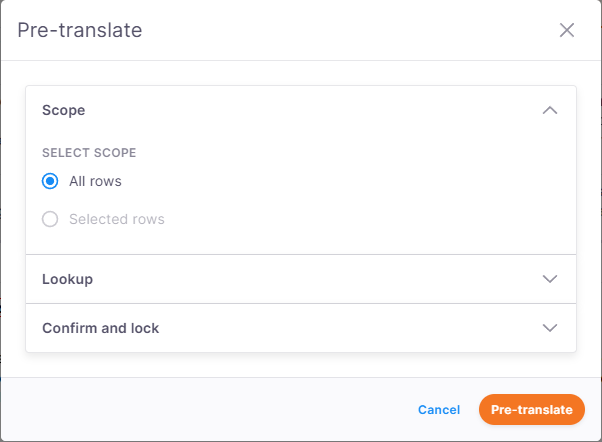
If you didn't select any rows before opening Pre-translate, memoQ editor selects the All rows option automatically.
Since joining and splitting segments only works within individual documents, the Join and split segments for best match option isn’t available in views.
Other Pre-translate functionality continues working across all supported rows in the view.
Preview content in views
The preview pane always shows the preview of the document connected to the currently active row. Previews from different documents never merge together, making it easier to stay oriented while moving through a view.
When switching between rows from different documents the preview starts with a slight delay to avoid unnecessary reloads during fast navigation and the preview pane shows a loading spinner. This keeps previews responsive while still giving accurate visual context for every document.
Preview content outside your slice
When you’re working in a slice, the preview still shows parts of the document that aren’t included in your assignment. These sections are marked with a three-dot icon, which indicates that the content isn’t part of your slice.
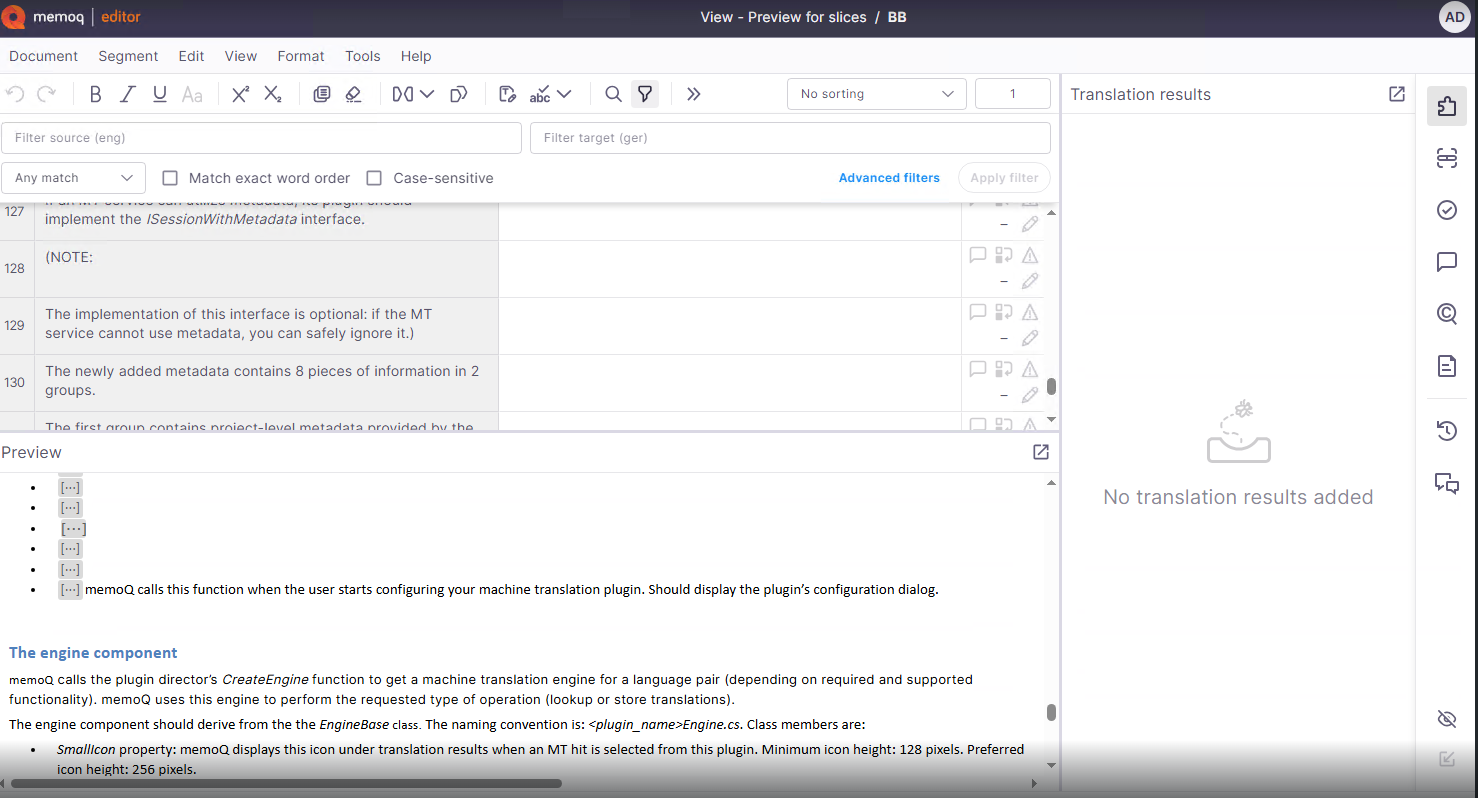
They appear as placeholders so you can see the full structure and flow of the document, while keeping non-editable content separate from the work you’re focusing on.
Change how the page looks
At the top of the page, click the Customize appearance  icon. The Customize appearance panel opens.
Here you can:
-
By default, documents are grouped by project. If you clear it, memoQ shows all views in a flat list.
-
Change density
Density allows you to choose how your page should look like and how much information you want to see. It can be - Compact, Standard (selected by default), or Comfortable.
To save your changes, click Apply.
When you finish
Close the browser tab where you opened webtrans.