

Compare document versions in memoQ editor
Use Compare versions to compare the current document with a previous version, the latest delivered version, or the last inserted match.
The comparison opens in a new browser tab, where you can review the differences and export them to a Word file.
Version comparison isn't available for Views.
How to get here
-
Open a document in memoQ editor.
-
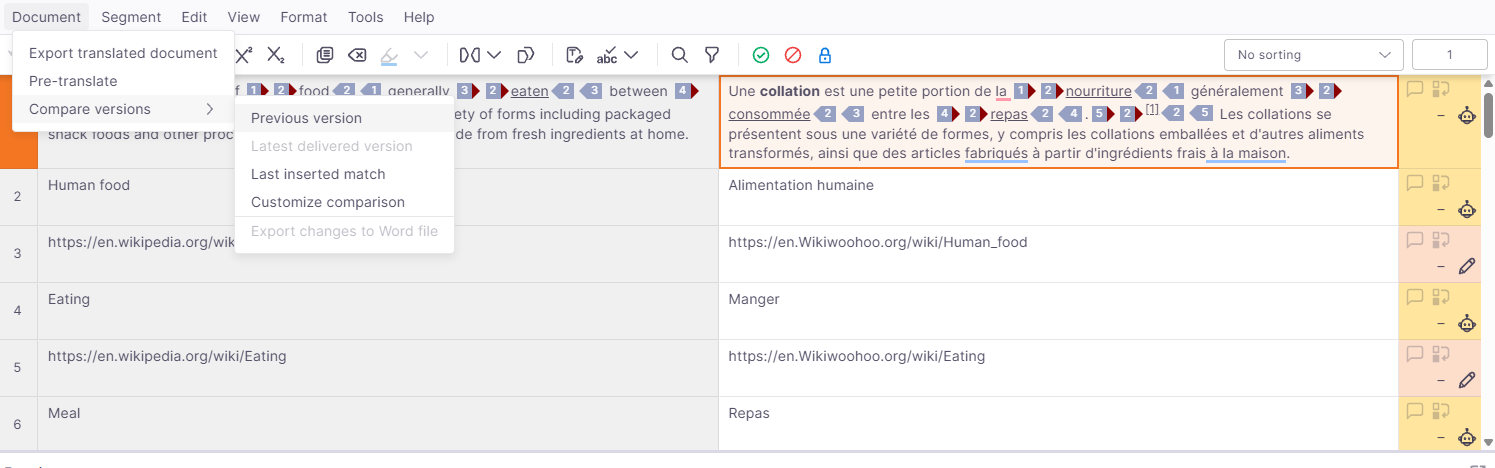
Under the Document tab, select Compare versions.
-
Select what you want to compare:
-
Previous version - Compare the current document with its previous version.
-
Latest delivered version - Compare the current document with the latest delivered version. This option is available only when there's a delivered minor version to compare.
-
Last inserted match - Compare the current document with the last inserted match.
-
Customize comparison - Choose any two minor versions of the same major version to compare.
-
What can you do?
 Choose two versions to compare
Use Customize comparison when you want to compare two specific minor versions of the same major document version. The Choose minor versions window opens and shows the available minor versions. No versions are selected when you first open the window.
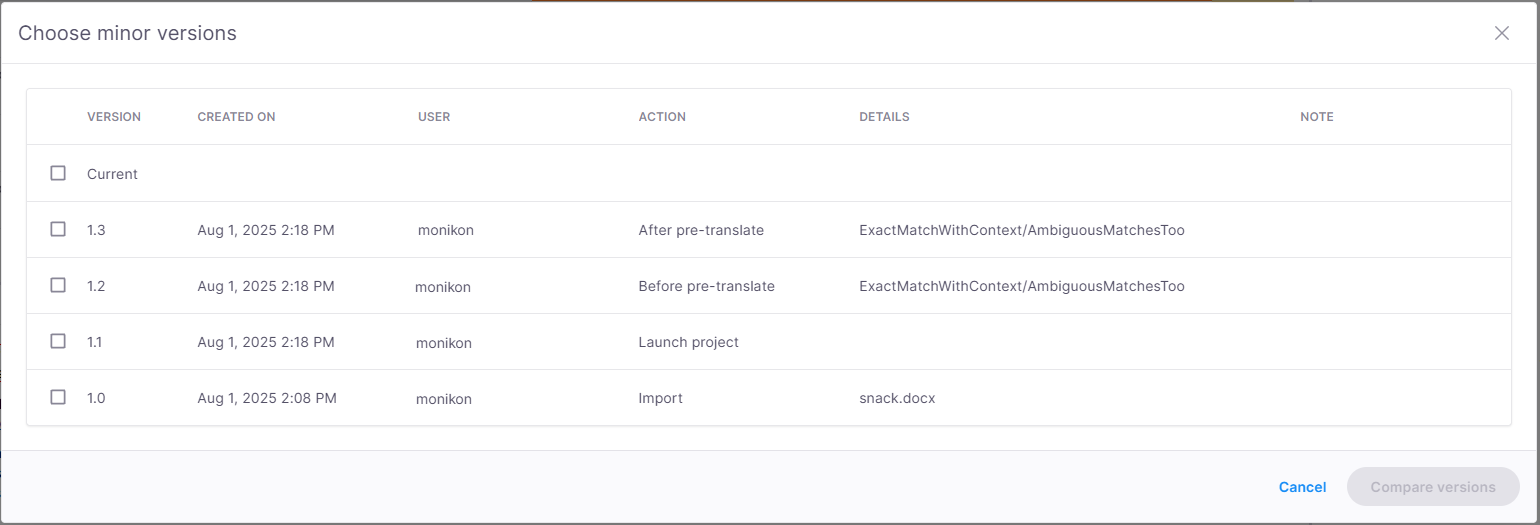
Here you can see:
-
Version: The previous version number. You can also select the current version.
-
User: The person who created the version.
-
Action: What was done to create the version.
-
Details: More information about the version.
-
Note: Any note saved with the version.
You can select only two versions at a time. If you select a third version, memoQ editor keeps your first selection and replaces your second selection with the new one.
The Compare versions becomes available after you select two versions. To close the window without comparing them, select Cancel.
The comparison opens in a new tab and uses tracked changes to highlight the differences. It's read-only and doesn't update if you change the original document.
Review the differences
Each comparison opens in a new browser tab as a separate, read-only document. The comparison name appears in the document header and the browser tab title. Depending on the type of comparison, the document shows one of the following:
-
Comparing versions X and Y: When you compare two document versions, for example, versions 12.1 and 12.4.
-
Comparing last inserted matches with current version.
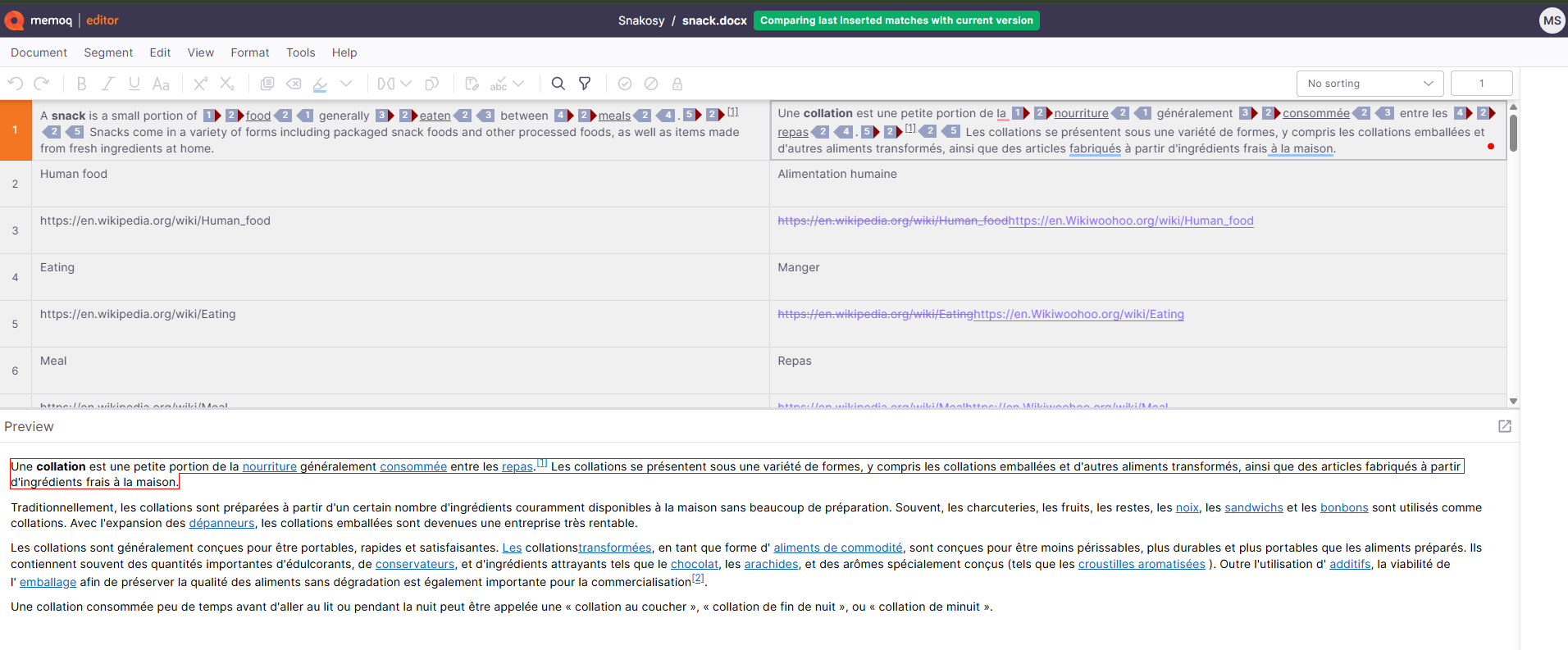
You can review the differences between the selected versions without changing the original document. memoQ editor highlights changes in both the source and target segments:
-
Removed text is crossed out.
-
Added text is underlined.
The comparison uses the final text from the two versions you selected. It doesn't update when someone changes the original document. Any tracked changes saved in the original versions are treated as accepted before memoQ editor compares them. This means the highlights show the differences between the two versions, not the tracked changes that were already present in either version.
Want to check newer changes? Start a new comparison from the original document.
Search, filter, and sort the document
You can't edit the comparison document, but you can still use several tools to find and review content.
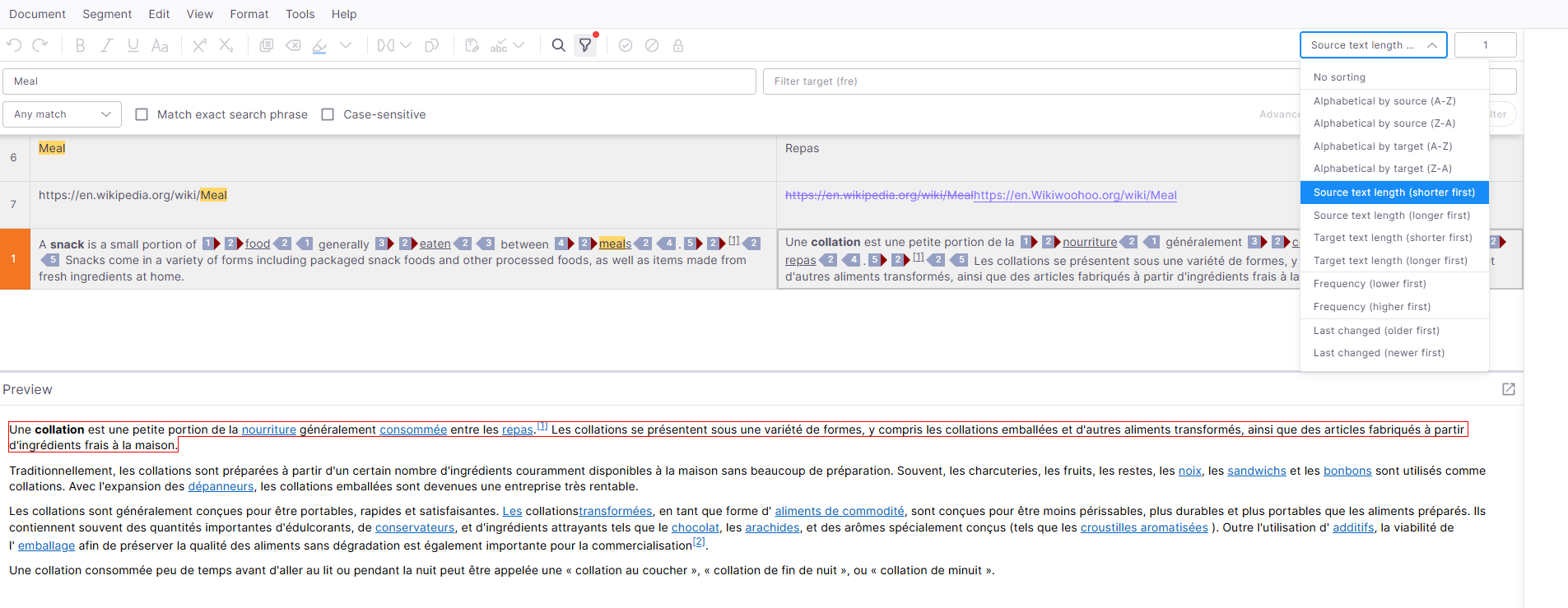
You can still:
-
Search for text.
-
See your current row position and the active row's context ID.
-
Filter the translation grid to narrow down the rows.
-
Jump to a specific row.
-
Sort the rows.
-
Use all the options under the View tab - Show non-printing characters, Tag format, Format line breaks, and Show active row.
-
Show or hide the document preview, or pop it out into a separate window.
Export comparison to a Word file
Want to review the differences outside memoQ editor or share them with someone else? You can export the comparison to a Word file. This option is available only in the comparison document.
To export the comparison:
-
In the comparison document, click the Document tab.
-
From the dropdown list, select Compare versions.
-
Select Export changes to Word file.
memoQ editor exports the comparison as a Word file, regardless of the original document's format.
A comparison document is temporary. memoQ editor removes it when you log out or if you're inactive for more than 15 minutes.
Once memoQ editor removes the comparison, you can't open or reload its browser tab.
If you need to compare the versions again, return to the original document and start a new comparison.